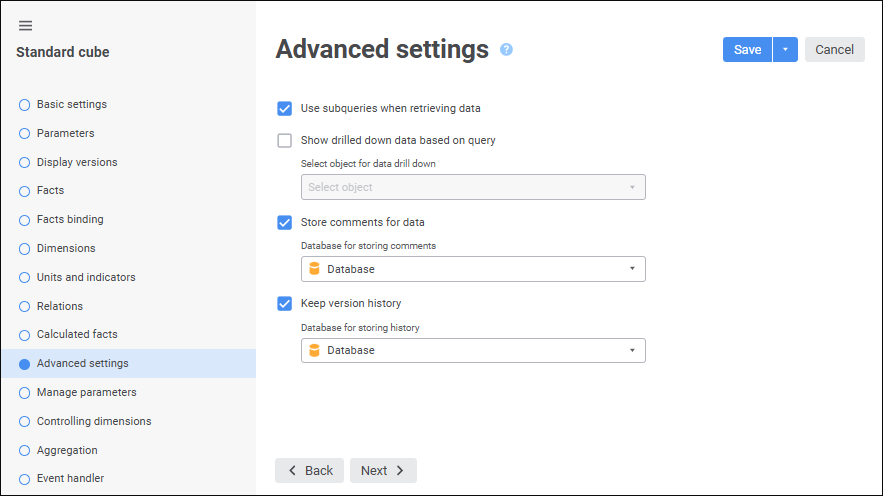
The Advanced Settings page is used to set up parameters for working with standard cube data.

 Use subqueries when retrieving data
If a query-based cube is used, the Use Subqueries when Retrieving Data checkbox is mandatory to aggregate facts. The Use Subqueries when Retrieving Data checkbox is selected by default.
Subqueries are relevant for use when cube sources are built on complex queries working with a big number of fields and executing calculations. In the cube one should use only some source fields and calculate and aggregate data.
To extract data when building a cube, the following query is formed:
Using subqueries:
select a.* from (select a.ID,a.VALUE,a.VDATE,... from <TableName> a) a where ((a.VDATE in (TO_DATE('1995-01-01','YYYY-MM-DD'),...))) and ((a.ID in (1,...))) and ...
Without using subqueries:
select a.ID,a.VALUE,a.VDATE,... from <TableName> a where ((a.VDATE in (TO_DATE('1995-01-01','YYYY-MM-DD'),...))) and ((a.ID in (1,...)))...
When executing subqueries, remember that each complementary subquery nesting level increases the time required to execute the whole query. The general nesting and the number of subqueries depend on the number of cube sources and dimensions.
Show drilled down data based on query
If aggregation is set up for facts, when working with data in various Foresight Analytics Platform tools drilldown of data is also available. If aggregation is not set up, drilldown can be implemented by means of a custom SQL query.
To enable drilldown into relational data, execute the following:
Select the Show Drilled Down Data on Query checkbox.
Select the required query in the drop-down list.
To quickly select an object, enter object's name/identifier/key in the search box depending on display settings. Search is executed automatically while the searched text is entered into the search string. The list will display the objects, which names/identifiers/keys contain the entered text.
To set up displaying of repository objects, click the  Show Object button and select display option in the drop-down menu:
Name. Objects are displayed with their names. Default option.
Identifier. Objects are displayed with their identifiers.
Key. Objects are displayed with their keys.
Several options can be selected. Identifier and key will be specified in brackets.
To reset selection for the selected objects, click the  Clear button.
The query must meet the following requirements:
Names of fields that can be obtained after query execution must match the identifiers of the fields that are bound to dictionary attributes and cube facts.
The number of fields that can be obtained after query execution must not be less than the number of source fields that are bound to dictionary attributes and cube facts.
If a parametric query is used, its parameters can be bound to cube parameters. Binding is executed on the Manage Parameters page.
To add comments for data, the user should have permissions to read and write data:
If the user has read permissions only, he can view comments.
If the user has write permissions, he can add and view comments.
To enable cell comments:
Select the Store Comments for Data checkbox.
Select a database for storing comments in the drop-down list. The database that is set in the repository as a default one. A database for storing can be selected only once during checkbox selection.
NOTE. If default database is not set in the repository, a database for storing comments cannot be selected.
To quickly select an object, enter object's name/identifier/key in the search box depending on display settings. Search is executed automatically while the searched text is entered into the search string. The list will display the objects, which names/identifiers/keys contain the entered text.
To set up displaying of repository objects, click the Show Object button and select display option in the drop-down menu:
Name. Objects are displayed with their names. Default option.
Identifier. Objects are displayed with their identifiers.
Key. Objects are displayed with their keys.
Several options can be selected. Identifier and key will be specified in brackets.
To reset selection for the selected objects, click the Clear button.
After the settings are saved and the cube is used as a data source for regular reports and data entry forms comments can be added.
To disable comments, deselect the Store Comments for Data checkbox. After confirming the operation comments are deleted in all objects, which used the cube as a data source.
Before adding, deleting of changing cube fact type, changing binding between data source fields and dimensions, changing the number of cube dimensions, and changing dimension properties, the operation confirmation dialog box opens. After confirming the operation all comments, and the Store Comments for Data checkbox is deselected.
Data comment storing settings and previously added comments are not included in the process of cube copying.
Simultaneous storing of comments and use of measurement units is not supported.
It is available only for repositories based on PostgreSQL DBMS.
To track cell value version history:
Open the existing cube for edit.
Select the Keep Version History checkbox. The checkbox is available if all cube structure changes are saved.
In the drop-down list select a database for keeping version history. The database that is set in the repository as a default one, is selected.
To quickly select an object, enter object's name/identifier/key in the search box depending on display settings. Search is executed automatically while the searched text is entered into the search string. The list will display the objects, which names/identifiers/keys contain the entered text.
To set up displaying of repository objects, click the Show Object button and select display option in the drop-down menu:
Name. Objects are displayed with their names. Default option.
Identifier. Objects are displayed with their identifiers.
Key. Objects are displayed with their keys.
Several options can be selected. Identifier and key will be specified in brackets.
To reset selection for the selected objects, click the Clear button.
After the settings are saved, the cube can keep version history.
To disable version history, deselect the Keep Version History checkbox. After confirming the operation version history is deleted from all objects, which used the cube as a data source.
When the following changes: selected database, fact dictionary, fact type, facts binding, data source fields binding to dimensions; when fact or data source, for which fact link is set, is deleted, when fact aggregation is set up, the operation confirmation dialog box opens. After confirming the operation version history is deleted, and the Keep Version History checkbox is deselected.
When the cube is copied, version history settings and version history itself are not copied.
Simultaneous use of version history and measurement units is not supported.
See also: