Attributes determine a set of characteristics for each dictionary element.
The Attributes page is used to set a list of dictionary attributes.
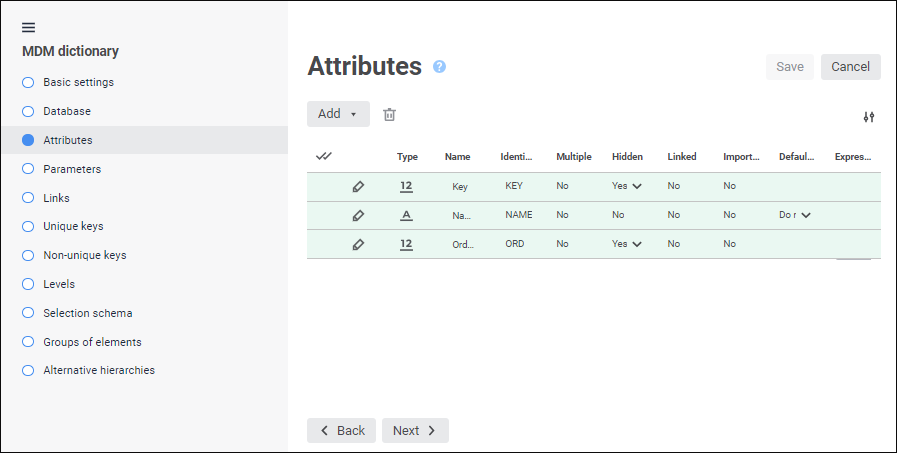
There are the following types of attributes:
MDM dictionary mandatory attributes that cannot be deleted. When creating an MDM dictionary, the Attributes page already contains a minimum set of system attributes:
Key (KEY). MDM dictionaries support element keys within the range 0-2 billions.
Name (NAME). A value by formula can be created for the Name attribute.
Order (ORD).
Owner (PARENT_KEY). The attribute is added automatically on selecting the Elements have Hierarchy checkbox.
Version (VERSION). The attribute is added automatically on selecting the Elements have Hierarchy checkbox.
Start Date (INDATE). The attribute is added automatically on selecting the Elements can Change in Time checkbox. The default start date is 01.01.1900.
End Date (OUTDATE). The attribute is added automatically on selecting the Elements can Change in Time checkbox. The default end date is 31.12.2999.
Hide (HIDDEN). The attribute is added automatically on selecting the Elements have Hidden Attribute checkbox.
Read Permission (READACCESS). The attribute is added automatically on selecting the Elements have Discretionary Access Permissions checkbox.
Edit Permission (WRITEACCESS). The attribute is added automatically on selecting the Elements have Discretionary Access Permissions checkbox.
Delete Permission (DELETEACCESS). The attribute is added automatically on selecting the Elements have Discretionary Access Permissions checkbox.
Permission to Edit Permissions (ACCESSACCESS). The attribute is added automatically on selecting the Elements have Discretionary Access Permissions checkbox.
Mandatory Access Control (MANDATORYACCESS). The attribute is added automatically on selecting the Elements have Mandatory Access Permissions checkbox.
All system attributes on the Attributes page are highlighted in green. The set of system attributes may vary depending on the parameters specified on the Description page.
Dictionary attributes created by the user:
General. They are used to create dictionary fields.
Imported. They are used to create dictionary fields, which values are imported from a linked dictionary.
NOTE. When working with data analysis and building reports tools data cannot be saved to dictionaries with multiple values of imported attribute.
To add a dictionary attribute:
Select the Add > General Attribute item to create a general attribute. The Attribute Properties dialog box opens.
Select the Add > Imported Attribute item to create an imported attribute. The Imported Attribute Properties dialog box opens.
The selected type of attribute will be added to the dictionary.
NOTE. An imported attribute can be created if the dictionary is linked with another dictionary.
To edit properties of the selected dictionary attribute, click the
Edit button.
Make necessary changes in the Attribute Properties or Imported Attribute Properties dialog box.
One can also change attribute fields on the Attributes page of the dictionary wizard.
To reorder attributes in the dictionary list, drag the required attributes to the required position.
After attributes are reordered, fields of the current dictionary are automatically reordered.
To delete the selected attribute, click the
Delete button.
A confirmation to execute the operation is requested. To delete the attribute that is used in the parameter, unique or non-unique key, first, delete the parameter or key.

Change the number of displayed properties
To change the number of displayed properties, click the
Settings button and select or deselect the checkbox next to property names.
One can also set up access permissions control for dictionary attributes.
See also: