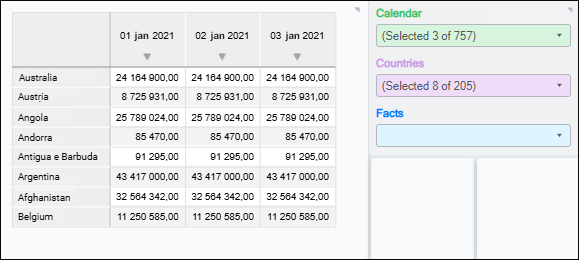
Controls are use to manage data displayed by information panel objects and allows for changing the selected dimension elements.
To show information panel controls, one can use the filter panel.
NOTE. When working with information panels in the view mode, the operations of showing/hiding the filter panel and changing selection are available in controls.
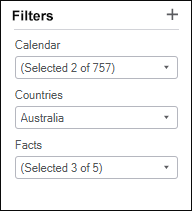
To show the controls panel, click the
Show Filters button on the toolbar.
To hide the controls panel, release the
Hide Filters button on the toolbar.
Panel display settings are saved when the information panel is saved.

To add a control, click the
Add Filter button in the filter panel title.
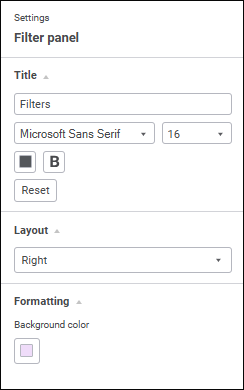
To set up the filter panel, use the side panel.
To show the panel:
Click the
Settings button on the toolbar and click the filter panel.
Select the
Set Up Panel item in the context menu of the filter panel.
The side panel opens. The panel is hidden by default.
To hide the side panel, release the
Settings button on the toolbar.

The following settings are available:
Title. The Filters name is shown by default. To rename the filter panel title, enter new title text and set text parameters:
Font. Select one of the available fonts in the drop-down list.
Font Size. Set the required font size. Size is set in points, it can be entered manually or using the keyboard. The range of available values: [6; 36].
Font Color. Select font color in the drop-down palette. One can select standard and custom colors. The palette contains only standard colors by default.
To create a custom color:
Click the
Add Color button. The advanced color palette opens.
Select a color in the advanced color palette, use color picker to select color on a browser page, or set color code in the RGB or HEX format.
After executing the operations the custom color is created and added to the palette.
To delete custom color from the palette, select the Delete item in the selected color's context menu.
NOTE. The maximum possible number of custom colors in the a palette is 23.
Font Style. Select font style in the button's drop-down menu:
B. Bold.
I. Italic.
U. Underline.
When the button is pressed, the corresponding font style is used. Several styles can be used simultaneously, for example, pressed B and I buttons result in bold italic font style.
To reset the current settings and restore the default style, click the Reset button.
Layout. In the drop-down menu select the layout option for the filter panel: to the right or left of the slide. The Right option is set by default.
Formatting. In the drop-down palette select the required background color of the filter panel.
To set a custom color:
Click the
Add Color button in the standard color palette and select the color in the advanced color palette.
Select a color in the advanced color palette, use color picker to select color, or set color code in the RGB or HEX format.
After executing the operations the custom color is added to the palette.
NOTE. The maximum possible number of custom colors in the a palette is 23.
To delete custom color from the palette, select the Delete item in the selected color's context menu.
To reset the current settings of filter panel background and restore the default style, click the Default Color button.
To set up a control, use the control setup panel.
To show the panel:
Select the
Edit item in the context menu of the control selected on the control filter panel.
Open the side panel, then select the control.
The control setup panel opens. The panel is hidden by default.
To hide the panel, release the
Settings button on the toolbar.

The following control settings are available:
Title. The controlling dimension name is displayed by default. To rename the control title, enter the new title text and set text parameters that are identical to text parameters of the filter panel title. To reset the current settings and restore the default style, click the Reset button.
Controlling Dimension. In the drop-down list select the dimension that will be controlled by the control. The list contains all dimensions of all information panel slides.
To quickly search for the required dimension by name, use search. Enter the text to be searched in the search string. Search is executed automatically as the searched text is entered into the search string. The list will display only the dimensions, which names contain the entered text.
Controlled Visualizers. The setting is available after the controlling dimension is selected. In the drop-down list select the visualizers that use the controlled dimension matching the controlling dimension by name or identifier. The list contains visualizers of all information panel slides that use the controlled dimension.
To quickly search for the required visualizer by name, use search. Enter the text to be searched in the search string. Search is executed automatically as the searched text is entered into the search string. The list will display only the visualizers, which names contain the entered text.
To select all visualizers, select the Select All item in the list's context menu. To deselect all visualizers, select the Deselect All item in the list's context menu.
Selection Type. In the drop-down palette select the control selection type:
SingleSelect. Single selection: only one element can be selected.
SingleSelectNullable. Single selection with the ability to set empty value.
MultiSelect. Multiple selection. To invert element selection, click the element. Clicking the element while holding down the SHIFT key deselect all elements and selects the elements (except for the collapsed ones) that are located between the focused element and the clicked element. Clicking the element while holding down the CTRL key deselects or deselects the element and all dependent elements. When the context menu is opened in the element area, the element is focused but not selected.
MultiSelectStandart. Multiple selection. Clicking the element selects only the chosen element. To select several elements, click the elements while holding down the SHIFT or CTRL key. Clicking the element while holding down the SHIFT key deselect all elements and selects the elements (except for the collapsed ones) that are located between the focused element and the clicked element. Clicking the element while holding down the CTRL key deselects or deselects the element.
None. Selection type is not set, the MultiSelect option is used by default.
Show on Slide. In the drop-down list select the information panel slides, which will show this control. The list contains names of all slides of the current information panel, and the All Slides option is selected.
Formatting. Set text parameters that are identical to text parameters of the filter panel title. To reset the determined settings and restore the default style, click the Reset button.
Set background color. In the drop-down palette select the required background color of the filter panel.
To set a custom color:
Click the
Add Color button in the standard color palette and select the color in the advanced color palette.
Select a color in the advanced color palette, use color picker to select color, or set color code in the RGB or HEX format.
After executing the operations the custom color is added to the palette.
NOTE. The maximum possible number of custom colors in the a palette is 23.
To delete custom color from the palette, select the Delete item in the selected color's context menu.
To apply the current settings to all controls, click the Apply to All button.
Working with controls is identical to working with dimension controls on the Dimension Filter panel.
When the selection in the control or controlling dimension changes, the selection by this dimension also changes in the visualizers selected as controlled by this control.
To reorder controls in the list, on the filter panel drag the control to the required position.
To delete the control, select the
Delete item in the control's context menu. The control will be deleted from the filter panel.
The filter panel is published while the entire slide is published. When a single visualizer is published, the filter panel is not published.
The filter panel is not exported during export of single visualizers or the entire slide.
See also:
Adding Visualizers and Working with Them | Setting Up Data Visualization | Adding Slides and Working with Them
Show or hide the panel