In this article:
Setting Up Foresight Analytics Platform Activation
Working with Repository Objects
Performance Improvement Recommendations
To increase performance of Foresight Analytics Platform, use hardware and software settings.
Setting Up BI Servers Cluster
Several BI servers of Foresight Analytics Platform can be used to deploy a fault-tolerant cluster. This will require balancer, state server and several BI servers configured to work with the same state server.
Setting Up BI Server
To increase performance of BI server on the Apache2 web server, set up:
Environment variables. To reduce peak memory consumption in Foresight Analytics Platform in Linux OS, add additional environment variables:
PP_RETMEM=1
MALLOC_MMAP_THRESHOLD_=8192
PP_RETMEM_CO=1
MALLOC_ARENA_MAX=1
NOTE. The use of the MALLOC_ARENA_MAX=1 variable can reduce memory consumption with BI server but may worsen performance. Test application system performance when the variable is used.
Number of work threads in each process. Set the number of working threads within the same Apache2 web server instance not more than the doubled number of users who are to work with this instance. If the recommended value is exceeded, it may result in the memory overuse, though if the number of threads is too small, it may result in performance slowdown. The number of work threads in each process is calculated individually for each application system based on load testing results.
Setting Up DBMS
A database and BI server should be located within one local network. Otherwise it may result in significant performance slowdown because of large overhead expenses on SQL queries.
The PostgreSQL configuration file contains minimum settings by default. Increase values of the max_connections, work_mem and shared_buffers parameters according to hardware characteristics of the server, on which DBMS is installed. Set the max_connections parameter as a sum of the maximum number in connection pools on each cluster node with the safety margin 25%.
When working with ClickHouse DBMS, it is recommended to specify the STRINGMAXLENGTH connection string that limits maximum size of string values. This allows for decreasing memory buffer volume allocated for obtained data, which, in turn, speeds up request execution and improves overall performance. For example:
Driver={ClickHouse ODBC Driver (Unicode)};Server=localhost;Database=default;UID=default;PWD=default;STRINGMAXLENGTH=8000.
Setting Up Foresight Analytics Platform Activation
Foresight Analytics Platform enables the user to use advantages of SMP systems and can use all available processor cores. User queries are executed by multiple threads within task scheduler. Threads are automatically distributed to available processor cores by the operating system. This helps distribute computation load.
Administration
When administrating Foresight Analytics Platform in the security manager:
Select the Create Subjects with Lazy Loading checkbox to speed up loading of security subjects if the system contains over 200 subjects.
Separate access permissions to objects via groups of users. If it is assumed to set up access permissions for over 200 groups, use discretionary access control method with attribute-based access control method.
If domain or integrated domain authentication is used, create domain groups without explicit adding each user account.
NOTE. Domain group support is available if there are groups as roles and users included in these roles on the DBMS level.
Working with Repository Objects
To work with repository objects:
Select the Automatic Connection checkbox in database properties and set user name and password in corresponding boxes if domain or integrated domain authentication is used for repository connection, and the Override Database Connection Settings checkbox is deselected in database properties. Therefore, when relational objects are opened, connection time is reduced for the database, from which data is loaded.
Set up system table caching during BI server startup. Caching allows for improving system performance and speeding up opening of complex reports that use a number of data sources in the web application by reducing the time of reading system tables from database.
IMPORTANT. System metadata table caching is allowed only in the production version. When caching is used, data in system metadata tables must not be changed.
Make sure that when setting up elements layout in the table one does not use cell autofit. Set cell height manually using the ITabSheet.DefaultHeight property, cell width - using the ITabSheet.DefaultWidth property. Cell size is used by default on creating new rows and columns.
Disable chart rendering animation in regular reports, express reports, dashboards. To do this, in the web application and designer of business applications set the isAnimationDisable field to true in the config.json file. The field is set in the modules container that includes specific class objects. The example of disabling animation in a regular report:
"modules": {
"2562": {
"customization": {
"chart": {
"isAnimationDisable": true
}
}
}
}
Take into account features of working with tables In the development environment of Foresight Analytics Platform.
Working with Extensions
If Foresight Analytics Platform extensions are installed, execute the following to increase performance:
Make sure that when working with registry forms in the Interactive Data Entry Forms extension all dimensions of cubes created automatically are bound to data sources fields.
Set up cell size manually in the Interactive Data Entry Forms extension using the properties: ITabSheet.DefaultHeight to determine cell height, ITabSheet.DefaultWidth to determine cell width. Cell size will be used by default during creation of new rows and columns.
Use the ?: conditional operator instead of the Iif function when setting up calculation formulas in the Calculation Algorithms extension.
Start execution of business processes built in the Business Process Management extension, in a separate thread using the IForeThread.Start method on application development.
Logging
Disable logging Foresight Analytics Platform or hide debug info output:
Create the Log section in the registry key [HKEY_LOCAL_MACHINE\Software\Foresight\Foresight Analytics Platform\10.0].
In the section create the WriteToDebugOutput parameter of the REG_DWORD type with the 0 value.
Connection Pool
Connection pool limits the number of connections between BI server instance and DBMS. The connection pool limit is set to 50 by default. Set pool limit manually to the required value depending on application system requirements. Pool setup is read by each BI server process separately.
Session Break Timeout
Set idle time without requests, after which the repository session is broken using the TimeoutSec parameter in the registry key [HKLM\SOFTWARE\Foresight\Foresight Analytics Platform\10.0\PP\BIS\System\Session]. The use of large time values can result in increased memory consumption; the use of the -1 infinite value can result in memory leaks.
Interaction with Antivirus Software
If antivirus is being installed to the servers that support the production environment, system performance may be reduced due to antivirus software work features. As a result, there are delays in execution of operations related to file and network input/output. To increase system performance, see antivirus software manufacturer recommendations. For example, recommendations for Kaspersky Endpoint Security 12 are contained in the Kaspersky documentation.
When setting up antivirus, exclude from checking the following components of Foresight Analytics Platform:
In Linux OS:
BI server installation folder: /opt/foresight/fp10.x-biserver.
The folder with installed web application back end: /opt/foresight/fp10.x-webserver.
The folder with the envvars configuration file of the Apache2 web server instance: /etc/opt/foresight/fp10.x-webserver.
The folder with configuration files of the Apache2 web server instance, on which the BI server is installed: /etc/apache2-fp10.x in Debian-based distributions, /etc/httpd-fp10.x in RedHat-based distributions, /etc/httpd2-fp10.x in ALT Linux.
The folder with configuration files of the Apache2 web server instance, on which the web application back end is installed: /etc/apache2-fp10.x-web in Debian-based distributions, /etc/httpd-fp10.x-web in RedHat-based distributions, /etc/httpd2-fp10.x-web in ALT Linux.
In Windows OS:
The folder with installed BI server: C:\Program Files\Foresight\Analytics Platform 10.x.
The folder with installed web application: C:\Program Files (x86)\Foresight\Analytics Platform 10.x Web Application.
The folder containing the settings.xml file: C:\ProgramData\Foresight\Foresight Analytics Platform.
The folder for storing cache: C:\Users\<user name>\AppData\Local\Foresight\Foresight Analytics Platform.
Make sure that processes used by Foresight Analytics Platform are not scanned permanently by antivirus. The processes are: BI server, web application back end, license server, task scheduler. Take into account that Foresight Analytics Platform can use other processes started by the user, for example, on Fore application code execution or on connecting additional modules: Python, Java, R, and so on.
Windows OS Settings
To speed up work of Foresight Analytics Platform in Windows OS:
Open the Windows control panel.
Go to the Power Options section in the System and Security category.
Select the High Performance radio button:
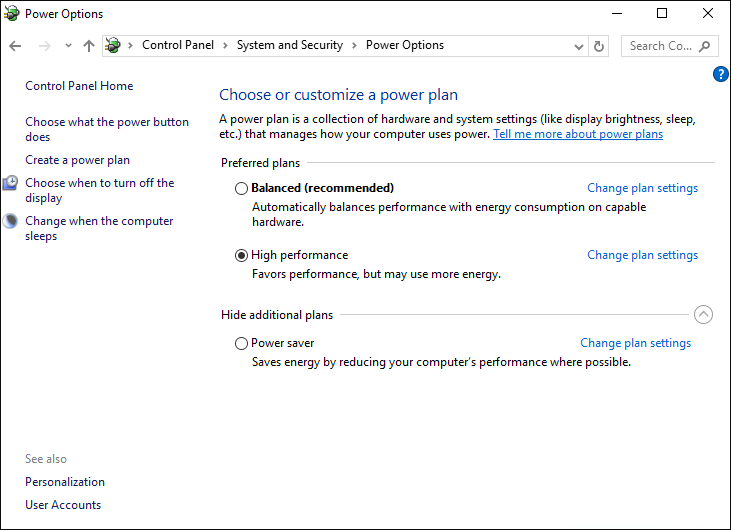
After executing the operations the performance of Foresight Analytics Platform.
Make sure that debugging and profiling tools: Intel Vtune, DebugDiag, AppVerifier, Valgrind, and also antiviruses, are not used on servers in the production environment.