In this article:
Calculating Totals
Calculation of table totals by columns and/or by rows and setting up their displaying are executed in the Row Totals/Column Totals group of parameters.
 To open the group of parameters

 Totals button on the Data toolbar tab.
 Settings button next to the Totals checkbox in the
 To show or hide totals for this dimension, select or deselect the Show Total checkbox in the dimension's context menu.
To show the dimension element total, select the Totals Calculation Method item in the element's context menu.
Settings in the Row Totals and the Column Totals parameters are identical:
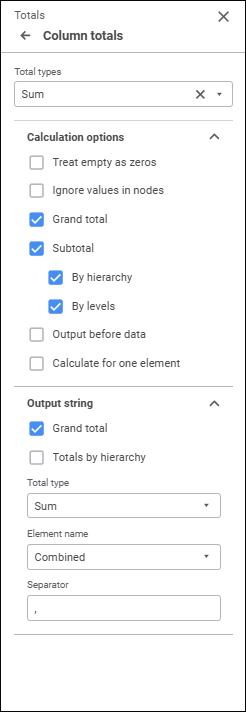
The following settings are available:
Total Types
Select on or several required total types in the Total Types drop-down list:
Sum. Default value.
Arithmetic mean.
Minimum.
Maximum.
Mode.
Median.
Variance.
Root-mean-square deviation.
Skewness.
Kurtosis.
Range.
Variation coefficient.
Sum of squares.
First-order autocorrelation.
Upper decile.
Upper quartile.
Lower quartile.
Lower decile.
Number of empty cells.
Number of non-empty cells.
Total values of the selected types will be automatically calculated. If dimension element data has the Text/Date/Time format, totals are calculated only for the following total types: Maximum, Minimum, Number of Empty Cells, Number of Non-Empty Cells.
To reset the selected types and hide totals, click the  Clear button.
Examples of row and column totals


Calculation Options
After total types are selected, set their calculation options on the Calculation Options tab:


Output String
If a table displays hierarchical dimension elements from different hierarchy levels, set parameters on the Output String tab to output grand total and/or hierarchy total to the parent element string:
Grand Total. When the checkbox is selected, the grand total is output to the parent element string. The checkbox is deselected by default.
Totals by Hierarchy. When the checkbox is selected, totals by hierarchy are output to the parent element string. The checkbox is deselected by default.
Total Type. In the drop-down list select one of the total types applied to the table. The parameter is available if the Grand Total checkbox and/or the Totals by Hierarchy checkbox is selected.
Element Name. In the drop-down list select the type of displaying parent element name:
Source Element. It displays source element name.
Total Method. It displays total method name.
Combined. Default value. It displays name of the source element and total method.
The parameter is available if the Grand Total checkbox and/or the Totals by Hierarchy checkbox is selected.
Separator. The box is used to set separator between element and total method names. The "," character is set as a default separator. The parameter is available if the Grand Total checkbox and/or the Totals by Hierarchy checkbox is selected, and the Combined name type is selected.
Examples of displaying totals in the parent element string


Dimension Element Total
To set up totals calculation method for a dimension element, for which totals calculation is set up, select the Totals Calculation Method item in the element's context menu and select the method:
No. Element total is not calculated.
Sum.
Average.
Minimum.
Maximum.
Mode.
Median.
Variance.
Only one method can be selected.
The command is available for dimension elements in table heading if column totals are calculated, and for dimension elements in table sidehead if row totals are calculated.
When a specific method is used for element calculation, names of totals will change for Total.
To restore element dimension's calculation method, select the Totals Calculation Method > Reset item in the element's context menu.
Calculation Features
If in a table:
Selected elements contain identifiers of different measurement units.
Structure of the dimension that includes these elements corresponds to structure of indicators dictionary.
A cube does not contain a units dictionary and the Do not Aggregate Different Measurement Units checkbox is selected.
on totals calculation:
The Dimensions area displays the
 icon and a tooltip next to the dimension with these elements.
The calculated cell will display the "-" character instead of the value. To change the character or text, use the IPivot.UnmatchedUnitsText property. To display the character or text during totals calculation, the dimension should be located in rows or columns.
When displaying of icons for calculated cells is enabled, the calculated cell will display both characters. The =- characters are displayed by default.