In this article:

Synchronization by Selection

Disabling Synchronization

Setting Up Controls

Synchronization by Selected Data

Disabling Synchronization

Resetting Data Selection during Synchronization

Features of Working with Synchronization by Selected Data

Synchronizing Visualizers on Slide

Synchronization can be used to simultaneously manage selections of identical dimensions of several visualizers located on the same slide.

Available synchronization types:

NOTE. One can use synchronization by selection and by selected data at the same time.

Synchronization by Selection

To apply synchronization by selection:

  1. Activate synchronization by selection mode on a slide:

The settings panel displays the list of all visualizers on the slide.

  1. Activate synchronization mode for visualizers on the slide. To do this, select checkboxes next to the required visualizers on the settings panel:

As a result, synchronization by selection is activated for selected visualizers on the slide.

Disabling Synchronization

To disable visualizer synchronization, deselect visualizer's checkbox in the list of visualizers on the settings panel.

To disable synchronization for slide:

Setting Up Controls

To set up controls:

  1. Enable synchronization by selection.

  2. Toggle the Controls switch on the settings panel to active state.

As a result, the settings panel displays settings of controls:

Select position of controls on slide and select checkboxes next to the parameters that should be controlled.

After the settings are determined, the upper part of the slide displays controls for the selected visualizer parameters:

When dimension selections change in controls, all synchronized visualizers are automatically rebuilt:

Additional settings of controls:

Change width of controls

Rename controls

Reorder controls

Synchronization by Selected Data

Synchronization by selected data can be used to rebuild visualizers on the slide according to the selected data. When synchronization by selected data is set up, selected data in one visualizer is automatically displayed in the same selected data on another visualizer:

NOTE. Synchronization is available for visualizers that include the dimensions with matching identifiers/names.

To set up synchronization by selected data of the selected visualizers:

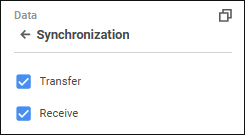
  1. Open the Synchronization group of parameters on the settings panel:

  1. Select the checkboxes:

NOTE. The Transfer checkbox is available for all visualizer types, except for Sankey Chart, Scatter Chart, Indicator, Map, and custom chart templates.

When data is selected in the controlling visualizer, data is rebuilt in slide's controlled visualizers. By default, all visualizers (controlled and controlling) are synchronized by selected data.

If the controlled visualizer does not have the dimensions that are present in the controlling visualizer, they are automatically added to the Filter area of the controlled visualizer. Such dimensions are unavailable for edit.

Disabling Synchronization

To exclude a visualizer from synchronization, deselect the Transfer and Receive checkboxes in the Synchronization group of parameters on the settings panel.

Resetting Data Selection during Synchronization

Synchronization by selected data can be reset for active tab of slide of the information panel opened for edit and view.

To reset synchronization by selected data:

  1. Select visualizer.

  2. Click the Reset Selection button on the popup settings panel.

NOTE. The Reset Selection button on the popup settings panel is active if the slide has visualizers with configured synchronization by selected data.

All slide's visualizers with configured synchronization will be rebuilt by the selection specified in the Fields area on the side panel, data selection will be reset, the dimensions that are automatically added to the Filter area will be deleted for all visualizers with enabled synchronization by selected data.

Features of Working with Synchronization by Selected Data

See also:

Adding Visualizers and Working with Them | Setting Up Data Visualization | Adding Slides and Working with Them