In this article:
Step 1. Import Client Certificate to Store
Step 2. Link Client Certificate to User
Setting Up Two-Factor Authentication
Two-factor authentication is used to enhance information security due to additional user verification during authorization. The password authentication type is used as the first factor. The second factor is a client certificate fingerprint saved in Foresight Analytics Platform.
The client certificate is a part of the security certificate, which includes several generated certificates:
Root certificate. It is used to generate and sign server certificate and client certificate.
Server certificate. It is used by the Apache2 web server in Linux OS or by IIS in Windows OS.
Client certificate. It is used to verify the user during authorization and is a personal digital signature.
NOTE. Two-factor authentication setup is available in the web application that is set up to work via the HTTPS protocol. When two-factor authentication is used, interaction between the browser and the BI server must be executed bypassing the web application back end, via the PP.SOM.Som access point.
When two-factor authentication is being set up, it is assumed that the root certificate and the server certificate have been already obtained and installed during web application work setup via the HTTPS protocol. Generate only the client.pfx client certificate and place it in the folder with the root certificate on the user's local computer. Generate the client certificate with the *.cer or *.crt extension to assign it to the user in Foresight Analytics Platform.
If the web application is used in the Chromium-Gost browser, make sure that the root certificate and client certificate that uses GOST encryption algorithms are obtained.
The specified certificate and key files are given as an example and may differ.
Step 1. Import Client Certificate to Store
To import client certificate to a personal certificate store, use supported browser or operating system tools. Operating system tools can be used to import certificate to store only in Windows OS.
Consider certificate import in Mozilla Firefox:
Open browser settings at:
about:preferences
Open the Privacy and Security section.
Click the View Certificates button in the Certificates subsection. The Certificate Manager dialog box opens.
Click the Import button and execute the operations. A standard file selection dialog box opens.
Select the client.pfx client certificate on the Your Certificates tab.
Enter the private key password that was specified on client certificate creation.
After executing the operations the client certificate is imported to personal certificate store.
To import the client certificate to the Personal certificate store using Windows OS tools:
Double-click the client.pfx client certificate. The Certificate dialog box opens.
Click the Install Certificate button. The certificate import wizard opens.
Select the Current User store location and click the Next button.
Select the Place All Certificates to the Following Store radio button, select the Personal certificate store and click the Next button.
After executing the operations the client certificate is imported to personal certificate store.
For other options of certificate installation and import in various operating systems and browsers see the public services portal.
Step 2. Link Client Certificate to User
The client certificate must be linked to each user. Linking of the client certificate to the user is available only in Windows OS.
NOTE. Linking client certificate to domain user is unavailable.
To link a certificate to the user in the security manager:
Select the user in the Users section. The Properties side panel opens:
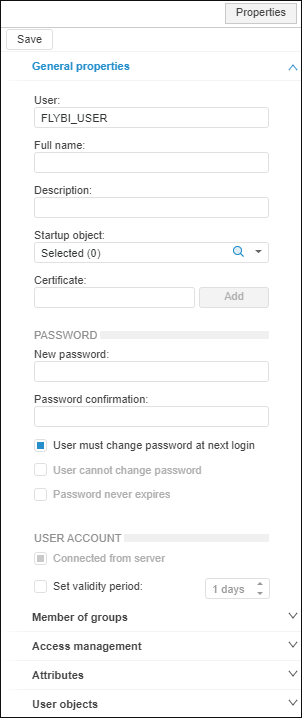
Click the Add button next to the Certificate box on the General Properties tab.
Select the *.cer or *.crt file in the standard file selection dialog box.
Click the Save button.
After executing the operations the client certificate is linked to the selected user. The Certificate ox contains the client certificate fingerprint.
Step 3. Setting Up BI Server
Steps for BI server setup differ depending on the web server, on which the BI server is installed, and the operating system in use.
To set up BI server on Apache2 web server in Linux OS:
Add SSL parameters in the <VirtualHost *:8810> section of the Apache2 web server instance configuration file:
/etc/apache2-fp10.x/mods-available/fp10.x-biserver.conf in Debian-based distributions.
/etc/httpd-fp10.x/conf.d/fp10.x-biserver.conf in RedHat-based distributions.
/etc/httpd2-fp10.x/conf/mods-available/fp10.x-biserver.conf in ALT Linux.
SSLVerifyClient require
SSLVerifyDepth 10
SSLCACertificateFile <path to folder>/ca.cer
In the <path to folder> substitution specify the folder with the root certificate.
After executing the operations the BI server is set up.
To set up BI server on the IIS we server in Windows OS, open the IIS manager and execute the operations:
Open the
 SSL Settings feature in the IIS section by double-click or using the Open Feature context menu item.
Select the Require SSL checkbox and the Require radio button for client certificates.
After executing the operations on two-factor authentication, the HTTPS protocol will be used for web service connection. User authorization will be executed by client certificates.
Step 4. Change Two-Factor Authentication Application
By default, two-factor authentication is used only for the users with a linked client certificate. If required, change two-factor authentication application.
Create the Strategy_check string parameter and set its value in the registry key [HKEY_LOCAL_MACHINE\Software\Foresight\Foresight Analytics Platform\10.0\Manager\Certificate] or in the settings.xml file:
<Key Name="Manager">
<Certificate Strategy_check="Always"/>
</Key>
Available parameter values:
User. Default value. Two-factor authentication is used if the user has a linked client certificate.
Always. Two-factor authentication is used for all users. The users who do not have a linked client certificate are denied access.
Never. Two-factor authentication is not used even if the user has a linked client certificate.
Step 5. Check Two-Factor Authentication
To check two-factor authentication:
After executing the operations, the result of two-factor authentication depends on the specified application. If two-factor authentication was not modified, the system requests client certificate before user authentication by default. If the user is authenticated successfully, the obtained certificate is compared with the certificate linked to the user in the security manager. If the compared certificates match, the system connection is established.