Users are security subjects of the system and have certain permissions to work with repository objects. Permissions can be obtained explicitly (if permissions are determined separately from users) and implicitly (if permissions are inherited from a user group).
When DBMS back end is being prepared, a database user is created who is the schema owner. In the security manager the schema owner is displayed as ADMIN and is locked for editing. The ADMIN schema owner is used only for repository administration, it is included in the ADMINISTRATORS built-in group and has certain privileges. To work with repository objects in the object navigator, create user accounts, include them in groups and grant privileges. To connect to DBMS and to log in to the system, one can hash user passwords with the ability (optional) to enable or disable hashing for ADMIN schema owner password.
When basic authentication type with built-in authorization or authentication via external services is being set up, the system saves technological account credentials for connection to DBMS. For details see the Using Technological Account section.
NOTE. When roles of the information security administrator and the application administrator are separated, in the Users section the information security administrator will not be able to create, refresh (under certain conditions) and delete users, and the application administrator will not be able to change user password.
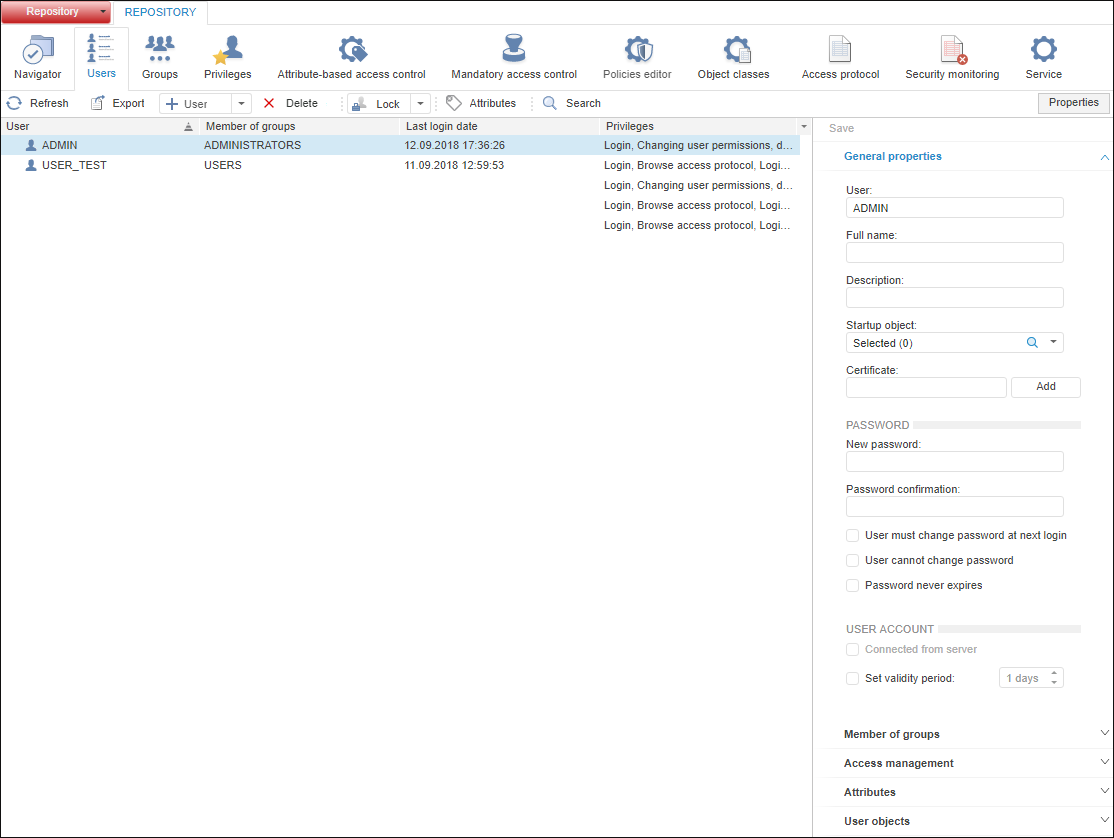
To create and work with user accounts, use the Users section of the navigation panel:
The Users section contains a list of user accounts with icons. The icon may look as follows, depending on the current user status:
 - active user.
 - locked user.
 - lifetime locked user.
To search for the user, click the  Search button on the toolbar. The standard search dialog box opens.
In the list of accounts one can set up displaying of columns containing information about user properties.
 Information about user properties in section columns
Key features:
If section parameters have been changed, an attempt to go to another section of the security manager or to close it displays a request to apply the changed settings.
To apply the specified settings, click the Save button on the toolbar or side panel.
See also:
Setting Up System Security Policy | Setting Up User Password Check | Creating User Groups and Working with Them
