In this article:
Setting Up Interaction via Web Application Back End
Setting Up Interaction by Bypassing Web Application Back End
Setting Up Interaction between Browser and BI Server
When developing the system based on the web application of Foresight Analytics Platform, the development or test environment allow for two methods of interaction between the browser and the BI server:
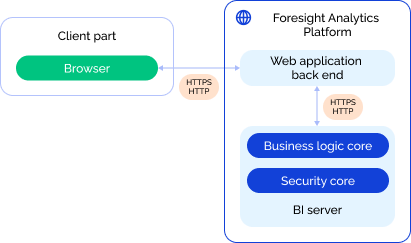
Via web application back end. The web application back end handles the obtained browser requests and redirects them to the BI server by means of the PPServices.axd request handler used as a proxy server. Request proxying is required if the BI server is included in the other domain relative than the browser. This interaction method is used by default.
Bypass web application back end. The web application back end does not interact with the BI server, the browser addresses the web application back end only to load required web application files and to read settings from the config.json, PP.xml configuration files. Browser queries are sent directly to the BI server via the PP.SOM.Som access point. The BI server works via the PP.SOM web service, which allows access to product functions.
When transferring the developed system to the production environment, one uses only one method of interaction between the browser and the BI servers cluster, that is, by bypassing web application back end.
The scheme of interaction with the BI server via web application back end:
The scheme of interaction between the browser and the BI server by bypassing web application back end:
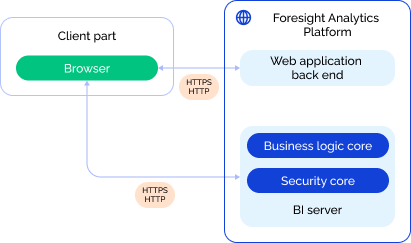
Designations:
 . Interaction of configuration elements at product level.
 . Allowed interaction protocols.
Consider the settings of interaction between the browser and the BI server via web application back end and directly when the web application works via the HTTPS protocol.
Setting Up Interaction via Web Application Back End
The setup of interaction between the browser and the BI server via web application back end and differs depending on the operating system.
To set up interaction between the browser and the BI server via web application back end in Linux OS:
Set the PPServices.axd request handler in the serviceUrl field in the config.json file:
"serviceUrl": "https://<web server>:<port number>/fp10.x/app/PPService.axd"
Where:
<web server>. IP address or name of the DNS server, on which web application back end is installed.
<port number>. Number of the port, at which web application back end is available. The default port for HTTPS is 443, for HTTP for 8110.
Check settings of Apache2 web server instance with web application back end. By default, browser requests are redirected via web application back end by means of the PPService.axd request handler according to the parameters contained in the files:
/etc/opt/foresight/fp10.x-webserver/envvars. The PP_SOM variable contains the default address of the PP.SOM web service:
PP_SOM=https://localhost:8810/FPBI_App_v10.x/axis2/services/PP.SOM.Som
/etc/apache2-fp10.x-web/sites-available/webserver.conf in Debian-based distributions, /etc/httpd-fp10.x-web/conf.d/00-virtualhost.conf in RedHat-based distributions, /etc/httpd2-fp10.x-web/conf/sites-available/default.conf in ALT Linux. The ProxyPass parameter contains the PPService.axd request handler and the default PP_SOM variable:
ProxyPass /fp10.x/app/PPService.axd ${PP_SOM} retry=1 acquire=3000 timeout=6000 Keepalive=On
After executing the operations, browser queries are redirected via web application back end to the BI server.
To set up interaction between the browser and the BI server via web application back end in Windows OS:
Set the PPServices.axd request handler in the serviceUrl field in the config.json file:
"serviceUrl": "https://<web server>:<port number>/FP_App_v10.x/app/PPService.axd"
Where:
<web server>. IP address or name of the DNS server, on which web application back end is installed.
<port number>. Number of the port, at which web application back end is available. The default port for HTTPS is 443, for HTTP - 80.
Set address of the PP.SOM web service as a value of the url attribute in the <proxy> section in the PP.xml file to work with the security manager:
<proxy url="https://<BI server>:<port number>/FPBI_App_v10.x/axis2/services/PP.SOM.Som" />
Where:
<BI server>. IP address or name of the DNS server, on which BI server is installed.
<port number>. Number of the port, at which the BI server is available. The 80 port is used by default.
After executing the operations, browser queries are redirected via web application back end to the BI server.
Setting Up Interaction by Bypassing Web Application Back End
The setup of interaction between the browser and the BI server by bypassing web application back end differs depending on the operating system.
To set up interaction between the browser and the BI server by bypassing web application back end in Linux OS:
Set address of the PP.SOM web service in the serviceUrl field in the config.json file:
"serviceUrl": "https://<BI server>:<port number>/FPBI_App_v10.x/axis2/services/PP.SOM.Som"
Where:
<BI server>. IP address or name of the DNS server, on which BI server is installed.
<port number>. Number of the port, at which the BI server is available. The default port for HTTPS is 443, for HTTP - 8810.
Set the identical address of the PP.SOM web service as a value of the url attribute in the <service> section in the PP.xml file to work with the security manager:
<service url="https://<BI server>:<port number>/FPBI_App_v10.x/axis2/services/PP.SOM.Som" />
After executing the operations, browser queries are sent directly to the BI server bypassing web application back end.
To set up interaction between the browser and the BI server bypassing web application back end in Windows OS:
Set address of the PP.SOM web service in the serviceUrl field in the config.json file:
"serviceUrl": "https://<BI server>:<port number>/FPBI_App_v10.x/axis2/services/PP.SOM.Som"
Where:
<BI server>. IP address or name of the DNS server, on which BI server is installed.
<port number>. Number of the port, at which the BI server is available. The default port for HTTPS is 443, for HTTP - 80.
Set identical address of the PP.SOM web service as a value of the url attribute in the <service> section in the PP.xml file to work with the security manager:
<service url="https://<BI server>:<port number>/FPBI_App_v10.x/axis2/services/PP.SOM.Som" />
After executing the operations, browser queries are sent directly to the BI server bypassing web application back end.
Setting Up CORS Mechanism
In Linux OS, when the browser interact with the BI server bypassing web application back end, errors related with CORS policy restrictions may occur.
To set up CORS mechanism and to increase system security:
Open the file:
/etc/apache2-fp10.x/apache2.conf in Debian-based distributions.
/etc/httpd-fp10.x/conf/httpd-fp10.x.conf in RedHat-based distributions.
/etc/httpd2-fp10.x/conf/httpd2-fp10.x.conf in ALT Linux.
Set the headers Origin, Access-Control-Allow-Origin, Access-Control-Allow-Methods, Access-Control-Allow-Headers:
<IfModule mod_headers.c>
SetEnvIf Origin ^(<allowed domain>)$ CORS_ALLOW_ORIGIN=$1
Header always set Access-Control-Allow-Origin %{CORS_ALLOW_ORIGIN}e env=CORS_ALLOW_ORIGIN
Header merge Vary "Origin"
Header always set Access-Control-Allow-Methods "POST, OPTIONS, <HTTP request methods>"
Header always set Access-Control-Allow-Headers "get-ppbi-time, content-type, soapaction, accept-language, cache-control, Authorization, <HTTP request headers>"
</IfModule>
RewriteEngine On
RewriteCond %{REQUEST_METHOD} OPTIONS
RewriteRule ^(.*)$ $1 [R=200,L]
In the substitutions:
<allowed domain>. Specify the domain as a regular expression, for which getting of requests will be allowed. For example, the regular expression for the example.com domain:
https?://(?:.+\.)?example\.com(?::\d{1,5})?
This setting enables the use of the CORS mechanism on the parent and the child domains, and it is also dynamically installed to the current protocol, domain, port without the use of overriding rules.
<HTTP request methods>. Specify additional methods to access resource. The POST and OPTIONS methods are mandatory.
<HTTP request headers>. Specify headers used by resource. The headers get-ppbi-time,content-type, soapaction, accept-language, cache-control, Authorization are mandatory.
NOTE. Make sure that the specified parameters of the CORS mechanism meet the requirements of the resource in use.
Connect the headers, rewrite modules in Astra Linux:
sudo a2enmod-fp10.x headers rewrite
After executing the operations, CORS mechanism is set up.