
 Open the Category Axis (X), Value Axis (Y), and Value Axis (Secondary) group of parameters
Axes are chart components that are used to order chart data. Headers of table rows and columns form a coordinate grid that enables the user to determine each cell's address. The similar function is executed with by the category axis (X) and the value axis (Y) on a chart. Axes are present on all charts, except pie charts and doughnut charts.
A secondary axis is an auxiliary value axis, which can display:
Values of data series that strongly differ from other series' values.
Series values shown on the chart in different types of data (for example, price and volume).
One or several data series can be shown in the secondary axis.
A grid is a set of lines perpendicular to the axis. Major gridlines start from each major tick mark and cross the entire chart plot area, minor gridlines start from each minor tick mark.
Major tick marks are perpendicular strokes on the axis that contain labels; minor tick marks are strokes without labels located between major tick marks on the axis.
To set up chart axes, use the Category Axis (X), Value Axis (Y), and Value Axis (Secondary) group of parameters on the side panel.
NOTE. To set up radar chart axes, use the Value Axis group of parameters.
Open the Category Axis (X), Value Axis (Y), and Value Axis (Secondary) group of parameters
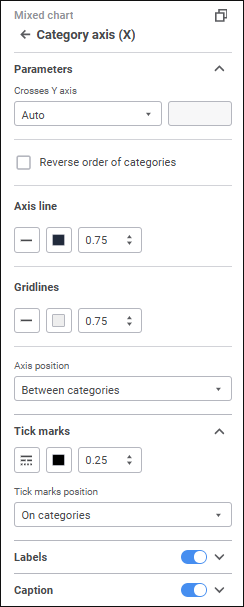
Settings depend on the selected axis and chart.
Determine the settings:
Set up axis parameters:
Position axis between tick marks
Reverse order or categories/values
Set up tick marks:
To set up axis tick mark labels, toggle the Labels switch to active state and determine the parameters:
Automatic intervals between labels
To reset label settings, toggle the Labels switch to inactive state.
It is unavailable for radar charts.
To show axis caption toggle the Caption switch to active state and enter the text to be displayed in the axis caption area. Determine caption text settings:
To reset caption settings, toggle the Caption switch to inactive state.
See also:
 Settings button on the