To open the Row Totals/Column Totals group of parameters
Calculation of table column and/or row totals and setting up their displaying are executed in the Row Totals/Column Totals group of parameters on the side panel.
To open the Row Totals/Column Totals group of parameters
To show or hide totals for this dimension, select or deselect the Show Total checkbox in the dimension's context menu in the Layout group of parameters.
To show the dimension element total, select the Totals Calculation Method item in the element's context menu.
Settings in the Row Totals and the Column Totals groups of parameters are identical:
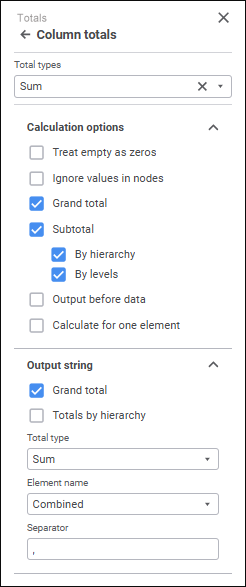
The following settings are available:
Select one or several required total types in the Total Types drop-down list.
Total values of the selected types will be automatically calculated. If dimension element data has the Text/Date/Time format, totals are calculated only for the following total types: Maximum, Minimum, Number of Empty Cells, Number of Non-Empty Cells.
To reset the selected types and hide totals, click the  Clear button.
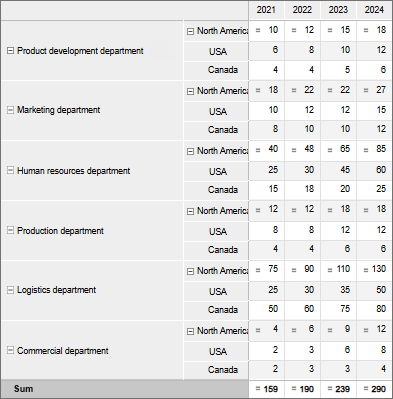
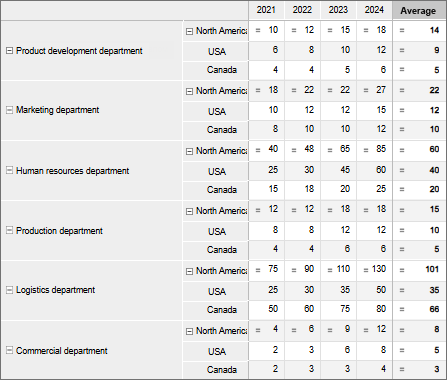
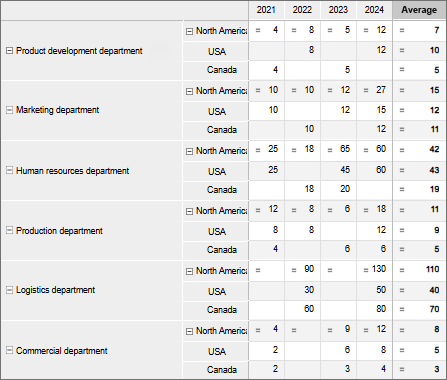
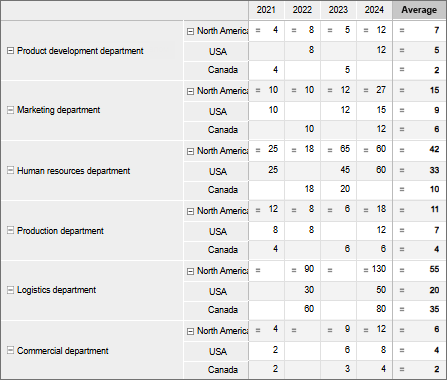
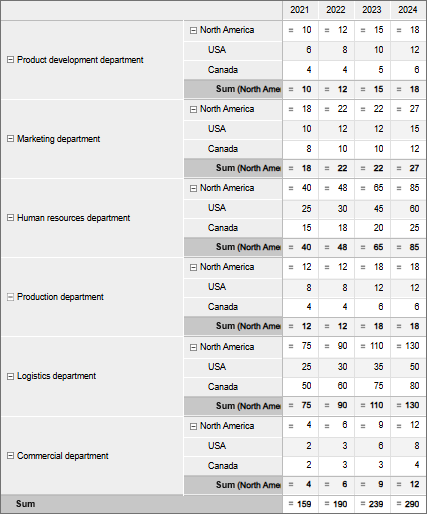
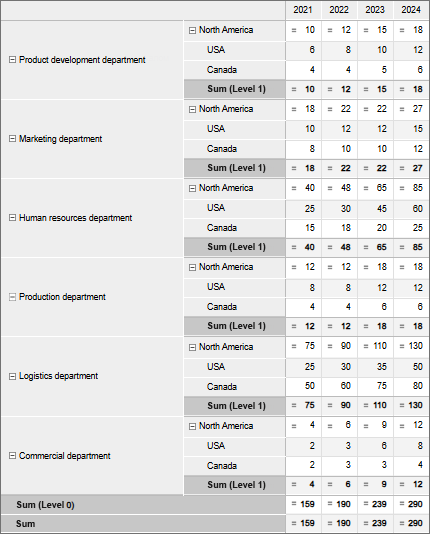
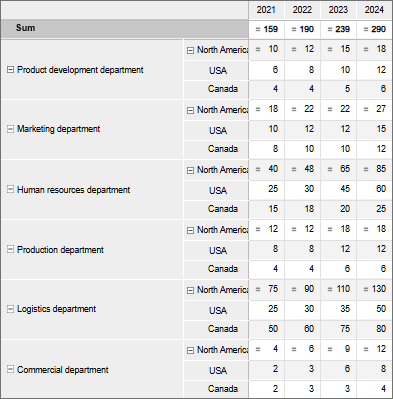
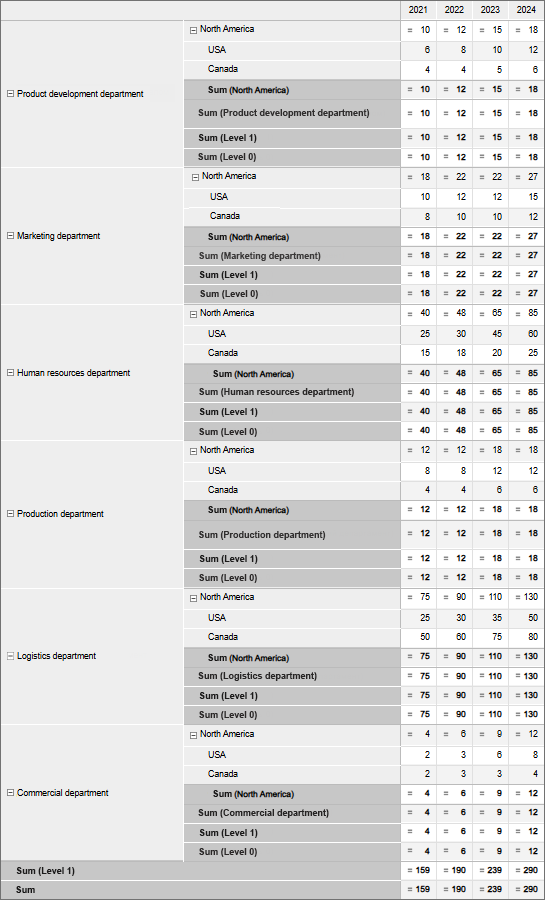
Examples of row and column totals
After total types are selected, set their calculation options on the Calculation Options tab:
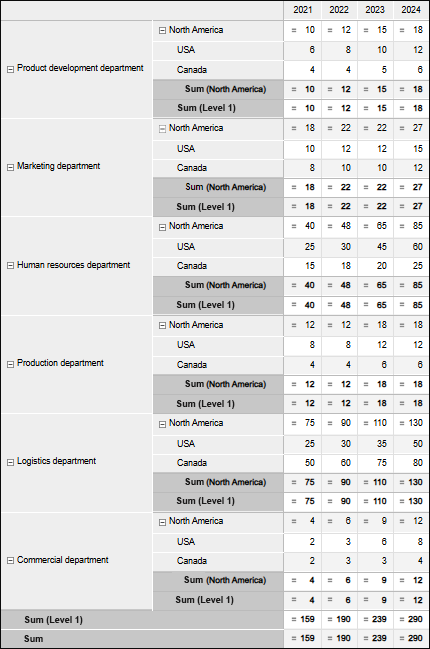
If a table displays hierarchical dimension elements from different hierarchy levels, set parameters on the Output String tab to output grand total and/or hierarchy total to the parent element string:
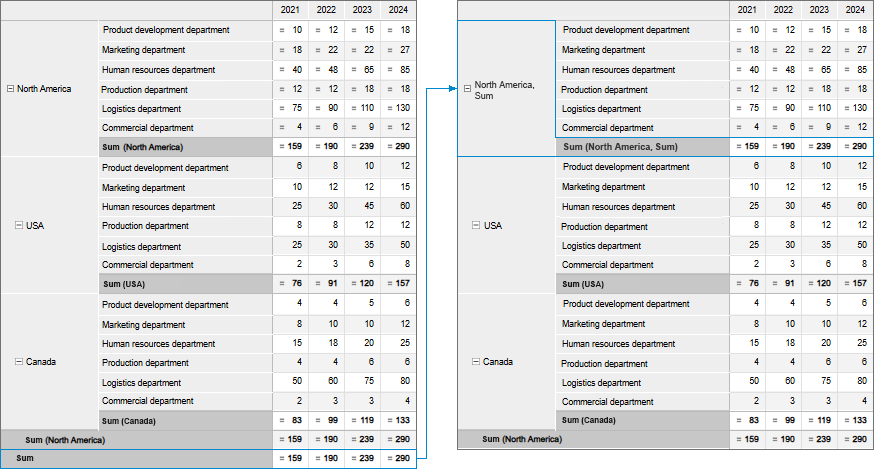
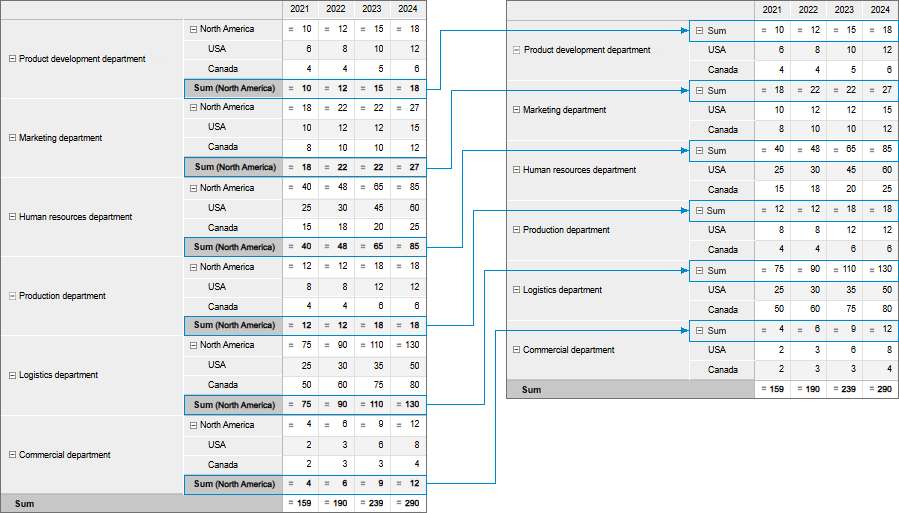
Examples of displaying totals in the parent element string
To set up totals calculation method for a dimension element, for which totals calculation is set up, select the Totals Calculation Method item in the element's context menu and select the method:
No. Element total is not calculated.
Sum.
Arithmetic mean.
Minimum.
Maximum.
Mode.
Median.
Variance.
Only one method can be selected.
The command is available:
For dimension elements in table heading if column totals are calculated.
For dimension elements in table sidehead if row totals are calculated.
When a specific element calculation method is used, names of totals will change for Total.
To restore element dimension's calculation method, select the Totals Calculation Method > Reset item in the element's context menu.
See also:
Setting Up Data Visualization | Setting Up the Table Visualizer | Setting Up Layout
 Settings button next to the Totals checkbox.