Online License Update
License update is available in Guardant License Wizard in graphic and console modes.
To update license offline, see the Offline License Update section.
Updating License in Graphic Mode
To update the license in the graphic mode:
Select the Check Updates item in the drop-down menu of the
 Actions button:
If there is no update, the appropriate popup message is displayed.
If an update is available, the Install Update button is displayed:
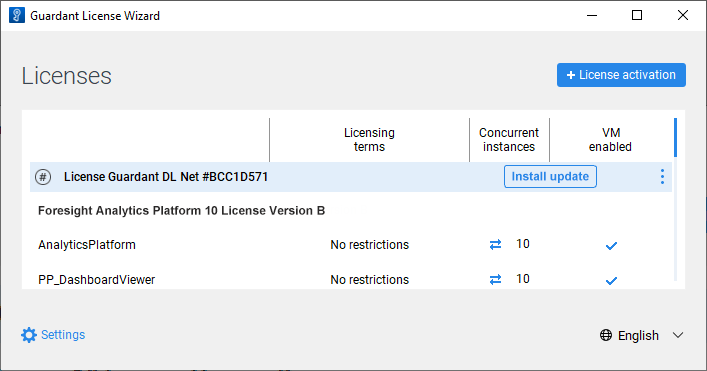
Click the Install Update button.
After executing the operations the license is updated.
To apply changes:
Restart the licensing service:
Restart the licman.service service:
sudo systemctl restart licman.service
Restart the licman_guardant.exe utility located in the C:\Licman folder.
Update the list of licenses in Guardant Control Center.
Updating License in Console Mode
To update the license in the console mode:
Get the list of licenses:
./license_wizard --console --list
license_wizard.exe --console --list
Copy the license identifier located after the # character. For example, the obtained string "Guardant DL Net #C852BDAD" contains the license identifier C852BDAD.
Update the license:
./license_wizard --console --update <license identifier> --host https://guardantstation.fsight.ru:9000/
license_wizard.exe --console --update <license identifier> --host https://guardantstation.fsight.ru:9000/
In the <license identifier> substitution specify the license identifier obtained using the list command.
Restart the licensing service:
Restart the licman.service service:
sudo systemctl restart licman.service
Restart the licman_guardant.exe utility located in the C:\Licman folder.
After executing the operations the license is updated.