In this article:
Activating License in Graphic Mode
Offline License Activation
A license can be activated in Guardant License Wizard in graphic or console modes.
For online license activation see the Online License Activation section.
Activating License in Graphic Mode
To activate a license in the graphic mode:
Open Guardant License Wizard:
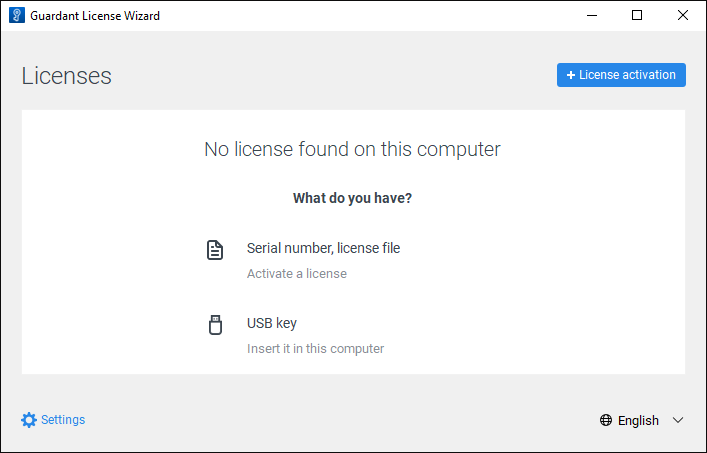
Click the
 License Activation button.
Execute the operations:
Select the On This license activation type.
Click the Offline Activation button.
Click the Save button on the New License tab to save the license activation request file with the *.request extension.
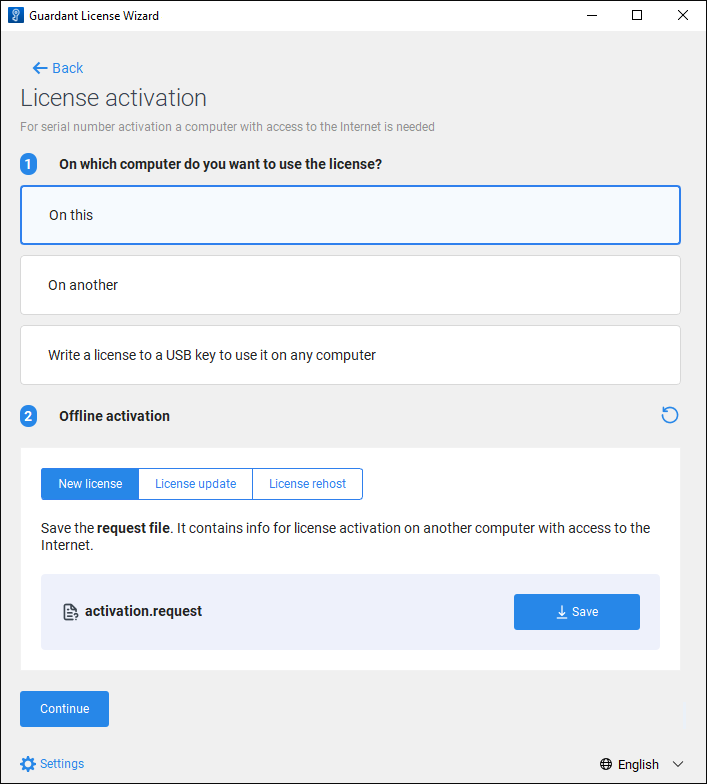
Transfer the *.request license activation request file and the serial number to another computer with access to internet or contact the technical support by sending request to support@fsight.ru. To generate license file on a computer with access to Internet, see the Generating License File on Computer with Access to Internet subsection.
Click the
 Back button next to the Offline Activation section.
Go to the License File or Rehost File tab.
Click the Select a File button and upload the obtained *.license license file.
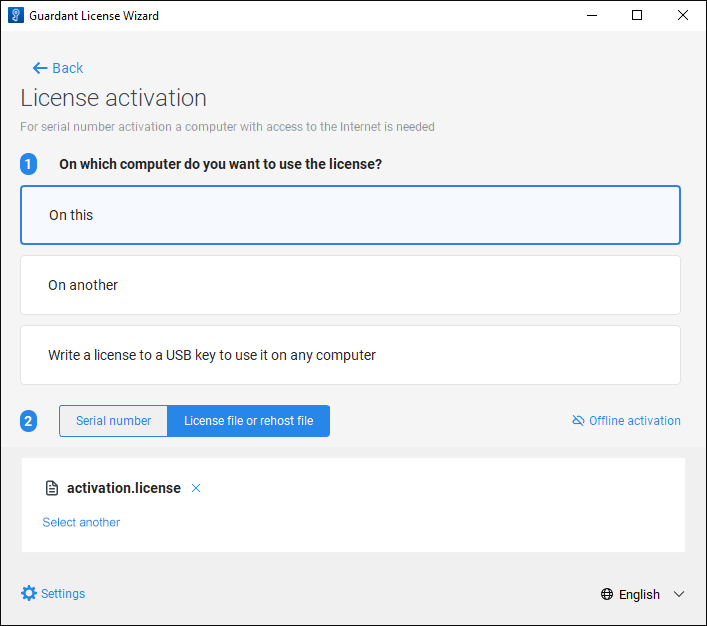
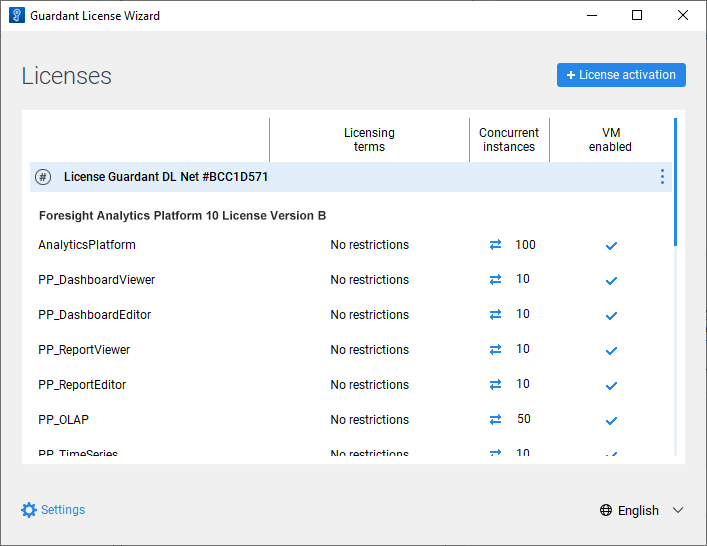
After executing the operations the license is activated offline in the graphic mode in Guardant License Wizard and is available in Guardant Control Center:
Generating License File on Computer with Access to Internet
To generate license file on a computer with access to Internet:
Get the *.request license activation request file and the license serial file.
Open Guardant License Wizard:
Click the
License Activation button.Make sure that the current computer has access to the Internet and execute the operations:
Select the On Another license activation type.
Click the Continue button.
Click the Select File button and upload the obtained *.request license activation request file.
Enter license serial number.
Click the Save button to save the *.license license file.
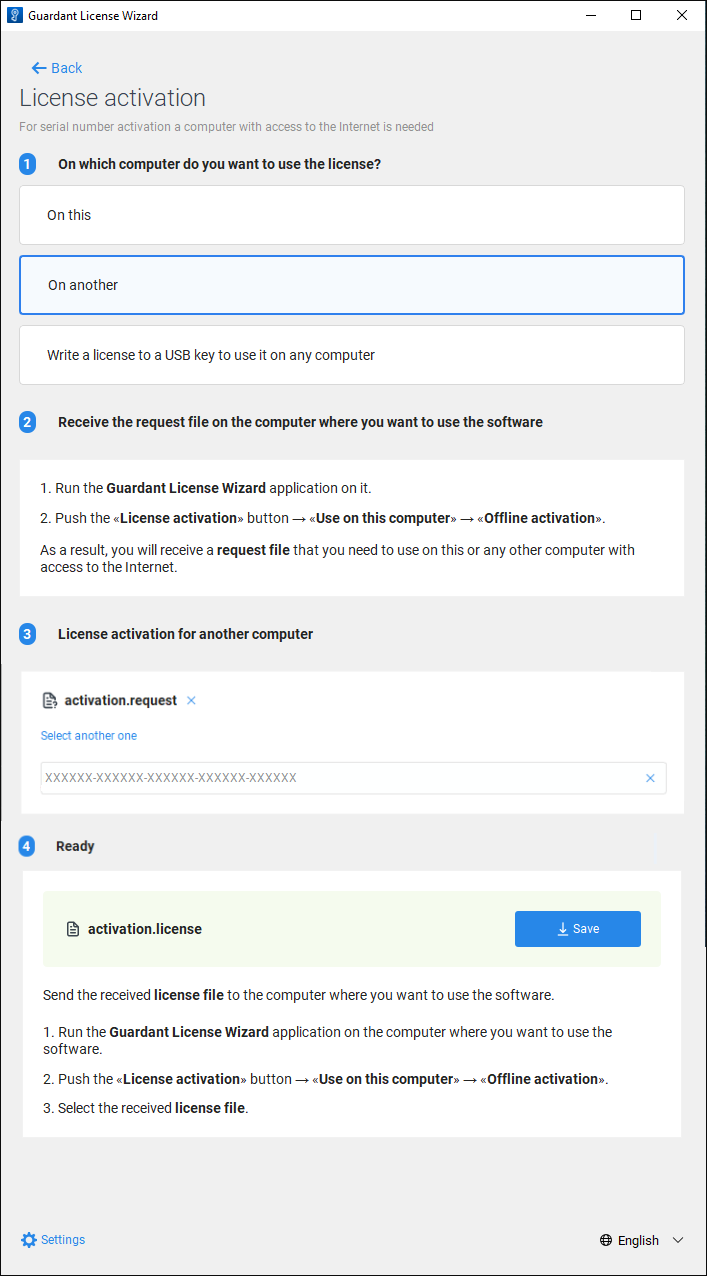
After executing the operations the *.license license file is saved. Transfer the obtained file to the computer, on which the license activation request file was saved, and activate the license using the file.
Activating License in Console Mode
To activate a license in the console mode:
Create a license activation request file with the *.request extension:
./license_wizard --console --activate-request <path to request file>
license_wizard.exe --console --activate-request <path to request file>
In the <path to request file> substitution specify the full path to the folder, in which the *.request license activation request file will be saved, and set file name.
Transfer the *.request license activation request file and the license serial number to another computer with access to Internet or contact the technical support by sending request to support@fsight.ru.
On the computer with access to Internet generate a *.license license file:
./license_wizard --console --activate-response <serial number> <path to request file> <path to license file> --host https://guardantstation.fsight.ru:9000/
license_wizard.exe --console --activate-response <serial number> <path to request file> <path to license file> --host https://guardantstation.fsight.ru:9000/
In the substitutions:
<serial number>. Specify the obtained license's serial number.
<path to request file>. Specify the full path to the *.request license activation request file.
<path to license file>. Specify the full path to the folder, in which the *.license license file will be saved, and set file name.
After executing the command the *.license license file is saved. Transfer the generated file to the computer, on which the license activation request file was saved.
Get the *.license license file and execute the command:
./license_wizard --console --activate-offline <path to license file>
license_wizard.exe --console --activate-offline <path to license file>
In the <path to license file> substitution specify the full path to the obtained *.license license file.