License Transfer
License transfer to another computer is available in Guardant License Wizard in graphic or console mode.
License Transfer in Graphic Mode
To transfer a license to another computer in the graphic mode:
Select the Move to Another Computer item in the drop-down menu of the
 Actions button.
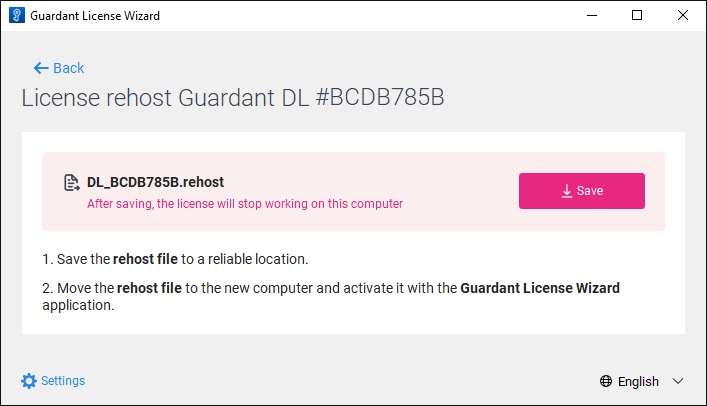
Save the license transfer file:
Open Guardant License Wizard on another computer and activate the license using the license transfer file:
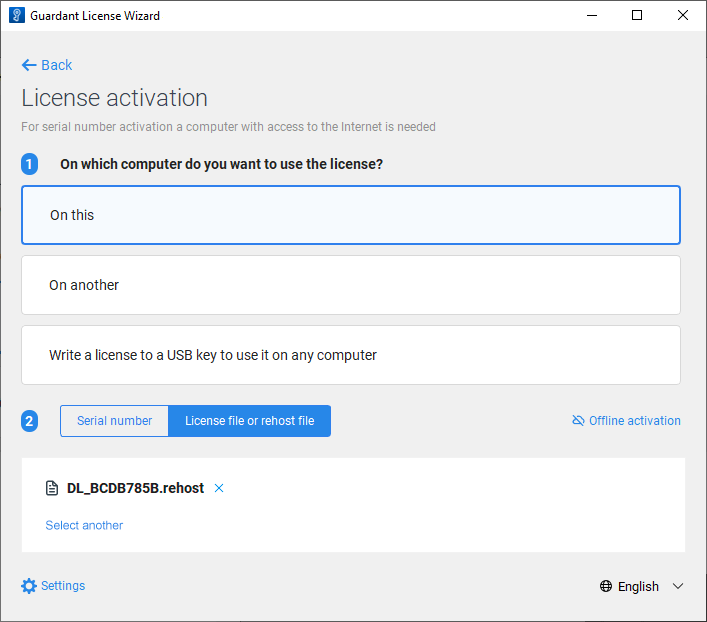
After executing the operations the license is transferred from one computer to another one.
License Transfer in Console Mode
To transfer a license to another computer in the console mode:
Get the list of licenses:
./license_wizard --console --list
license_wizard.exe --console --list
Copy the license identifier located after the # character. For example, the obtained string "Guardant DL Net #C852BDAD" contains the license identifier C852BDAD.
Save the license transfer file on the current computer:
./license_wizard --console --rehost-extract <license identifier> <license transfer file name>.rehost
license_wizard.exe --console --rehost-extract <license identifier> <license transfer file name>.rehost
In the substitutions:
<license identifier>. Specify the license identifier obtained using the list command.
<license transfer file name>. Specify license transfer file name with the *.rehost extension, which will be created next to the license_wizard utility.
Activate the license using the license transfer file on another computer:
./license_wizard --console --rehost <path to license transfer file> --host https://guardantstation.fsight.ru:9000/
license_wizard.exe --console --rehost <path to license transfer file> --host https://guardantstation.fsight.ru:9000/
In the <path to license transfer file> substitution specify the full path to the obtained license transfer file with the *.rehost extension.