Guardant License Server and Features of Its Use
License server is used to activate Foresight Analytics Platform using a network license. License server controls the number of simultaneously working users, ensures flexible and easy administration. A license is sent as a serial number.
For details about Guardant see the official documentation.
Installing License Server
To install a Guardant-based license server:
Install Guardant Control Center.
NOTE. To get Guardant Control Center distribution file for Linux/Windows OS, contact technical support by sending a request to support@fsight.ru or technical support services, which are available after registration at the website.
The default installation folder of Guardant Control Center:
/opt/guardant/grdcontrol in Linux OS.
C:\Program Files (x86)\Guardant\Guardant Control Center in Windows OS.
Specify Guardant Control Center address in the browser address bar:
http://<IP address or DNS name of server>:3189/
By default, Guardant Control Center is available at:
http://localhost:3189/
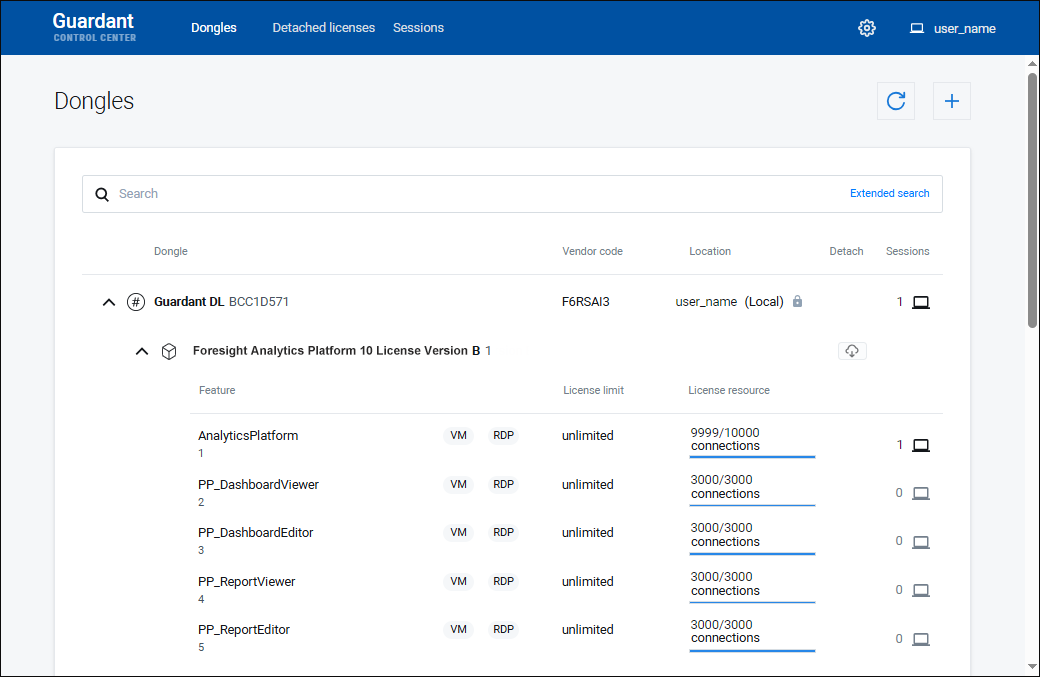
After executing the operation, Guardant Control Center opens:
Click the
 Settings button at the top right corner.
Enter the "admin" password and click the Login button:
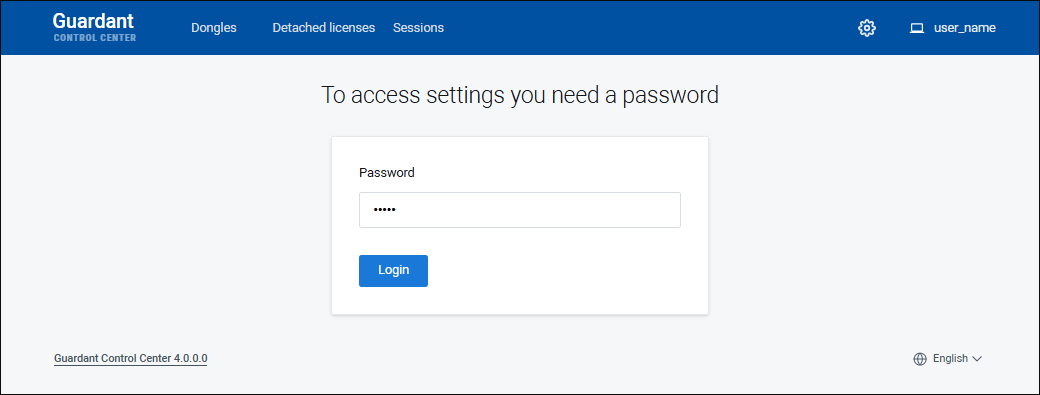
NOTE. If required, change password to access license server settings in the Password section.
Change settings in the following sections:
General. Specify activation service URL:
https://guardantstation.fsight.ru:9000/
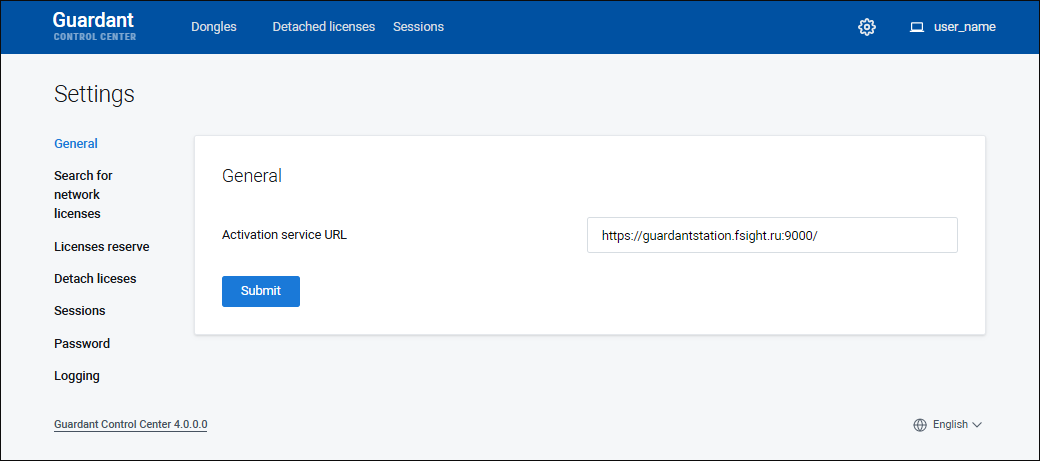
To save changes, click the Submit button.
Search for Network Licenses. Toggle the Network Licenses from Other Servers on the Local Network and Broadcast Search switches to inactive state:
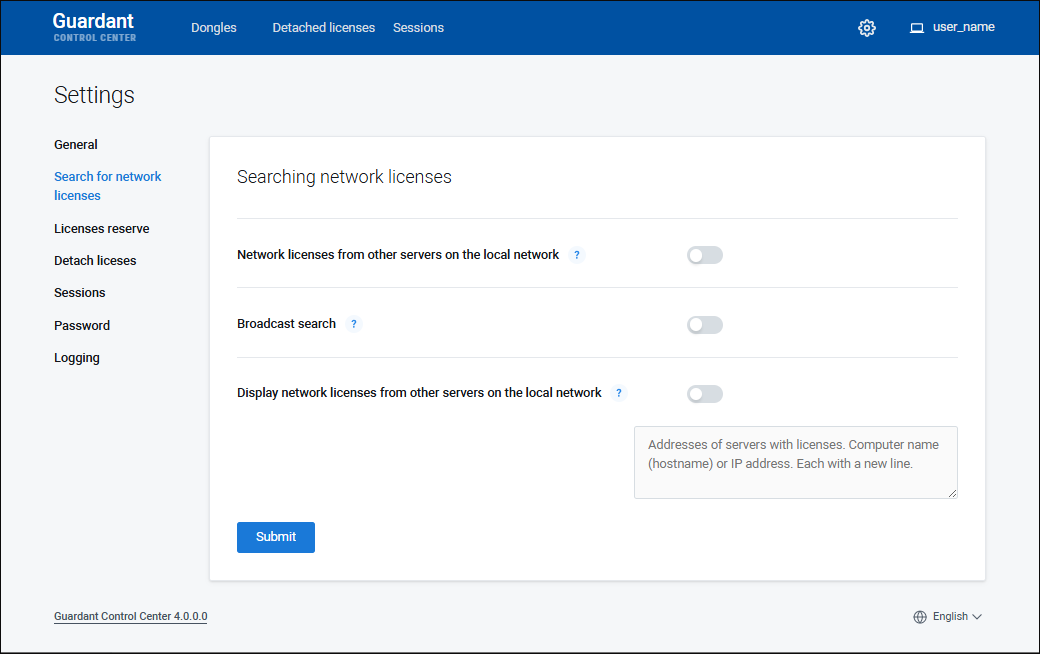
To save changes, click the Submit button.
Logging. Toggle the Technical Events and Business Logic Events switches to active state:
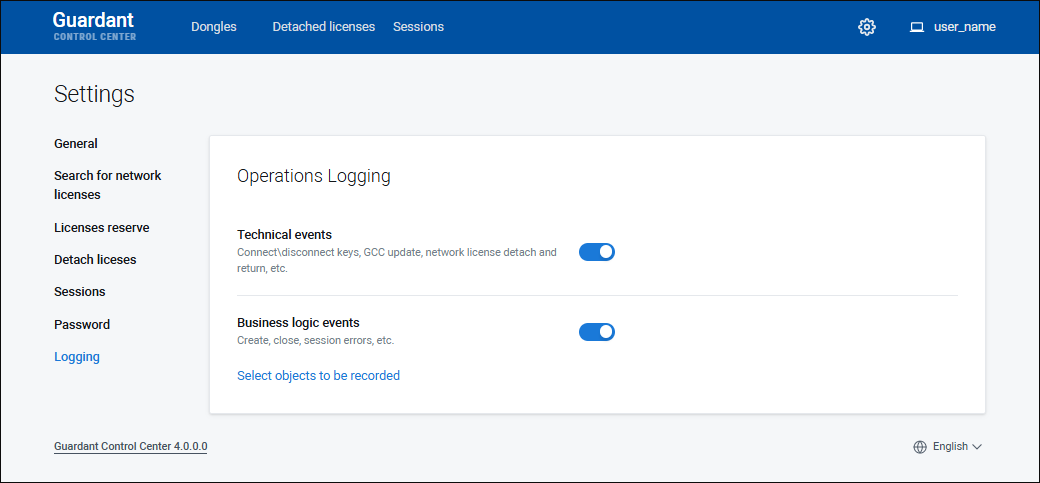
After executing the operations the Guardant-based license server is installed and set up. Next, proceed to licensing service installation.
Reserving Features
Reserving specific features is required if a license with a limit on the number of users is in use on the license server.
Reserving features guarantees access to functionality for specific users. The users will always be provided with free concurrent sessions for the specified features.
To reserve features on the license server:
Open the Licenses Reserve section:
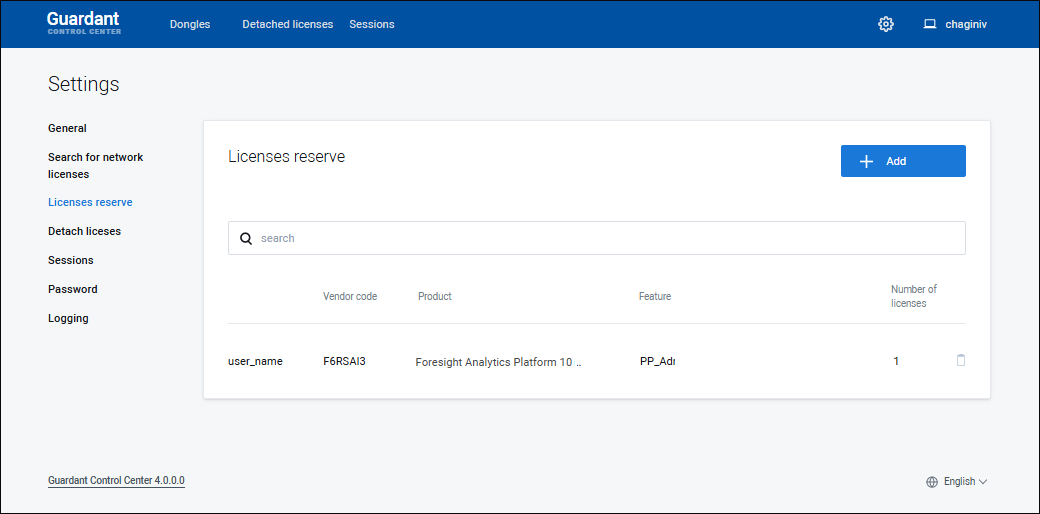
Click the
 Add button. The User Access to Network Licenses dialog box opens:
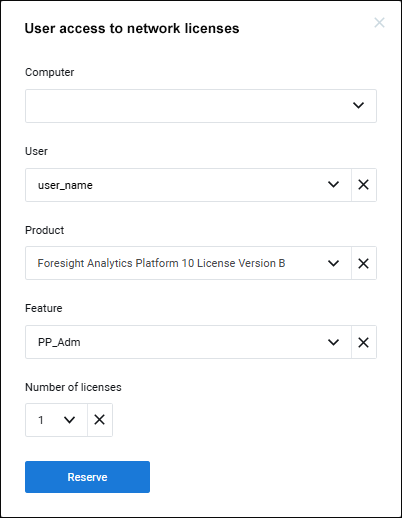
Set the parameters:
User. In the drop-down list select the user name, for whom the feature will be reserved.
Product. Select the license in the drop-down list.
Feature. Select the feature in the drop-down list.
Number of Licenses. Select the number of reserved concurrent sessions for the feature for the user. The reserved number is contracted from the total number of available sessions.
Click the Reserve button.
Repeat Steps 2-4 to reserve several features.
After executing the operations the user gets the guaranteed access to the functionality using the reserved feature.
To reserve a feature in the console mode, see the Guardant documentation.
To remove the reserve from the feature, click the  Delete button.
Working with License
To work with a license, use the Dongles section. The section displays the licenses activated in Guardant License Wizard containing a set of features (components):

 Refresh list of licenses
 Refresh Dongles List button. As a result, a new license is added in the list of licenses or the existing license is updated, for example, in terms of the number of allowed connections or features.
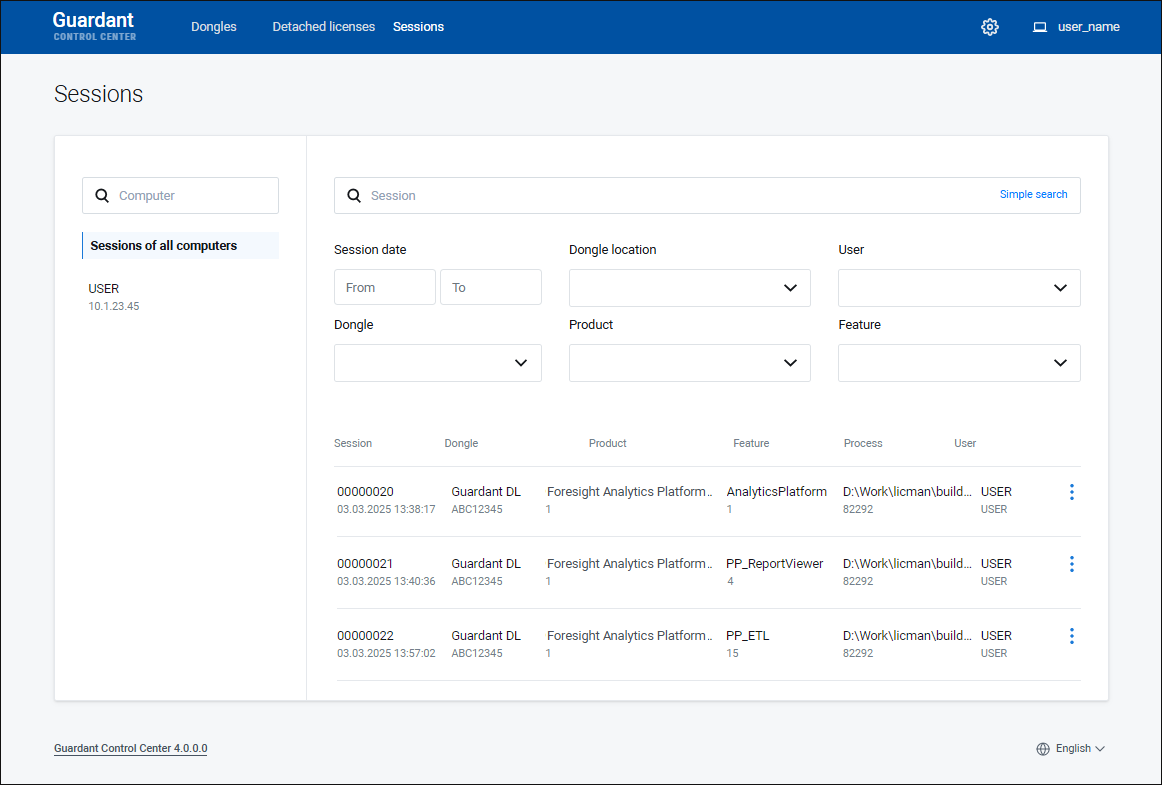
 Active Sessions button. After this the Sessions dialog box opens: