 Settings button in the main menu. After executing the operation the update manager wizard opens:
To set up update process options, click the Settings button in the main menu. After executing the operation the update manager wizard opens:
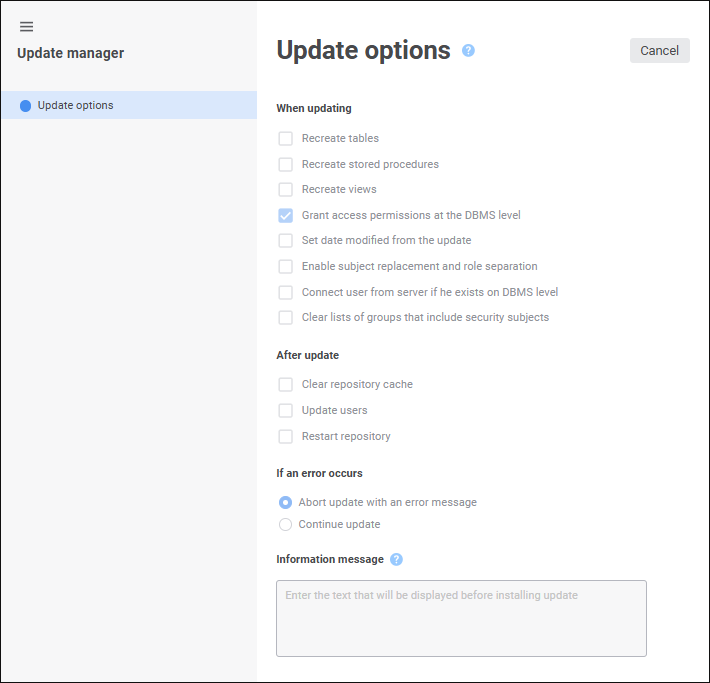
Determine options for edited update:
The When Updating group is used to determine the actions that will be executed on installing update:
Recreate Tables. When the checkbox is selected, tables are recreated at the DBMS level. When the checkbox is deselected, tables are recreated at the repository level.
NOTE. If table structure has been changed, for example, fields were added or deleted, the Recreate Tables checkbox should be selected to update the table in the target repository.
Recreate Stored Procedures. When the checkbox is selected, procedures are recreated at the DBMS level. When the checkbox is deselected, procedures are not recreated.
Recreate Views. When the checkbox is selected, views are recreated at the DBMS level. When the checkbox is deselected, views are not recreated.
NOTE. The unique settings to recreate the specific update object can by specified by using the Recreate On Update item in the object update options.
Grant Access Permissions at the DBMS Level. If the access permission transfer for one or several objects has been set up for the update, it may require to update access permissions at the DBMS level. Selecting the checkbox allows for informing the user about installing update and when the positive answer is selected, to update access permissions on the DBMS level. When the checkbox is deselected on installing update, permissions are applied only at the platform level; to apply access permissions at the DBMS level, update users.
Set Date Modified from the Update. The checkbox is deselected by default. After completing the update, modification dates of objects contained in the update match the update installation date. When the checkbox is selected, modification dates of updated objects correspond to real dates of object changes in the repository at the time the update is created.
Enable Subject Replacement and Role Separation. The checkbox is selected by default. This checkbox determines the behavior when it is required to replace subjects and separate roles on creating an update. The parameter is saved in the update file.
Connect User from Server if He Exists on DBMS Level. Select the checkbox if the update contains:
Process. The operation is required to save the owner role that was set up in the business process steps: Data Entry and Approval.
Security Subject. The operation is required on transfer of single users between repositories. Select the checkbox for correct transfer of users to database server. In this case, when installing update a new user is not created if he already exists on the server. If the checkbox is deselected, a new user is created on the server. If this user already exists, the corresponding error message is displayed.
Clear Lists of Groups That Include Security Subjects. The checkbox is deselected by default. This checkbox determined whether lists of groups that include security subjects are to be cleared in the target repository on installing update. For example, if a subject in the source repository is included in the group A and in the target repository - in the group B, it will be included only in the group A after applying update in the target repository. If the checkbox is deselected, the subject will be included in the groups A and B after applying update in the target repository.
NOTE. The parameter is available if the update contains at least one security subject, for which the Transfer Group Membership parameter is set to Yes.
Transfer Attributes. Select the checkbox to add all custom attributes for users, user groups, object classes, and specific object types to update. Custom attributes are used during the setup of attribute-based access control method.
Features of transferring attributes:
If identifier and data type of the transferred attribute matches the identifier and data type of the updated attribute, only attribute value will be transferred.
If identifier of the transferred attribute matches the identifier of the updated attribute but their data types differ, the update will be aborted.
If identifier of the transferred attribute differs from names identifiers of the updated attributes, a new attribute will be added.
The checkbox is deselected by default, custom attributes are not transferred.
The After Update group is used to determine the actions that will be executed after update installation: The list of selected actions will be displayed on the last page of the update instalation wizard:
Clear Repository Cache. It clears repository and assemblies caches of Foresight Analytics Platform, which are stored on the server.
Update Users. This operation is required when one cannot use permissions transfer due to the differences in user lists of the destination schema and source schema (or differences in permissions) because permissions will be transferred from the schema where the update file is created.
Restart Repository. This operation is required if updated objects had been opened when an update started. Executing the operation closes all repository objects, and a dialog box for repository connection automatically opens.
The If an Error Occurs group is used to determine the action if update error occurs:
Abort Update with an Error Message. If an error occurs during the update, an error message is displayed and the update is aborted. This option is set by default.
Continue Update. If an error occurs, the update continues, and no message is displayed. Exceptions include errors regarding the inability to update the object. In this case a message is still displayed. The update continues after responding to the displayed message.
The specified text will be displayed in the update installation wizard.
To save changes:
Click the Save button.
Select the Save and Close item in the drop-down menu of the Save button. After executing the operation the specified update options are saved, and the update manager wizard closes.
See also:
Creating an Update | Setting Up Selected Object Update Options

 When updating