click the  Parameters button on the toolbar. After this the Working Area Settings side panel opens:
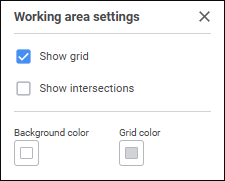
Set the parameters:
Show Grid. Deselect the checkbox to hide grid in the working area. The checkbox is selected by default, grid is shown.
Show Intersections. Select the checkbox to show line bends at the points of intersection of straight/curved lines and arrows in the working area:
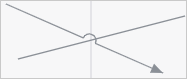
The checkbox is deselected by default, line bends are not displayed at the points of intersection of straight/curved lines and arrows. Checkbox state is not saved, the checkbox is always deselected when workspace opens.
Background Color/Grid Color. Select background/grid color in the drop-down color palette.
One can select standard and custom colors. The palette contains only standard colors by default.
To create a custom color:
Click the
 Add Color button. The advanced color palette opens.
Select a color in the advanced color palette, use color picker to select color on a browser page, or set color code in the RGB or HEX format.
After executing the operations the custom color is created and added to the palette.
NOTE. The maximum possible number of custom colors in the a palette is 23.
To delete custom color from the palette, select the Delete item in the selected color's context menu.
To change color transparency, use the slider or enter value as a percentage.
To reset color settings, click the  Default Color button.
To hide or show grid in the working area, press the G key.
On the View tab:
Click or release the Grid button to show or hide the grid in the working area. By default the button is pressed, the grid is displayed.
Select or deselect the Intersection Points checkbox to show or hide intersection points on working area. By default the checkbox is selected, the intersection points are shown.
Select or deselect the Connection Points checkbox to show or hide connection points for lines and objects in the working area. The checkbox is selected by default, and connection points are shown.
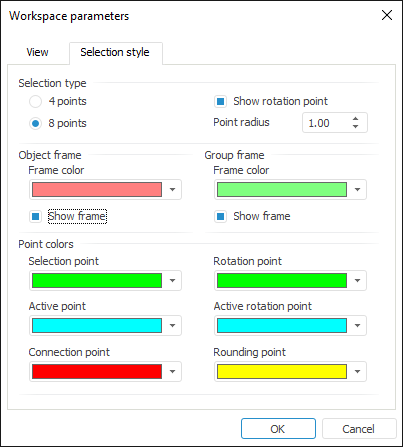
Execute the Workspace Parameters item in the working area's context menu. The Workspace Parameters dialog box opens:
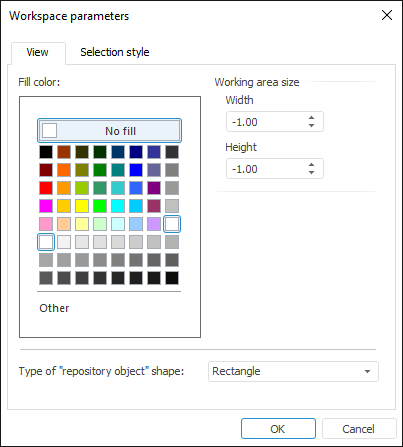
Determine workspace background display parameters:
On the View tab:
Fill Color. Select fill color in the standard color palette. If the No Fill checkbox is selected, the transparent background is set. Click the Other button to open the advanced palette.
Working Area Size. Determine workspace width and height. If values of width and height are equal to -1.00, the workspace is considered to be unlimited. Hotkeys can be used to set borders for moving on the workspace.
Type of "Repository Object" Shape. In the drop-down list select the shape type to be used for repository objects: rectangle, arrow, two-headed arrow, arrow callout, two-headed arrow callout, ellipse, rounded rectangle, polygon, rectangular callout, elliptical callout, callout with rounded rectangle. Rectangle is used by default.
On the Selection Style tab:
Selection Type. It sets the number of points displayed at object selection: 4 or 8. If the Show Rotation Point checkbox is deselected, no rotation point is displayed for the selected object.
Object Frame. It sets frame color. If the Show Frame checkbox is deselected, no frame is shown for the selected object.
Group Frame. It sets group frame color. If the Show Frame checkbox is deselected, no frame is shown for the selected group.
Point Colors. It sets points color for the selected object. Colors of selection points are uniform for all workspaces within the same account, that is, point color settings in all workspaces match the last defined settings. Color can be set for the following points:
Selection Point. Points of all selected objects when multiple selection is used, except for points of an active object.
Active Point. Points of the last selected object.
Connection Point. Points of objects' connection.
Rotation Point. Rotation points of all selected objects except the last.
Active Rotation Point. Rotation point of the last (active) selected object.
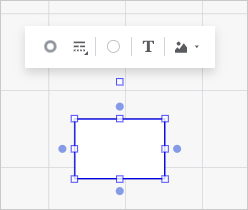
Rounding Point. Rounding points of the selected object:
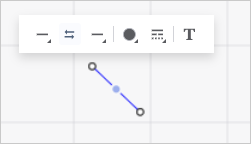

 Line parameters
 Start/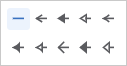
 Swap Places With button.
 Line Color button.
 No Color button.
 Set Up Line button:
 . Solid line.
 . Squared points.
 . Dashed line.
 . Dash-dot-dot-dashed line.
 . Dash-dot-dashed line.
 Border Color button.