 Add calculated element
Working with dimension elements is available in regular reports, information panels, express reports, dashboards.
The following operations are available for editing elements:
To add a calculated element:
In regular reports and information panels click the  Add button in the Total Dimension area in the Edit - <dimension name> dialog box.
In express reports and dashboards:
Click the  New Element button in the Elements group on the Hierarchy ribbon tab.
Select the Element > Add New item in the dimension element's context menu in the Selection group of tabs on the side panel or in the Total Dimension area in the Edit Dimension dialog box.
Click the Add button in the Edit Dimension dialog box.
To set up a dimension element, use the expression editor.
A new dimension element will be added to the dimension, which elements are displayed:
In regular reports on the selection panel.
In information panels on the Dimension Filter panel.
In express reports and dashboards on the Selection group of tabs on the side panel.
A new calculated element cannot be added:
If global cache is used.
If a group of elements is applied in the dimension.
If not all cube dimensions have a defined primary key outside the block.
If a data source is a cube, in table or calculated dictionary of which there are no indexes added.
If a combined dimension is used.
Adding an aggregating element is available only in express reports and dashboards. Before adding an aggregating element make sure that combined dimension is not used.
An aggregating element can be used to quickly create a new element combining other elements by the mathematical function.
To add an aggregating element to dimension:
Select the Element item in the dimension element's context menu in the Selection group of tabs on the side panel or in the Total Dimension area in the Edit Dimension dialog box.
Open the context menu of table column and/or row header elements in the working area.
Click the New Element button in the Element group on the Hierarchy ribbon tab.
After selecting the element select one of the methods for setting a new element formula:
Combine into New Element. The formula of a new element contains values of selected elements combined by the selected function. All selected elements will become children for the new element.
The functions are available as a new formula element:
Sum.
Average.
Minimum.
Maximum.
Mode.
Median.
Variance.
Adding a subtotal/total is available only in express reports and dashboards. Before adding a subtotal/total make sure that combined dimension is not used.
To add a subtotal/total, execute one of the operations:
Select the Add Subtotal/Total item in the drop-down menu of the New Element button in the Elements group on the Hierarchy ribbon tab.
Select the Element > Add Subtotal/Add Total item in the dimension element's context menu in the Selection group of tabs on the side panel or in the Total Dimension area in the Edit Dimension dialog box.
Available total calculation methods:
Sum.
Average.
Minimum.
Maximum.
Mode.
Median.
Variance.
After selecting the calculation method a new dimension element named <calculation method> (<dimension element name>) is added to the current dimension.
To edit element formula:
In regular reports:
Select the Element > Edit item in the dimension element's context menu on the selection panel or in the Total Dimension area in the Edit - <dimension name> dialog box.
Click the  Edit button in the Total Dimension area in the Edit - <dimension name> dialog box.
In information panels:
Select the Element > Edit item in the dimension element's context menu on the Dimension Filter panel or in the Total Dimension area in the Edit - <dimension name> dialog box.
Click the Edit button in the Total Dimension area in the Edit - <dimension name> dialog box.
In express reports and dashboards:
Select the Edit Formula item in the element's context menu on the side panel or in the Total Dimension area in the Edit Dimension dialog box.
Click the Edit Formula button in the Element group on the Hierarchy ribbon tab.
Click the Edit Formula button in the Edit Dimension dialog box.
To set up an expression of the dimension calculated element use the expression editor.
To rename an element:
In regular reports and information panels select the Element > Rename item in the element's context menu on the selection panel or in the Total Dimension area in the Edit - <dimension name> dialog box.
In express reports and dashboards:
Select the Element > Rename item in the element's context menu on he side panel or in the Total Dimension area in the Edit Dimension dialog box.
Click the Rename button in the Element group on the Hierarchy ribbon tab.
Click the Rename button in the Edit Dimension dialog box.
To search for dimension element:
Open the search string:
In regular reports click the  Search button on the selection panel.
In information panels click the Search button on the Dimension Filter panel.
In express reports and dashboards open the dimension tab in the Selection group of tabs on the side panel. The search string is displayed below the dimension name.
Enter the name or part of the name of the searched dimension element in the search string. Search is executed automatically while the name is entered into the search string. The found elements are displayed in the element tree with their parent and child elements:
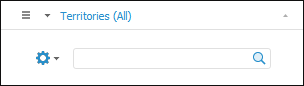
To reset the search results, click the  Close button.
 Expand/collapse hierarchy of list of dimension elements
To expand/collapse hierarchy of list of dimension elements:
In regular reports select the Expand All/Collapse All item in the dimension element's context menu on the selection panel.
In information panels select the Expand All/Collapse All item in the dimension element's context menu on the Dimension Filter panel.
In express reports and dashboards:
Select the Expand All/Collapse All item in the View group on the Hierarchy ribbon tab.
Select the Expand All/Collapse All item in the dimension element's context menu or in the drop-down menu of the  Settings button located below the dimension name in the Selection group of tabs on the side.
To delete an element:
In regular reports and information panels:
Select the Element > Rename item in the element's context menu on the selection panel or in the Total Dimension area in the Edit - <dimension name> dialog box.
Select the dimension element in the Total Dimension area in the Edit - <dimension name> dialog box and click the  Delete button.
In express reports and dashboards:
Select the Element > Delete item in the element's context menu in the Selection group of tabs on the side panel.
Click the Delete button in the Element group of the Hierarchy ribbon tab.
Select the element in the Total Dimension area in the Edit Dimension dialog box and click the Delete button or select the Element > Delete item in the element's context menu.
After executing one of the operations the element is deleted.
NOTE. Deleting element of calendar dimension is unavailable.
To restore elements:
In regular reports select the Dimension > Restore item in the dimension element's context menu on the selection panel.
In information panels select the Dimension > Restore item in the dimension element's context menu on the Dimension Filter panel.
In express reports and dashboards:
Select the Dimension > Restore item in the dimension element' context menu in the Selection group of tabs on the side panel or in the Total Dimension area in the Edit Dimension dialog box.
Click the Restore button in the Dimension group of the Hierarchy ribbon tab.
After executing one of the operations, dimension elements are restored and rest to the original view. In regular reports and information panels, before restoring dimension elements the system requests to confirm the operation.
The following operations are available to set up displaying of dimension elements:
The following operations are available to work with dimension element selection:
See also: