Select the  Copy item in the context menu of the selected cell range.
Click the Copy button on the Home toolbar tab.
Select the Edit > Copy main menu item.
Press CTRL+C.
To copy report data from a selected cell or area:
Select the Copy item in the context menu of the selected cell range.
Click the Copy button on the Home toolbar tab.
Select the Edit > Copy main menu item.
Press CTRL+C.
To cut data from the selected cell or area to clipboard:
Select the  Cut item in the context menu of the selected cell range.
Click the Cut button on the Home toolbar tab.
Select the Edit > Cut main menu item.
Press CTRL+X.
To paste data from clipboard to the selected cell, press CTRL+V.
When the following is used for paste:
The  Paste item in the cell's context menu.
The Paste button on the Home toolbar tab.
The Edit > Paste main menu item.
An message is displayed informing that the user should use shortcut keys.
NOTE. To edit pasted data, use the paste special mode.
 Copy and paste data from third-party applications
When data range autofilter is used on a report sheet or in a table visualizer, cutting value range to clipboard is applied only to visible rows/columns.
The cut data is pasted from clipboard with all original cell formatting settings and comments if there are any.
When cutting data:
In the report opened for view, only the cell contents is cleared.
In the report opened for edit:
The cell contents is only cleared for table visualizer cells.
Cell contents, data formats in cells and cell comments are cleared for the rest of the sheet cells.
When data range autofilter is used on a report sheet or in a table visualizer, cutting value range to clipboard is applied to all rows/columns regardless of whether they are visible during filtering. Behavior will be identical for the entire data range regardless of filter position.
If data range filtering is used on a report sheet or in a table visualizer:
Value of one cell is pasted to a cell range only in visible rows/columns.
Value range paste is applied to all visible rows/columns. The pasted value range is extended taking into account copy area size, including hidden rows/columns.
Behavior will be identical for the entire data range regardless of filter position.
Depending on the selected cell range, data paste has the following features:
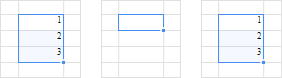
One Cell is Selected for Pasting. The cell for pasting is expanded to the right and down to match the size of the copied area. In the example below, you see copied data (left), the selected cell (middle), and pasted data (right):
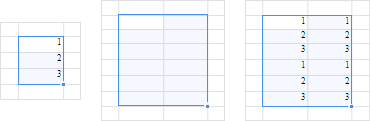
Several Cells are Selected for Pasting. If the copied area is smaller in size than the selected area, the selected area for pasting is tiled with the copied area, that is, the contents of the copied cells are repeated as many times as possible to fill the available space. In the example below, you see copied data (left), the selected area (middle), and the pasted data (right). The copied area can fit in the selected area several times, but some unfilled cells might be left, because there is not enough room to paste a complete set of copied cells:
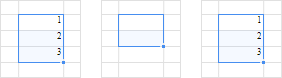
If the copied area exceeds the selected area in size, the copied area fills the entire selected area as well as the necessary neighboring cells.
See also:
Paste Special | Formatting Parameters on Pasting from Clipboard
