Manual resize. To manually resize rows/columns, execute the following operations:
For column. Hover the cursor to the column's right border in the header area, click the border, hold down the cursor and drag it to the required distance. Actual column width is displayed in the tooltip.
For row. Hover the cursor to the row's bottom border in the header area, click the border, hold down the cursor and drag it to the required distance. Actual row height is displayed in the tooltip.
Quick row height fit. To quickly fit row or column size by contents, execute one of the operations:
Select the Fit Row Height/ Fit Column Width context menu item of the selected cell or row/column header.
Click the Fit Row Height/ Fit Column Width button on the View toolbar tab.
Select the View > Fit Row Height/View > Fit Column Width main menu item for the selected cell or row/column header.
Double-click the right border of the column header/bottom border of row header.
Each of the above-mentioned methods of row/column resize can be applied both to a single row/column and to a row/column group. The changed size is applied for each row/column in the group.

 Change zoom
 Select button next to the current zoom value: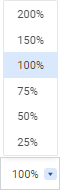

 Fit Row Height/
 Fit Column Width context menu item of the selected cell or row/column header.