
 To open the panel
Regular reports can use one or several data sources to create the slices used for data visualization as tables and charts.
As a data source, one can use all cube type.
To manage regular report data sources, use the Sources panel.
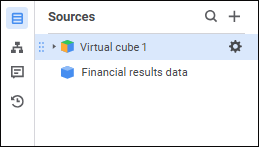
Available operations:
To hide the Sources panel, click the  Sources button on the control panel.
To add a data source, use the Add Source dialog box.
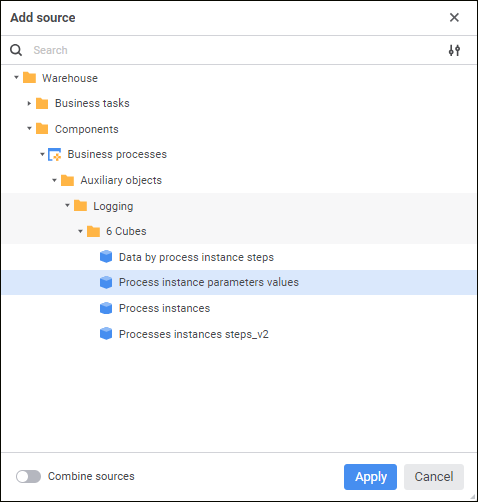
Available operations:
Add a data source including two or more cubes
To create and edit data sources including two or more cubes, use the Set Up Data Source dialog box.
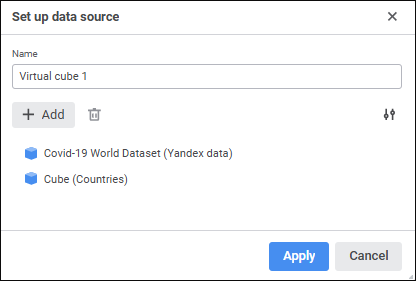
NOTE. The setting is available for data sources with a single data slice.
Available operations:
Set up displaying of list of added cubes
Click the Apply button to save changes and close the dialog box.
NOTE. The Apply button is available if the data source includes two or more cubes.
To quickly search for the required data source by name in the list of selected data sources, use the search:
Click the  Search button on the Sources panel.
Enter the text to be searched in the search string. Search is executed automatically while the searched text is entered into the search string. The list will display only the data sources, which names contain the entered text.
To reset search results, click the  Clear button.
The Sources panel contains the following object display options (data sources, slices and visualizers):
Show names. Default value.
Show addresses and identifiers.
To show addresses and identifiers, select the Show Addresses and Identifiers item in the context menu of any data source on the Sources panel. After executing the command, it will be marked with a checkbox.
NOTE. After the command is executed, addresses and identifiers of all data sources and their slices with visualizers are shown regardless of the data source, for which the command was executed.
To show object names again, execute the command again and deselect its checkbox.
The setting is available:
If a source cube has several display versions.
If only one cube is used as a data source.
By default, the display version is used, which was set as a default one during cube setup.
To change data source's display version, select display version name in the drop-down menu of the Display Versions item in the source's context menu and confirm the operation in the confirmation dialog box.
As a result, the list of dimensions is refreshed according to cube display version settings for all the slices built on this data source.
The selected display version is saved together with the report.
Available versions depend on the data source type:
Standard cube. Display versions configured during creating a cube.
Calculated cube. Available options:
<Calculated cube name>. Cube data.
Formulas <calculated cube name>. Cube data calculated by formulas that are set in the formula editor for calculated cube.
To delete a data source, select the Delete item in the selected data source's context menu. After executing the command the operation confirmation dialog box opens. Clicking the Yes button deletes the selected data source.
Deleting the data sources deletes all child objects. All slices, tables and charts based on these data slices are deleted for the data source.
See also:
 Add Source button at the top or central part of the Sources panel.
 Show Object button and select display option in the drop-down menu:
 Set Up Data Source button is displayed.
 Remove button.