Report parameters are used to dynamically manage data displayed in report.
To set up report parameters, follow the steps:
Add calculation parameters.
Set up source parameters management using report parameters or by setting values.
To create a list of parameters, use the Parameters dialog box.

To open the Parameters dialog box
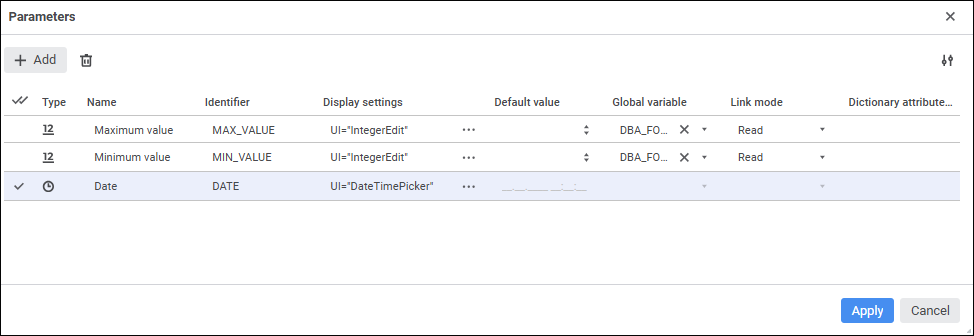
In the report opened for edit select the Parameters main menu item.

The following operations are available when working with report parameters:
To add a parameter, click the
Add button. The string will be added to the end of the list of parameters, in which enter properties of the new parameter:
Type. In the drop-down list select the data type for the values that will be stored in the parameter:
String.
Integer.
Decimal.
Real.
Date and time.
Binary.
The string data type is selected by default.
Name. Enter parameter name. The default name is Parameter <number>.
Identifier. Enter parameter's unique identifier in the report. The identifier may consist of only Latin letters, numbers and underline character. The default identifier is ITEM<number>.
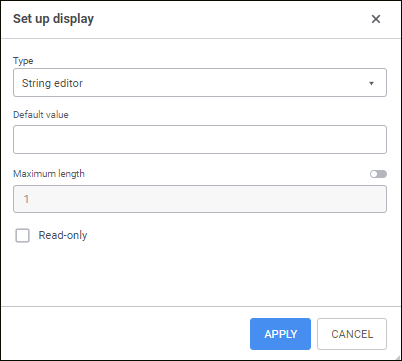
Display Settings. Determine appearance and behavior of the parameter value editor. Display settings are determined as a special string containing editor type, default value, and so on. The string can be edited directly in the edit box or using the Set Up Display dialog box. Parameter display settings are identical to value editor settings for controls. To open the dialog box, click the
Set Up Display button:

The following parameter display types are available:
Hierarchical list.
Radio button.
String editor.
Masked string editor.
Dictionary box editor.
Time editor.
Date editor.
Date and time editor.
Decimal editor.
Identifier editor.
Boolean values editor.
Integer editor.
List.
The default display type is set according to the selected parameter data type. The appearance of the Set Up Display dialog box may vary depending on the selected display type.
Default Value. Set default parameter value if required. Features of the default value for the following data types:
String. It may contain up to 2 GB of data. String text is not enclosed in quotation marks.
Integer. An integer number is allowed in the range [-2147483648; 2147483647].
Decimal. A decimal number that contains no more than 28 decimal places in the range [-179228162514264337593543950335; 179228162514264337593543950335] is allowed.
Real. A real number is allowed in the range [-5.0 x 10-324; 1.7 x 10308].
Date. Minimum date - January 1, 100 year (AD) 00:00:00, maximum date - December 31, 9999 year (AD) 23:59:59.
If dictionary box editor is used, the following becomes available: element selection, changing selection by criterion and setting up of displaying of element names. To work with objects, use context menu items.
Global Variable. Select the global variable determined in repository parameters. The list contains global variables of the same data type as the configured report parameter.
Link Mode. The box becomes available after the global variable is selected. Select the link mode for the parameter and the global variable in the drop-down list:
Read. Default value. The mode with the ability only to get global variable value.
Read and Write. The mode with the ability to get and change global variable value.
The link between the parameter and the global variable has a higher priority than the default parameter value. If link properties are set for the parameter, the value from the global variable is set for the parameter on its opening. Parameter value can be changed. If the Read and Write link mode is set for the parameter, the parameter value after being changed will also be set for the global variable. The changed value of the global variable is stored in the current user session and will be reset to the default value of the global variable after the work in the repository is finished.
Filtering of dictionary attributes. Set up filtering of dictionary attributes by clicking the
Filter by Parameter button. The button is displayed if more than one parameter is added, and if the Dictionary Box Editor display type is selected for at least one parameter. The Parameter Filters dialog box opens. If filtering is set up for the parameter, the
Filter by Parameter button will be highlighted in blue.
To add a set of parameters, repeat the operations and click the Apply button.
To edit properties of the selected parameter, change the value in the corresponding column.
To delete parameters, select the required parameters and click the
Delete button. A confirmation dialog box opens.
If filters were set up for the parameter, they will also be deleted.
To easily select all parameters, use the
Select All button.
To change the number of displayed properties, click the
Settings button and select or deselect the checkbox next to the property names.
See also:
Setting Up Report | Managing Parameters