Setting Up Displaying of Element Names
Setting up displaying of element names is available in regular reports, information panels, calculation algorithms, business processes, data entry forms, express reports, dashboards.
One can determine one or several dimension attributes, which values will be used as elements names in a table heading or sidehead. Element name settings are also applied in a chart.
To change how element names are displayed, select checkboxes next to attributes in the drop-down menu of the Names item located in the dimension element's context menu:
In regular reports:
On the selection panel.
On the controls panel.
In information panels on the Dimension Filter panel.
In calculation algorithms:
When setting up data consumer dimension filtering in calculation blocks and aggregation blocks.
On the calculated elements panel.
When setting default parameter value.
In business processes when setting up stage step execution conditions.
In data entry forms:
When setting up limits on available parameter values.
When setting up parameter links of calculation algorithms and data entry forms.
In express reports and dashboards:
In table heading or sidehead.
In the Selection group of tabs on the side panel.
In express reports and dashboards one can also change element names:
In the drop-down menu of the
 Names button in the View group on the Hierarchy ribbon tab.
In the drop-down menu of the
 Settings button located under the dimension name in the Selection group of tabs on the side panel.
The Name attribute is used by default.
Setting Up Custom Names
To set up custom names for dimension elements:
Select the Custom Name checkbox in the drop-down menu of the Name button/menu item. In regular reports and information panels the command is available only in the dimension element's context menu in table heading or sidehead. The Custom Element Names dialog box opens:
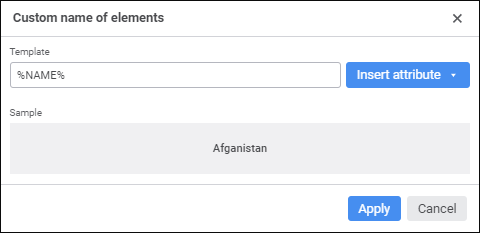
Set name display template using the Insert Attribute button. The drop-down menu of the Insert Attribute button contains dimension attributes.
After executing the operations the specified custom names of dimension elements are displayed.
To disable custom name, select the Dictionary Attributes checkbox in the drop-down menu of the Names button/menu item.
Setting Up Attribute Layout
To set up dimension attributes layout in element names:
Select the Dictionary Attributes checkbox in the drop-down menu of the Names button/menu item. In regular reports and information panels the command is available only in the dimension element's context menu in table heading or sidehead.
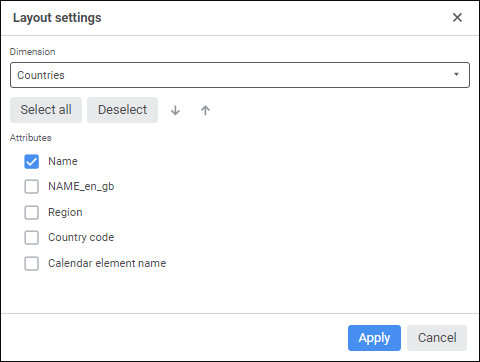
Select the Set Up Layout item in the drop-down menu of the Names item located in the dimension's context menu in table heading or sidehead. The Layout Settings dialog box opens.
The Layout Settings dialog box in regular reports:
The Set Up Layout dialog box in express reports and dashboards:
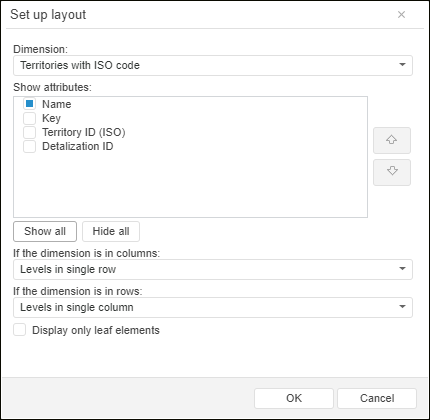
Select displayed dimension attributes and set their order.
NOTE. Hidden attributes are unavailable for use.
If required, one can set additional parameters in express reports and dashboards:
 If the dimension is in columns/rows

After executing the operations the selected attributes are displayed in dimension element names in the specified order.