In Windows OS, an application license is handled by means of the license manager that:
Activates the product.
Displays parameters of the current license and features.
Determines license search settings.
NOTE. Working with the license manager is available only in the desktop application during Foresight Analytics Platform activation via RMS.
To start the license manager:
Select the Windows main menu item: Foresight Analytics Platform 10.10 > License Manager.
Select the Help > About item in the main menu of Foresight Analytics Platform, then click the Change Licenses button.
As a result, the license manager dialog box opens.
The license manager dialog box depends on:
License search results. If there is no license or the current license is expired, the information dialog box opens.
License type in use. If a stand-alone or network license is used, the license manager dialog box appearance changes.
To activate the desktop application using a stand-alone license:
Open license search settings.
Select the Check for Stand-alone License Only radio button.
Click the OK button. The license manager dialog box opens.
Click the Activate button in the license manager dialog box.
Select file with activation code using Foresight Analytics Platform activation wizard.
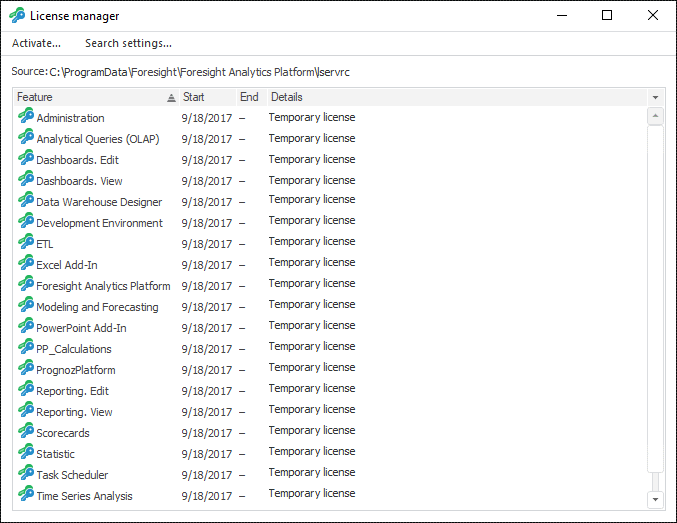
After executing the operations the desktop application is activated using a stand-alone license. Working with a stand-alone license will be available in the license manager, for example:
To activate the desktop application using a network license:
Open license search settings.
Select the Check for Server License Using This Host radio button and specify license server name.
Click the OK button.
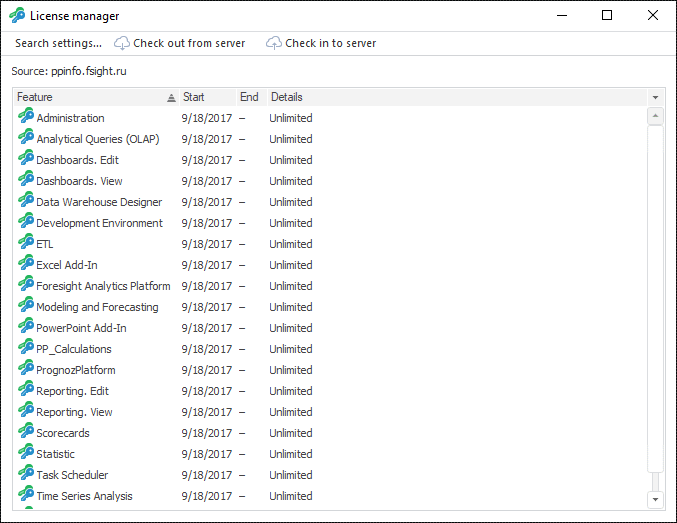
After executing the operations the desktop application is activated using a network license. Working with a network license will be available in the license manager, for example:
NOTE. The application can be activated using a network license by means of the system variables LSHOST, LSFORCEHOST or registry settings.
To activate a feature or application features, use a unit activation wizard. The wizard opens when the method is used, when the requested license is missing or is invalid.
See also:
Working with License in Linux OS