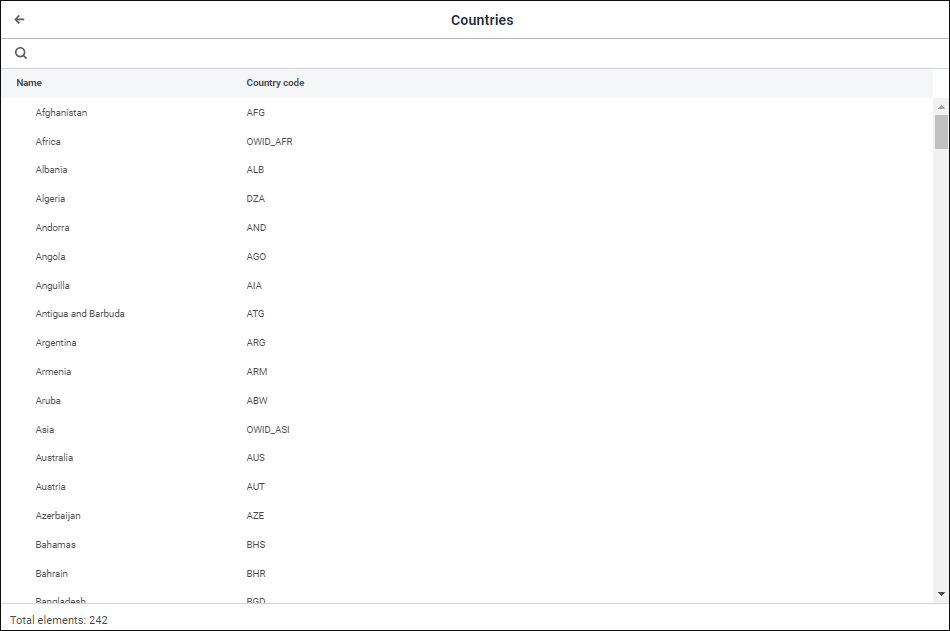
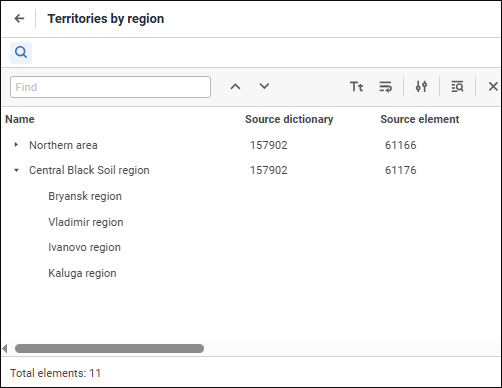
The following object types are dictionaries:
To work with a dictionary, open it for edit or view in the object navigator.
NOTE. When a dictionary opens, only the first 100 elements are displayed, the rest is loaded consecutively in real time.
Dictionary editing/viewing window depends on the object type.
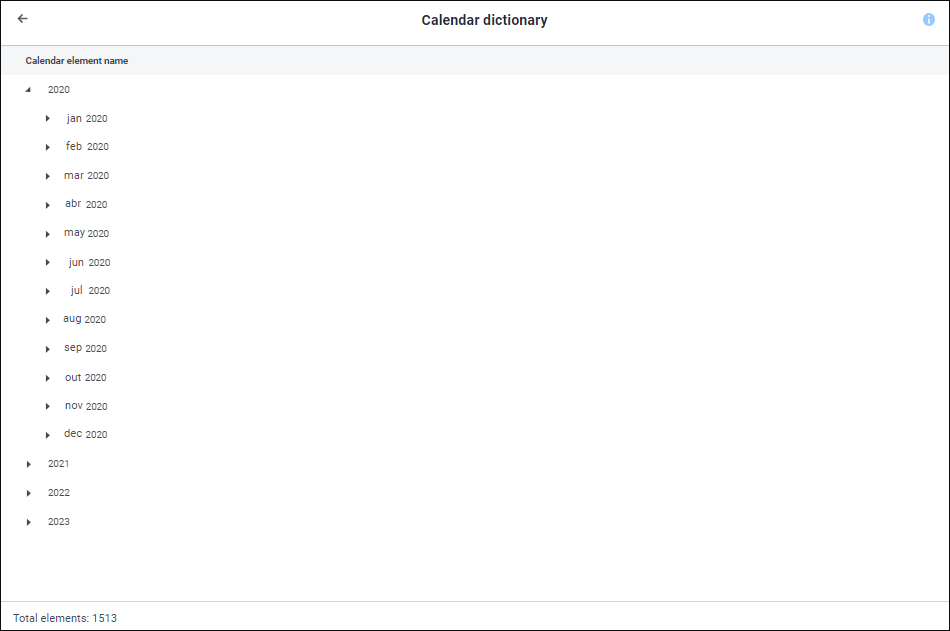
The window for viewing table, calendar, and calculated dictionaries:

The editing/viewing window of MDM dictionary:
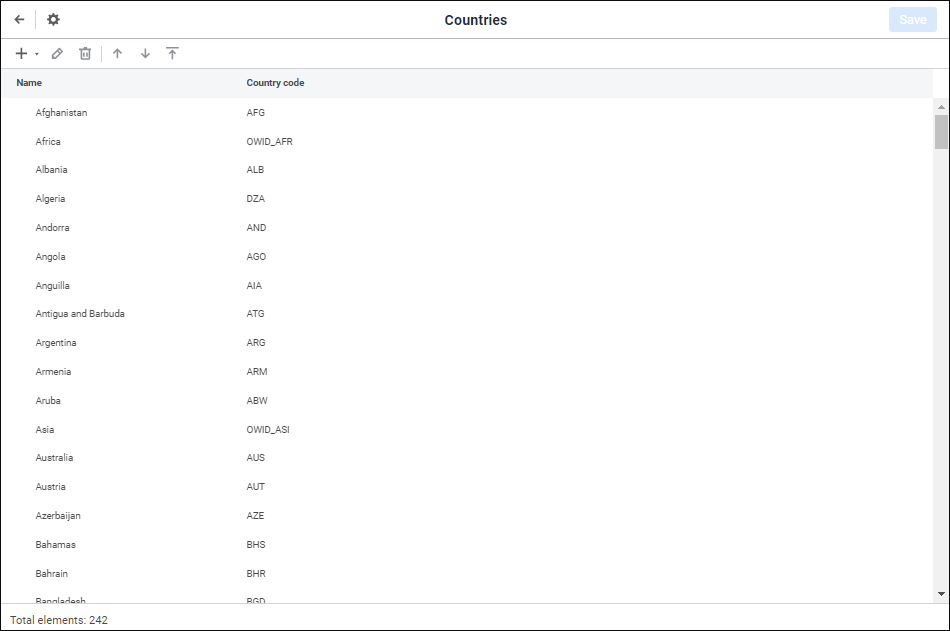


MDM dictionary window elements in the desktop application
NOTE. Working with MDM dictionary in the web application is available both in the new and the old interface. The old interface is identical to the MDM dictionary interface in the desktop application. If it is required to work with MDM dictionary in the old interface, add the modules field in the config.json configuration file.
The editing/viewing window of composite MDM dictionary:
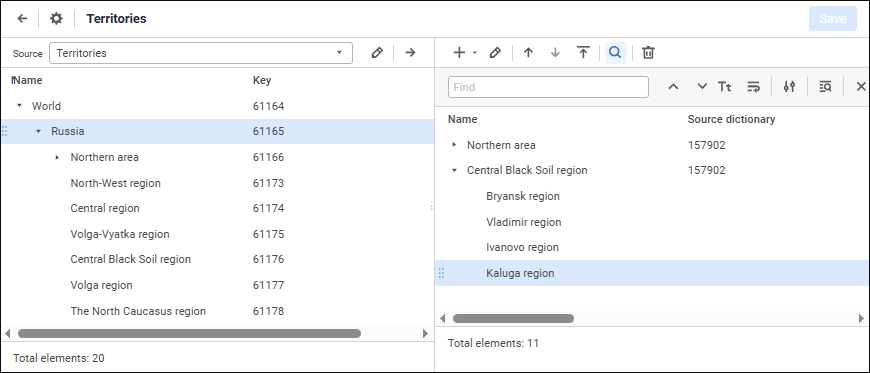


Composite MDM dictionary window elements in the desktop application
The following operations are available on working with a dictionary:
To rename MDM dictionary opened for edit in the web application:
Click on the dictionary name in the Basic Settings area. The name opens in the edit mode.
Make necessary changes.
Click outside the dictionary name.
Advanced capabilities in the desktop application:
To hide the development environment select the Tools > Development Environment main menu item.
To change password select the Tools > Change Password main menu item.
To select data mining method, select the Tools > Data Mining main menu item.
To open the security manager select the Tools > Security Manager main menu item.
To set up object navigator parameters, select the Tools > Settings main menu item.
To set up repository parameters select the Tools > Parameters main menu item.
To open the help system, select the Help > Contents main menu item.
To open the About window, select the Help > About main menu item.
See also: