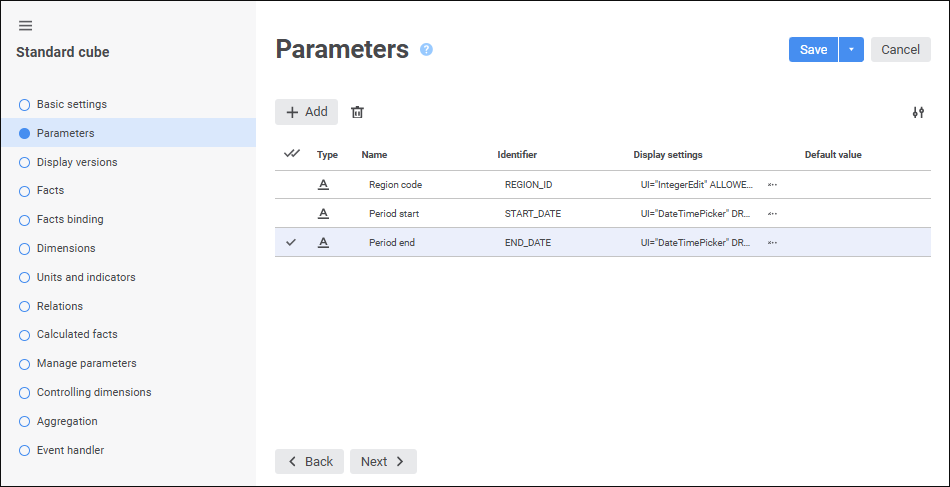
The Parameters page is used to create a list of object parameters. Parameters enable the user to dynamically generate object contents.
To create a new parameter, click the  Add button. A new string is added to the list of parameters. All boxes are set to default values.
Set parameter attributes:
Type. Select one of the available data types in the drop-down list.
Name. Enter parameter names.
Identifier. Enter a sequence of Latin letters, numbers, and underscore characters, starting with a letter. An identifier must be unique within the object.
Display Settings/Display Parameters. Select appearance and behavior for the parameter value editor. Display parameters are determined as a special string containing editor type, default value, and so on. The string can be edited in the edit box or using the Value Editor Parameters dialog box. To open the dialog box, click the  Browse button. By default, the display parameter is set in accordance with the selected parameter type.
NOTE. Setting up displaying of parameters is not available if in the value editor a custom name is set.
Default Value. Set default parameter value if required. Features of default value for the following data types:
String. It may contain up to 2 GB of data. String text is not enclosed in quotation marks.
Integer. An integer number is allowed in the range [-2147483648; 2147483647].
Decimal. A decimal number with no more than 28 decimal places is allowed in the range [-179228162514264337593543950335; 179228162514264337593543950335].
Real. A real number is allowed in the range [-5.0 x 10-324; 1.7 x 10308].
Date. Minimum date - 1 January 100 year (AD) 00:00:00, maximum date - 31 December 9999 year (AD) 23:59:59.
Custom. A set of unstructured data is allowed that is an array of binary or character data. Values of parameters that have a custom data type can be passed only when working with an object in application code.
If a dictionary box editor is used, the following becomes available: element selection, changing selection by criterion and setting up of displaying of element names in the drop-down list. To work with them, use context menu items.
Global Variable. Select the global variable determined in repository parameters. The list contains global variables of the same data type as the configured object parameter.
Link Mode. The box becomes available after the global variable is selected. Select the link mode for the parameter and the global variable in the drop-down list:
Read. Default value. The mode with the ability only to get global variable value.
Read and Write. The mode with the ability to get and change global variable value.
The link between the parameter and the global variable has a higher priority than the default parameter value. If link properties are set for the parameter, the value from the global variable is set for the parameter on its opening. Parameter value can be changed. If the Read and Write link mode is set for the parameter, the parameter value after being changed will also be set for the global variable. The changed value of the global variable is stored in the current user session and will be reset to the default value of the global variable after the work in the repository is finished.
To change displayed properties, select or deselect the required properties in the drop-down menu of the  Settings button.
To edit the selected parameter, set or change the required parameter settings in corresponding columns.
To delete the selected parameter, click the  Delete button. A confirmation dialog box opens.
To quickly select all parameters, click the  Select All button.
Click the Next button to go to the next wizard page.
See also:

 Create a parameter