In this article:
Setting Up Working Area Formatting
Adding ETL Task Formatting Objects
Setting Up ETL Task Formatting
To set up ETL task formatting:
Setting Up Working Area Formatting
To set up working area formatting:
Select the Working Area Parameters item in the working area's context menu. The Working Area Settings panel opens:
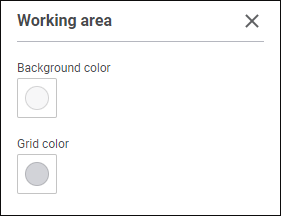
Set the parameters:
Show Grid. Deselect the checkbox to hide grid in the working area. The checkbox is selected by default, grid is shown.
Show Intersections. Select the checkbox to show line bends at the points of intersection of straight/curved lines and arrows in the working area:

The checkbox is deselected by default, line bends are not displayed at the points of intersection of straight/curved lines and arrows. Checkbox state is not saved, the checkbox is always deselected when ETL task opens.
Background Color/Grid Color. Select background/grid color in the drop-down color palette.
One can select standard and custom colors. The palette contains only standard colors by default.
To create a custom color:
Click the
 Add Color button. The advanced color palette opens.
Select a color in the advanced color palette, use color picker to select color on a browser page, or set color code in the RGB or HEX format.
After executing the operations the custom color is created and added to the palette.
NOTE. The maximum possible number of custom colors in the a palette is 23.
To delete custom color from the palette, select the Delete item in the selected color's context menu.
To change color transparency, use the slider or enter value as a percentage.
To reset color settings, click the  Default Color button.
To hide or show grid in the working area, press the G key.
Adding ETL Task Formatting Objects
To set up ETL task formatting, use additional objects: lines, shapes, images.

 Add a line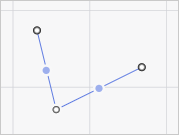
 Image button on the
 Setting Up ETL Task Formatting Objects
All working area additional objects have equal formatting by default. To set up object formatting, set their formatting parameters. To do this, use the popup panel with formatting settings of the selected object:
For a line:
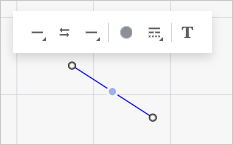
For a shape:
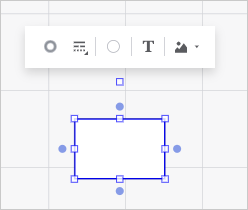
Set:
 Start/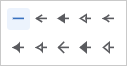
 Swap Places With button.
 Line Color button.
 No Color button.
 Set Up Line button:
 . Solid line.
 . Squared points.
 . Dashed line.
 . Dash-dot-dot-dashed line.
 . Dash-dot-dashed line.
 Border Color button.
One can set up only transparency for the Image object. To do this:
Select the Set Up Image item in the image's context menu. The Image Settings panel opens.
Set image transparency degree. Available values are in the range [0, 80].
Entering and Editing Text
To enter and edit line/shape text:
Double-click the selected object.
Select the Rename context menu item.
Click the
 Add/Edit Text button on the popup panel of the selected object.
The text editor is displayed. To finish text editing, click outside the editor area.
To set up text formatting of the selected object, use the popup panel:
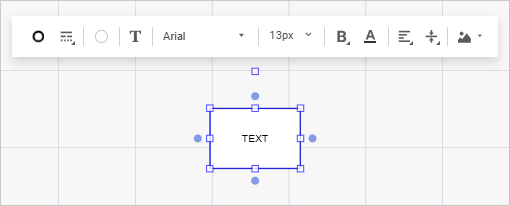
Set text parameters:
 Font Style button:
 . Italic.
 . Underline.
 . Strikethrough.
 Font Color button and select font color in the drop-down color palette.
 Horizontal Alignment button:
 . Center. Default value.
 . Right.
 Vertical Alignment button:
 . Top.
 . Bottom.
To set mixed cell text formatting, change font options of the selected text part.
Adding and Setting Up Image
To add an image to shape:
Select the shape.
Select the Select Image item in the drop-down menu of the
 Image in Shape button on the popup panel.
After the image file is selected, the image is added to the shape and is fit to its borders.
To set up the image in the working area, select the Set Up Image item in the drop-down menu of the Image in Shape button on the popup panel. After this the Image Settings panel opens:
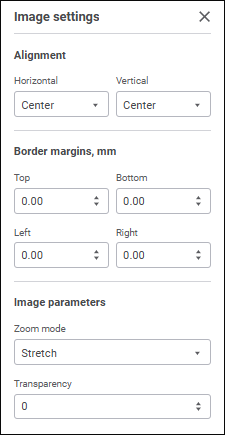
Set the parameters:
Alignment. Set image position in the shape. By default, the image is aligned to center relative to vertical and horizontal borders of the shape.
Border Margins, mm. Set additional image margins inside the shape.
Image Parameters. Set the following parameters:
Zoom Mode. Select image resize mode relative to shape sizes:
Do not Resize. Original image size is kept. If the image is larger than the shape, it is out of the shape borders.
Lock Aspect Ratio. Image size is fit proportionally to the width and height ratio of the shape.
Stretch. The image is stretched to fit the shape taking into account the specified margins.
Transparency. Set image transparency degree. Available values are in the range [0, 80].
To delete image:
Select the shape with the image.
Select the Delete Image item in the drop-down menu of the
Image in Shape button on the popup panel.