
 To open the Parameters dialog box
To set data source parameter values or to set up a link with information panel parameters, use the Parameters dialog box.
NOTE. Setting parameter values is available if a standard cube with configured parameters is used as a data source.
To open the Parameters dialog box
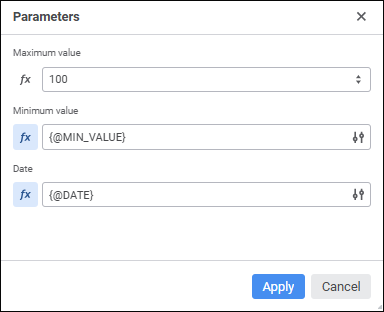
The dialog box displays the list of data source parameters.
Setting up a link between slice parameter of and information panel parameters is executed in the expression editor:
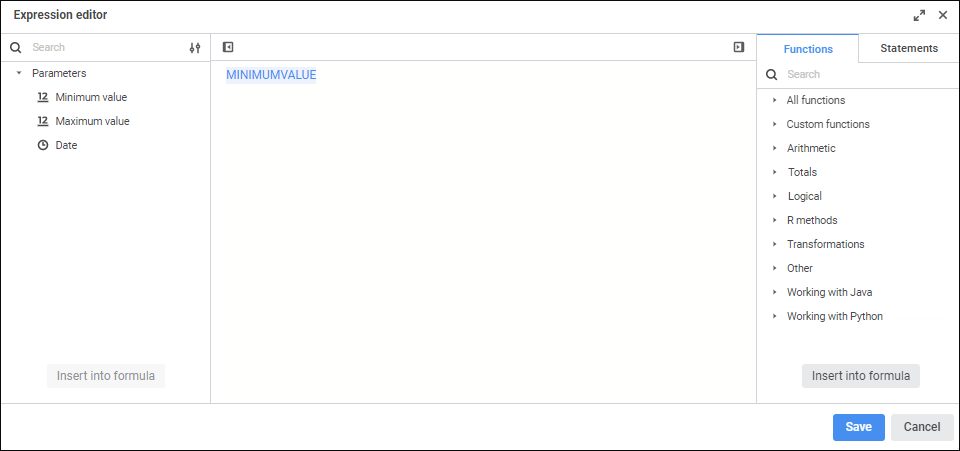
Create a calculation formula, which results will be written to the slice parameter of the, in the formula area. Operands, arithmetic operations, numbers, comparison signs, and round brackets can be used in a formula.
Information panel parameters are used as operands. To insert the parameter to the formula area, execute one of the operations:
Select the parameter and click the Insert into formula button.
Double-click the parameter.
Drag the parameter to the formula area.
To quickly search for parameters, start typing part or full parameter name in the search string. After executing the operation the parameters panel displays the parameters, which names satisfy search conditions.
Numbers, comparison signs, and round brackets are entered using the keyboard. Numbers and round brackets can also be entered from the Statements tab on the side panel.
Functions and statements for working with parameters can be inserted from the Functions and Statements tabs on the side panel.
To hide the parameters panel, click the  Hide Parameters Panel button.
To hide the functions panel, click the  Hide Functions and Parameters Panel button.
See also:
Setting Up Information Panel Parameters
 Parameters button in the Fields group on the
  Set Formula button. The
  Settings button in the parameter value box. The