
 To open the group of parameters
To set up page headers and footers, use the Header/Footer groups of parameters on the side panel:
To open the group of parameters
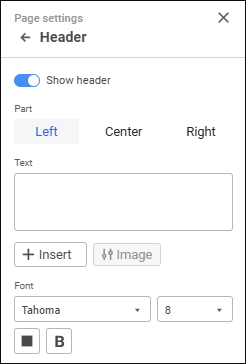
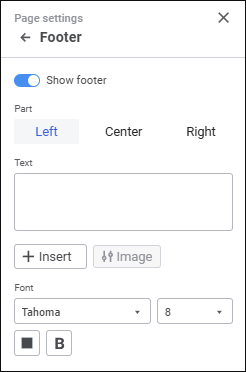
Set the parameters:
Show Header/Show Footer. The switch is toggled to active state by default. Header and footer and its displaying on data entry form sheets can be set up.
Part. The header and footer area is divided into three parts with individual text alignment: left, center or right. Each part has its own parameters.
Text. Header and footer text is created from special substitutions or by entering static text.
To use substitution, open corresponding substitution options in the drop-down menu of the  Insert button:
| Substitution option | Substitution/Tag | Description |
| Page number | &[Page] | The current page number is displayed. |
| Pages count | &[Pages] | The number of pages of the current data entry form is displayed. |
| Current date | &[Date] | The current date is displayed. |
| Current time | &[Time] | The current time is displayed. |
| Data entry form name | &[Name] | Data entry form name is displayed. |
| Page number of sheet | &[Sheet.Page] | The number of the page in the current sheet is displayed. |
| Pages count of sheet | &[Sheet.Pages] | The number of pages of the current data entry form sheet is displayed. |
| Image | &[Picture] | The selected image is displayed. |
| Control value | &[<Control identifier>.Value Format = "<Selected format>"] | The control value is displayed. |
After the image is selected, the Change Image button for selecting another image and the Image group of settings become available.
Font. Set font options:
Font type. Select operating system font in the drop-down list.
Size. Select font size in the drop-down list.
Color. Select font color in the drop-down palette. One can select standard and custom colors. The palette contains only standard colors by default.
To create a custom color:
Click the  Add Color button. The advanced color palette opens.
Select a color in the advanced color palette, use color picker to select color on a browser page, or set color code in the RGB or HEX format.
After executing the operations the custom color is created and added to the palette.
NOTE. The maximum possible number of custom colors in the palette is 23.
To delete custom color from the palette, select the Delete item in the selected color's context menu.
Font style. Select one or several font styles in the drop-down menu of the B Font Style button:
B. Bold.
I. Italic.
U. Underline.
S. Strikethrough.
After executing the operations page headers and footers are set up for printing.
See also:
Setting Up Data Entry Form for Printing
 Print button on the Home toolbar tab.
 Page Settings button at the top right corner.