Protection is used to limit user actions.
Sheet protection does not mean that cell contents is protected. To protect cell contents from editing, select the Locked checkbox on the Advanced tab in the Other group of parameters on the side panel.
To protect the sheet, select the Protect Sheet item in the context menu of the selected sheet's tab.
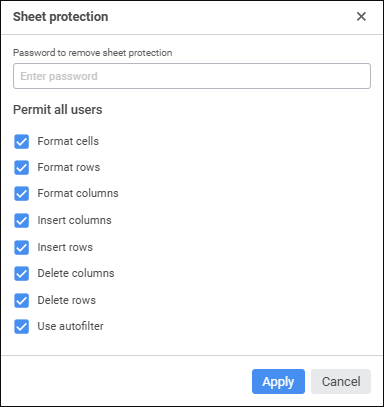
The Sheet Protection dialog box opens:
In the dialog box that opens set password to remove sheet protection in the Password to Remove Sheet Protection box. There are no restrictions on password length and used characters.
Select the operations that can be executed with the sheet. Select a checkbox to enable the operation. All checkboxes are selected by default. Deselect a checkbox to prohibit an action.
Available operations:
Click the Apply button to apply changes. If password was not set, the sheet will be protected by default.
If password was entered, the Password Confirmation dialog box opens:
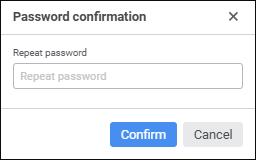
Enter the password again and click the Confirm button to protect the sheet.
The protected sheet's tab will display the Protected text.
To remove protection, select the Remove Sheet Protection item in the context menu of the selected sheet's tab. If the password was not set, sheet protection is removed at once. If the password was set, the Remove Sheet Protection dialog box opens:
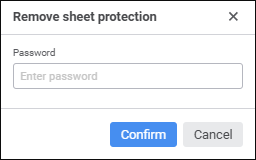
Enter the password and click the Confirm button. If the password was correct, sheet protection is removed, and the user can execute all operations with the sheet.
If the password was incorrect, an error message is displayed, and sheet protection remains active.
See also:
Adding a New Sheet and Working with It

 Format cells