In this article:
Step 1. Preparing Domain Environment
Step 2. Setting Up Domain Authentication
Step 3. Saving Credentials for DBMS Connection
Setting Up Domain Authentication with Built-in Authorization
To set up domain authentication with built-in authorization follow the steps below. Simultaneous use of domain authentication with built-in authorization is available only when working with PostgreSQL DBMS.
IMPORTANT. Built-in authorization is set up once during primary system setup.
Step 1. Preparing Domain Environment
Foresight Analytics Platform gets information about domain security subjects from the domain catalog service or global catalog that must be set up in the computer network. Interaction with the directory service is executed via the LDAP/LDAPS protocol.
If the catalog service of the current domain (global catalog of the current network) is based on Active Directory, and Foresight. Analytics Platform works in Windows OS, advanced settings do not need to be determined to connect to this service.
If the directory service is located at Linux OS server, or it is required to connect to the directory service in the network other than the current one (Linux or Windows OS server), execute the following operations depending on the operating system in use:
Install necessary packages depending on Linux OS version:
Debian-based distributions:
sudo apt install libldap-2.4-2 libsasl2-modules-gssapi-mit
RedHat-based distributions:
sudo yum install openldap openldap-clients
ALT Linux:
sudo apt-get install openldap-common
Download and run the OpenSSL installer. The default installation folder for OpenSSL: C:\Program Files\OpenSSL-Win64.
Add the path to the bin folder - C:\Program Files\OpenSSL-Win64\bin to the PATH system variable.
Step 2. Setting Up Domain Authentication
To set up domain authentication:
Set up two repository connections in the Metabases.xml file:
Repository connection parameters for the administrator must use the Authentication attribute that is set to 1.
Repository connection parameters for domain users must use the Authentication attribute that is set to 4.
The example of the Metabases.xml file:
<PP>
  <Metabases>
    <REPOSITORY_ID Name="WAREHOUSE" Authentication="1" Driver="POSTGRES" Package="STANDARDSECURITYPACKAGE">
        <LogonData DATABASE="DATABASE_NAME" SERVER="SERVER_DATABASE" CASESENSITIVE="true"/>
    </REPOSITORY_ID>
    <REPOSITORY_ID_DOMAIN Name="WAREHOUSE_DOMAIN" Authentication="4" Driver="POSTGRES" Package="STANDARDSECURITYPACKAGE">
      <LogonData DATABASE="DATABASE_NAME" SERVER="SERVER_DATABASE" CASESENSITIVE="true"/>
    </REPOSITORY_ID_DOMAIN>
  </Metabases>
</PP>
Set the parameters of comparison between directory service attributes and security subject attributes in Foresight Analytics Platform and specify user credentials to connect to the directory service in the settings.xml file. If required, connect additional controllers for domains or subdomains.
Add domain users and/or groups will be displayed in the security manager.
After executing the operations the domain authentication is set up.
NOTE. Configuration settings of the settings.xml file must match when the same repository is being used in Linux OS and Windows OS.
Step 3. Saving Credentials for DBMS Connection
When built-in authorization is used, DBMS connection is established using technological account. Make sure that in the security manager a user is created, whose credentials will be used as a technological account.
To save technological account credentials, use the PP.Util utility with the save_creds parameter and specify the DBOWNER keyword:
./PP.Util_start.sh /save_creds metabase_id login [password] DBOWNER
PP.Util.exe /save_creds metabase_id login [password] DBOWNER
After example execution:
In Linux OS, credentials will be saved to the Metabases.xml file in the Credentials section, which corresponds to repository identifier.
In Windows OS, credentials will be saved to the registry key [HKLM\SOFTWARE\Foresight\Foresight Analytics Platform\10.0\Metabases\<repository identifier>\Credentials\Item0] and in the Metabases.xml file, if it is used.
To apply settings from the Metabases.xml file in the web application, restart the BI server.
Step 4. Using Built-in Authorization
To use built-in authorization, in the security manager select the Use Built-in Authorization checkbox on the Access Control tab in the Policies Editor section.
Step 5. Login
To log in to the system, execute operations in the login dialog box:
Select the repository used for domain users, enter domain user name in the format: domain\name and password.
Click the Login button.
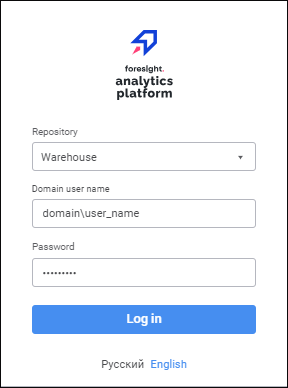
After executing the operations, domain user authorization is executed by means of Foresight Analytics Platform. Communication with DBMS and repository connection are executed using the saved technological account credentials.