
 To open the Parameters panel
To set values of data sources parameters or to set up a link between report parameters, use the Parameters panel.
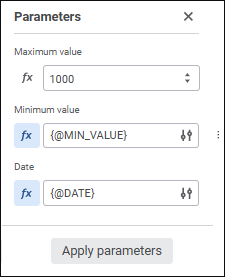
The panel displays the list of slice parameters.
Set up link between slice parameters and report parameters is established using the expression editor:
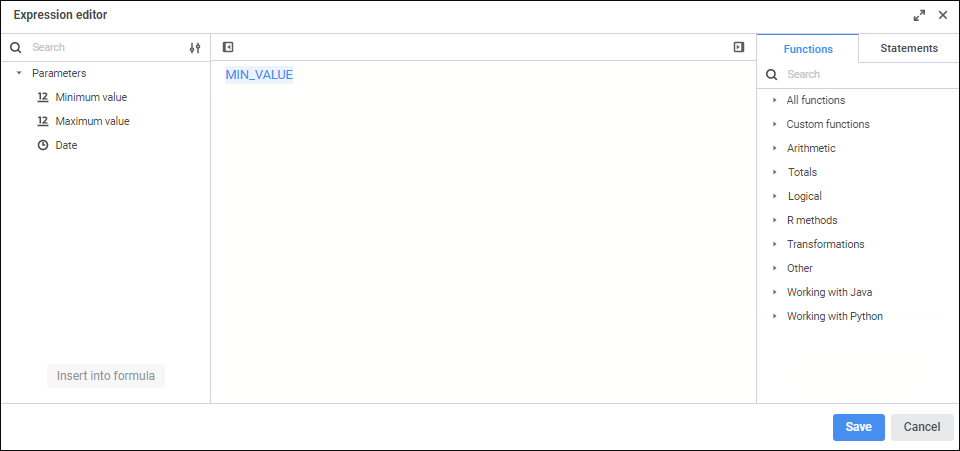
Create a calculation formula, which results will be written to the slice parameter of the, in the formula area. Operands, arithmetic operations, numbers, comparison signs, and round brackets can be used in a formula.
Report parameters can be used as operands. To insert the parameter to the formula area, execute one of the operations:
Select the parameter and click the Insert into formula button.
Double-click the parameter.
Drag the parameter to the formula area.
To quickly search for parameters, start typing part or full parameter name in the search string. After executing the operation the parameters panel displays the parameters, which names satisfy search conditions.
Numbers, comparison signs, and round brackets are entered using the keyboard. Comparison signs and round brackets can also be entered from the Statements tab on the side panel.
Functions and statements for working with parameters can be inserted from the Functions and Statements tabs on the side panel.
To hide the parameters panel, use the  Hide Parameters Panel button.
To hide the side panel, use the  Hide Side Panel button.
See also:
Setting Up Report | Parameters
 Sources button on the control panel. The Sources panel opens.
 Parameters item in the slice's context menu. The command is available if the data source, on which the slice is based, has parameters.
 Set Formula button.