REST
The REST connector is an object that is used to get data that provide various REST services.
After adding the connector to the ETL task working area set import options and edit connector output.
To work with the REST service via HTTPS protocol, use a security certificate in the PEM format:
In Linux OS execute one of the operations:
Add certificate contents to the /etc/ssl/certs/ca-certificates.crt file in Debian-based distributions and to the /etc/pki/tls/certs/ca-bundle.crt file in RedHat-based distributions and in ALT Linux.
the certificate with the *.pem extension to the /etc/ssl/certs folder in Debian-based distributions and to the /etc/pki/tls/certs folder in RedHat-based distributions and in ALT Linux.
In Windows OS:
Start the Microsoft Management Console built-in utility.
Add the certificate to the Trusted Root Certification Authorities > Certificate folder.
Import Options
The properties panel is used to specify REST service connection parameters and a query, according to which data is obtained.

 To display the properties panel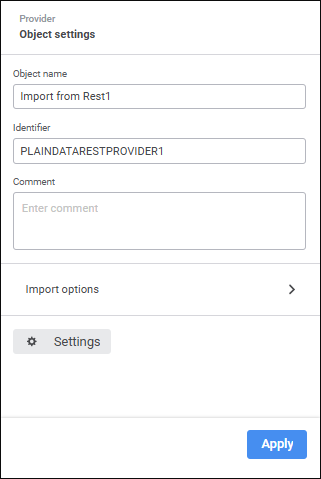
The following settings are available on the properties panel:
Object Name. If required, change connector name.
Identifier. If required, change object identifier. Identifier should be unique with the ETL task. Usage of Latin letters, numbers and the "_" character is allowed. The identifier should start with a letter.
NOTE. If required, add a note to an object. The note can contain any information.
Import Options. Open the group of import setup options:
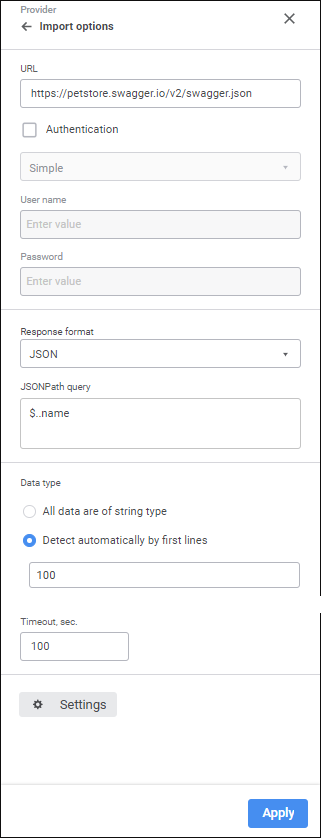
Set the parameters:
URL. Specify URL of the REST service that provides data (supports connection to REST services that provide data in the JSON and XML formats).
NOTE. Using the Fore language one can limit the list of available REST services. For details see description of the IMetabasePolicy.HostWhiteList property.
Authentication. Select the checkbox if user authentication is required for REST service connection, and select user check method in the drop-down list:
Simple. The method is based on the use of reusable passwords.
Digest. The method is based on the use of encryption with random values at the HTTP protocol level.
Specify user credentials:
User Name. Enter user name.
Password. Enter user password.
IMPORTANT. If Internet connection is required to access REST service, and it is established via proxy server, first, specify proxy server address in repository parameters.
The specified authentication parameters are passed to the core, appropriately processed and used on connection to REST service.
Response Format. In the drop-down list select the format of data obtained from REST service. Depending on the selected format, determine additional settings:
JSON. Specify the query in the JSONPath Query box, according to which imported data is selected.
XML. In the Format box select how data storage is organized in the XML file (data fields are presented as node attributes or child nodes). In the X-Path Query box determine the query, according to which imported data will be selected.
NOTE. For details on how to create JSONPath or X-Path queries see additional guides, such as MSDN.
Data Type. Select the radio button to determine field data type:
All Data are of String Type. All data is considered as string ones and will also be imported to string fields.
Detect Automatically by First Lines. Specify the number of lines, by which data type is determined.
Timeout, sec. Set query execution time in seconds. If the request is not executed for the specified time, it is stopped.
NOTE. The parameter is available only if the JSON format is selected.
Data Format. In the drop-down list select the decimal separator to detect real numbers:
, (comma). It is used by default.
. (point).
NOTE. The parameter is available only if the XML format is selected. The selected separator will be applied to string types of provider fields.
Settings. The button is used to edit connector output.
To save the changes, click the Apply button.
To close the connector properties panel without saving, click the  Close button.
 Settings button.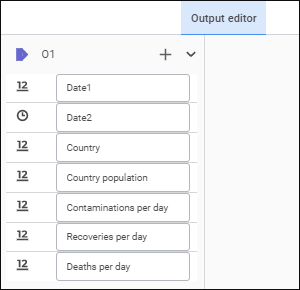
 Create button and select an object input. If the list of provider and consumer fields fully matches, all fields will be linked automatically. A link between fields can also be set up in the
  Actions button and select the Fill from Provider item.
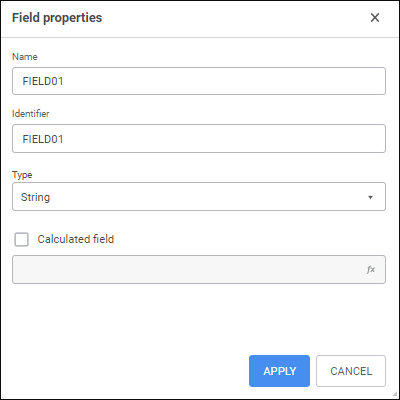
 Add button. The Field Properties dialog box opens: