To select and set up visualizer data source, use the Sources drop-down list in the upper part of the control panel. The Sources drop-down list is available if at least one data source is added.
The following are available as data sources:
Table data sets: table, external table, view, query.
Operations available for data sources:
After the data source is added, it is displayed in the list of dimensions on the control panel. Panel appearance depends on the selected data source:
If table data sets are selected as a data source, to set up data visualization, use the Dimensions and Facts areas on the control panel:
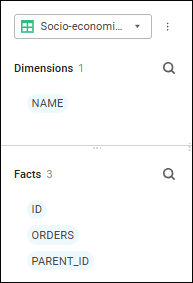
If a data model is selected as a data source, to set up data visualization, use the Dimensions and Facts area on the control panel:

If a standard cube is selected as a data source, to set up data visualization, use the Dimensions area on the control panel:

A cube can be located in the object navigator and in the Business Application object.
If parameters are set up for the cube, one can set data source parameter values and set up links with information panel parameters.
If display versions are set up for the cube, the Source drop-down list at the top of the control panel displays all available data sets of the selected cube. By default, the display version is used, which was set as a default one during cube setup.
To change data source's display version, select display version name in the Sources drop-down menu list and confirm the operation in the confirmation dialog box. As a result, the list of dimensions is refreshed according to cube display version settings for all visualizers built on this data source. The selected display version is saved together with the information panel.
If alternative hierarchy based on attributes is set up for one or several cube dimensions, the control panel displays the dictionaries by configured attributes for this dimension. The Attribute Name name is displayed by default for dimensions with hierarchy based on attributes.
Dimensions with hierarchy based on dictionary attributes can be used as additional dimensions to set up data visualization. After the hierarchy based on dictionary attributes is applied, the dimension is aggregated, elements that are equal by attribute are combined into one element.
To edit data source:
Select the data source in the Sources drop-down list at the top of the control panel.
Select the  Edit Model item in the drop-down menu of the
  Actions button of the data source.
Depending on the data source in use, the following opens in a new browser tab:
The wizard of table, external table, view or query.
To delete data source:
Select the data source in the Sources drop-down list at the top of the control panel.
Select the  Delete Model item in the drop-down menu of the Actions button.
Confirm deletion in the dialog box.
See also:
Building Information Panel | Creating a Data Model | Adding Visualizers and Working with Them

 Show or hide the panel
 Dimensions button. The control panel is displayed by default.
 Dimensions button.
 Add Model > Create New item in the drop-down menu of the
 Show Object button select one of the display options:
 Clear button.