In this article:
Step 1. Setting Up Password Authentication
Step 2. Saving Credentials for DBMS Connection
Setting Up Password Authentication with Built-in Authorization
To set up password authentication with built-in authorization, follow the steps given below.
IMPORTANT. Built-in authorization is set up once during primary system setup.
Step 1. Setting Up Password Authentication
To set up password authentication:
Set up repository connection parameters in the Metabases.xml file. By default, repository connection parameters use the Authentication attribute that is set to 1. If attribute value differs, add new repository connection parameters or change the existing ones.
The example of the Metabases.xml file:
<PP>
  <Metabases>
    <REPOSITORY_ID Name="WAREHOUSE" Authentication="1" Driver="POSTGRES" Package="STANDARDSECURITYPACKAGE">
        <LogonData DATABASE="DATABASE_NAME" SERVER="SERVER_DATABASE" CASESENSITIVE="true"/>
    </REPOSITORY_ID>
  </Metabases>
</PP>
Set up user password check parameters in the security manager on the Password Policy tab in the Policies Editor section.
After executing the operations, password authentication is set up.
Step 2. Saving Credentials for DBMS Connection
When built-in authorization is used, DBMS connection is established using technological account. Make sure that in the security manager a user is created, whose credentials will be used as a technological account.
To save technological account credentials, use the PP.Util utility with the save_creds parameter and specify the DBOWNER keyword:
./PP.Util_start.sh /save_creds metabase_id login [password] DBOWNER
PP.Util.exe /save_creds metabase_id login [password] DBOWNER
After example execution:
In Linux OS, credentials will be saved to the Metabases.xml file in the Credentials section, which corresponds to repository identifier.
In Windows OS, credentials will be saved to the registry key [HKLM\SOFTWARE\Foresight\Foresight Analytics Platform\10.0\Metabases\<repository identifier>\Credentials\Item0] and in the Metabases.xml file, if it is used.
To apply settings from the Metabases.xml file in the web application, restart the BI server.
Step 3. Using Built-in Authorization
To use built-in authorization, execute operations in the security manager:
Select the Use Built-in Authorization checkbox on the Access Control tab in the Policies Editor section.
Change passwords of existing users. When built-in authorization is used, passwords are hashed. User passwords that had been specified before built-in authorization was enabled, are invalid. Hashing settings can be determined in the registry/settings.xml file in the Sec subsection.
After executing the operations the built-in authorization is used.
Step 4. Login
To log in to the system, execute operations in the login dialog box:
Select the repository, enter user name and password.
Click the Login button.
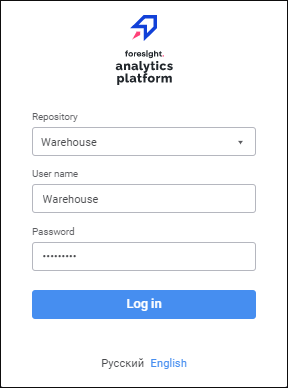
After executing the operations, user authorization is executed by means of Foresight Analytics Platform. Communication with DBMS and repository connection are executed using the saved technological account credentials.