In this article:
Creating the Fore Method Call Step
To create the step calling the Fore method, open the Fore method call step wizard.

 To open the wizard
 Add Step button in the Execution group on the Process ribbon tab.
After the basic step properties have been determined, click the Next button on the first page of the wizard. The Step Description page opens:
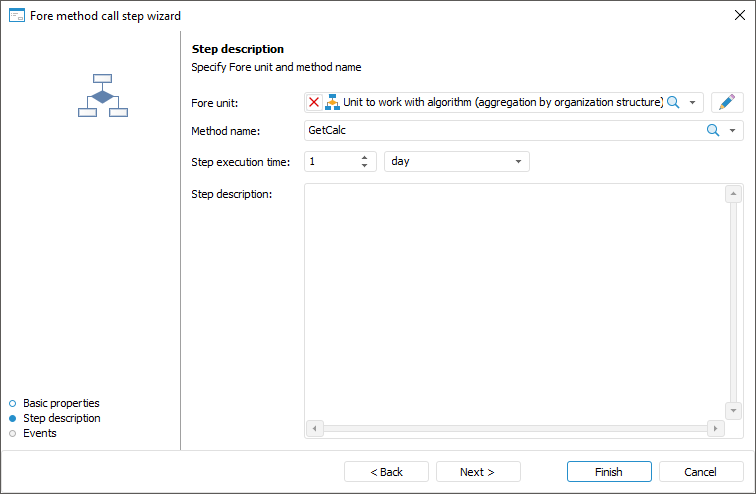
Determine the following for the Fore Method Call step on the Step Description page:
- Fore Unit. The box is mandatory. Select the start Fore unit in the drop-down list, when selecting you can use search. The list contains repository objects tree where units and folders containing them are only displayed. To edit the selected Fore method, click the
 button. The Fore development environment opens.
NOTE. The unit must not contain any external parameters.
- Method Name. Select the Fore method name in the list. The method name must completely match the name specified inside the unit.
- Step Execution Time. The time, in which a step must be executed on process execution.
Enter a numeric value of step execution time and select a time measurement unit in the list:
Minute.
Hour.
Day (default).
Week.
Month.
Quarter.
Half-year.
Year.
The checkbox selected in the Finish Step By box enables setting the time by which the step is to be finished. On selecting the "minute" or "hour" time measurement units, this box is hidden.
If the step is not finished by the planned execution time, its state becomes Expired and Not Executed or Completed with Error.
The step execution period impacts the whole process execution period, which is determined on starting process for execution.
Step Description. The box is optional. A text box for entering a comment for a step.
NOTE. To speed up resourceintensive methods, select the Execute Calculation and Fore Methods Steps at BI Server checkbox in process settings.
After the parameters have been determined on the Step Description page, click the Next button.
Events
The next wizard page is Events:
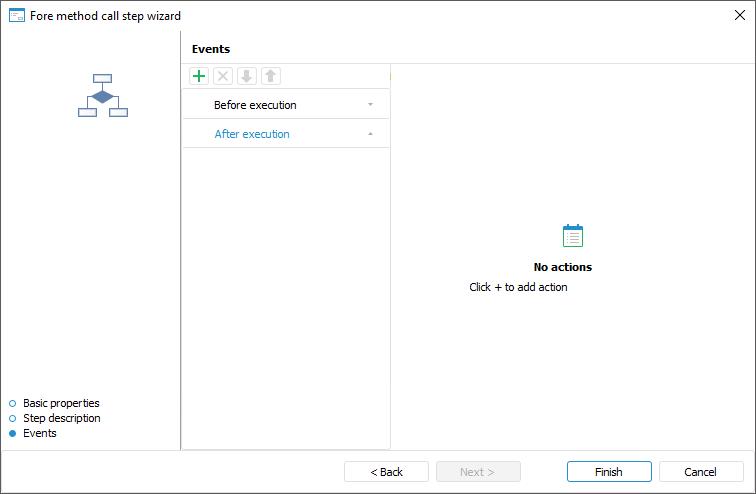
Set up automatically executed actions started when one of the events is occurred: step execution start, step execution finish and step rejection.
On generating a list of executed actions, select a tab with event first:
Before Execution. The list of actions will be started before executing the current step in the specified order.
After Execution. The list of actions will be started after executing the current step in the specified order.
On Rejection. The list of actions will be started on the current step rejection. The list is available for steps with manual execution. If the step is executed automatically, the tab is not displayed.
To add an event, click the  button on the ribbon. The number of added actions is unlimited.
Actions to be added:
 . Execute Fore method. In the right part of the window select:
Unit. In the drop-down list select a unit written in the Fore language, the list contains all repository units and folders containing units. Search by unit name is available.
Method. In the drop-down list select a method. The list contains all unit methods corresponding to the signature:
Sub <Fore method name>(Sender: IBProcessInstance; Args: IBProcessStepStateEventArgs);
Parameter:
Sender. Process instance.
Args. Event information: step, step old state, new state.
 . Send Email Notification. In the right part of the window select:
To; Copy; Bcc. The recipient email is entered manually, using option of copy/paste from clipboard.
Subject. The email subject is entered manually, using option of copy/paste from clipboard.
Contents. The contents is entered manually using the option of variables values substitution with step parameters, links to step objects to view in the web application, file attachment.
To change the actions execution order, use the  /
/ buttons, to delete - the
  button.
The list of automatically executed actions can be empty.
Click the Finish button to exit the wizard.
NOTE. To speed up resourceintensive reports, select the Execute Calculation and Fore Methods Steps at BI Server checkbox in process settings.
After creating the process steps, go to the steps execution emulation.