Creating Stage Steps
The process stage may consist of an unlimited number of consequent or parallel steps.
To add a process stage step, use the step wizard.

 To open the wizard
 Add Step button in the Execution group on the Process ribbon tab.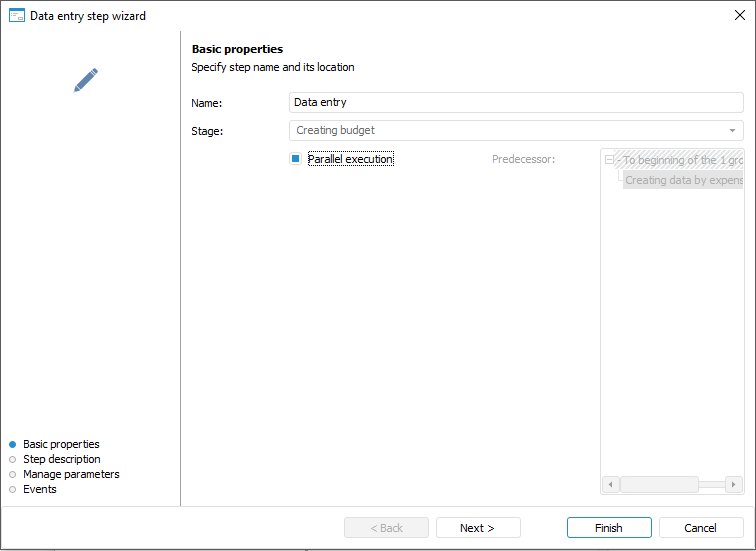
The step wizard contains the pages: Basic Properties, Step Description, Manage Parameters and Events. The page contents depend on the type of the step being created.
Steps are started manually by user or automatically after the previous step is executed:
Automatically:
 Fore Method Call;
  ETL Task,
  Send Email Notification.
Manually:
 Data Entry,
  Approval.
User sets the execution option on setting up the step or on editing the process via context menu:
 Calculation and
  Subprocess Call.
Determining Basic Step Properties
The first step wizard page is used to set basic step properties that are common for all step types:
Name. Enter step name.
Stage. The box displays the stage where the step is created. The stage is not editable. To add a step to another stage:
Close the wizard, select the required stage or stage step and reopen the wizard.
Complete the step creation and move it to the required stage using the
 Move Up/
 Move Down buttons on the Process ribbon tab.
Parallel Execution. Select the parallel Execution checkbox to execute the step from the stage start. The checkbox is deselected by default. The number of steps executed in parallel is unlimited. Each parallel step can be a group and include several consecutive steps. If the checkbox is deselected, the previous step is available for selection, after its execution the created step will be started. If the first step is created in the stage, the checkbox is not displayed for parallel execution setup.
Predecessor. The list is available if the Parallel Execution checkbox is deselected. Select the predecessor step in the list, after its execution the created step is started. The list is displayed for the second and the following steps.
The next settings depend on the selected step:
After creating the process steps, go to the steps execution emulation.
See also: