On working with dimensions in table area are available:
Element selection.
Selecting by dimensions allows for limiting a list of dimension elements, based on which table area will be built.
To select dimension elements:
Open a dialog box using the Edit dimension context menu item on setting up:
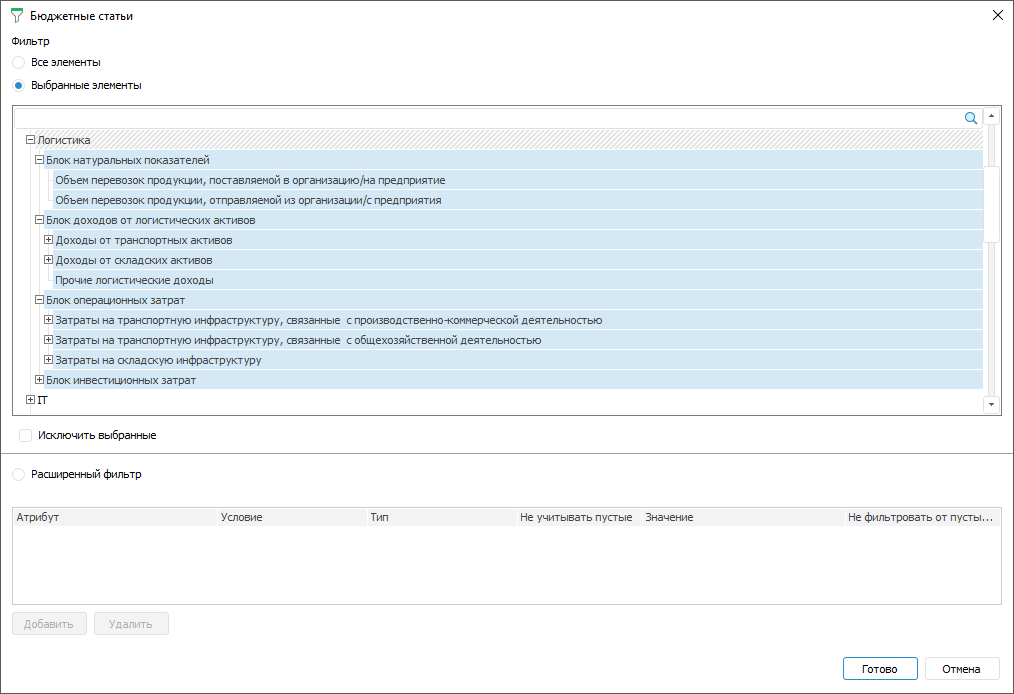
In the dialog box that opens select one of the filter options:
All Elements. All elements will be selected. It is not available for fixed dimensions with disabled aggregation
Selected Elements. Select only required elements or exclude selected elements from selection by selecting the Exclude Selected checkbox. Only one element can be selected for fixed dimensions with disabled aggregation, and the Exclude Selected checkbox is disabled.
To search element in the list, start entering name of the searched element in the search field  . When the entire work or its part are entered, the list displays the elements, which names contain the searched character combination:

To clear the search field, click the  button.
Advanced Filter. Add rules to the advanced filter by clicking the Add button. Set:
Attribute. Select an attribute of the specified dictionary in the drop-down list.To filter dictionary elements by linked dictionary attributes, select from the list of available linked attributes the attribute of the dictionary selected on creating a link with attribute of selected dictionary. Linked attributes are displayed with the first nesting level and it represents the tree of available linked attributes.
NOTE. If dictionary attribute contains multiple values, then on checking filtering condition all attribute values will be compared. If at least one attribute value meets the condition, the dictionary element will automatically meet the condition.
Condition. Set filtering condition depending on attribute data type . Available options: equal, not equal, greater, less, greater or equal, less or equal, included, not included. For the string type data attribute, advanced condition options are available: starts with, ends with, contains, does not contain.
Type. Select filter type. Available options: value, parameter.
Ignore Empty. Empty values will be ignored if the checkbox is selected. Available only for the Parameter type.
Value. It depends on the selected attribute and type:
If the Value type is selected, the specific value corresponding to the data type
If the Parameter type is selected, then the parameter attribute from the drop-down list which is a tree of availalbe parameter attributes is selected in the field contained in the form parameter list.
If attribute is linked and the selected type is Value, then available value of linked dictionary from the drop-down list is selected in the field.
If attribute is linked and the selected type is Parameters, then parameter attribute is selected from the drop-down list in the field which is a tree of availalbe parameter attributes and linked dictionaries.
Do Not Filter from Empty Values. Attribute empty values will be filtered if the checkbox is selected.
NOTE. If alternative hierarchy is set up for the dimension, and advanced parameter filter is set, the advanced filter is applied to the alternative dictionary.
Click the Delete button to delete the advanced filter.
Finish selection by clicking the Finish button.
If to build data entry form table area, the cube with configureddimension control is used and advanced filter application is selected, then cube settings are applied first and the advanced filter next.
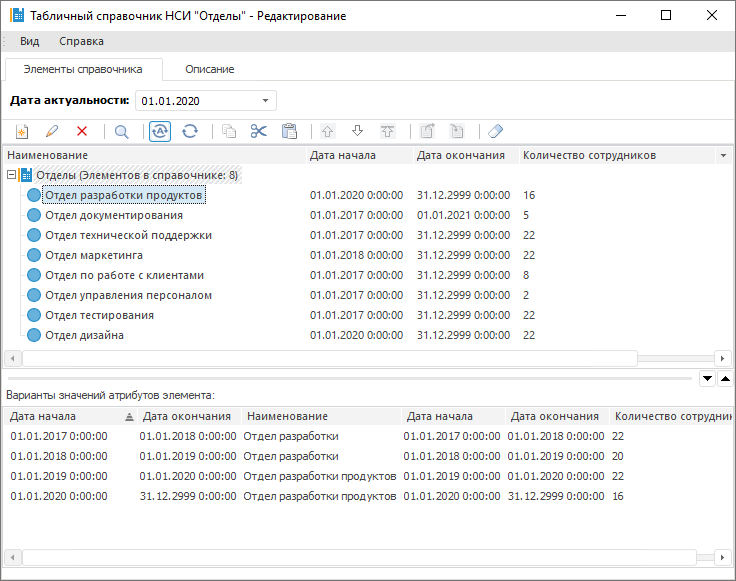
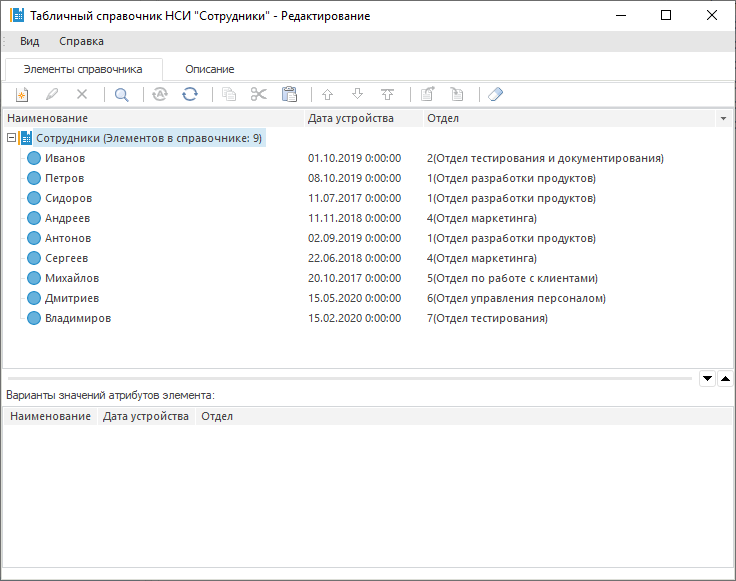
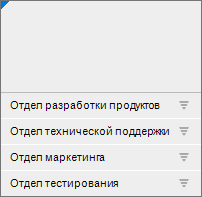
 Example of settings application
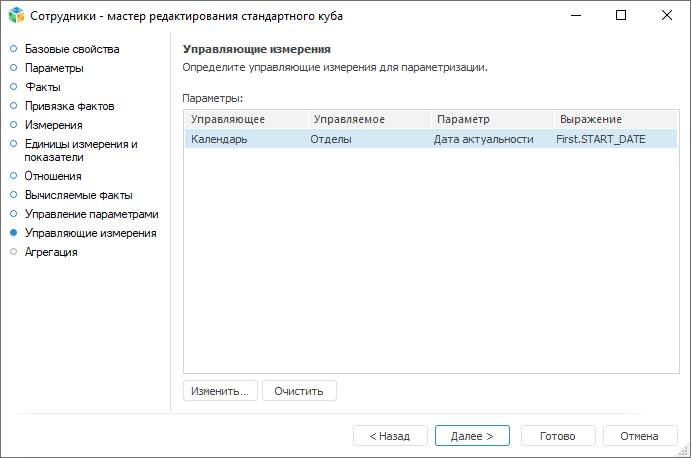
Dimension parameters management is used to dynamically change dimension elements values depending on form parameter values or to limit available values of private indicator dimension.
To set up dimension parameters management, select dimension and select the Parameters Values context menu item. The Dictionary Parameters <Dictionary Name> dialog box opens:

Determine settings:
Parameter. The list contains all dictionary parameters.
Value Type. Select the value type. Available options: not selected, value, parameter attribute
Value. It depends on selected value type. The field is active, if the Value type or Parameter Attribute type is selected:
If the Value type is selected then a specific value corresponding to attribute type of the dictionary used for dictionary parameter building is to be specified in the box
If the Parameter Attribute type is selected, the attribute for the box is selected in the drop-down list representing a tree of available form parameters with attributes
If the parameter is deleted in the dictionary that is a source for the parameter, the parameter is also deleted from dialog box with control rule.
The example of setting up dimension parameters management is given in the How To Set Up Sidehead Dimension Parameters Management article.
See also:
Setting Up Table Area | Building Data Entry Form