
This window can be used to create or edit the main macro code using the Fore language:
All objects opened in the development environment are shown as child MDI windows. To manage the layout of windows of opened objects, use commands of the Window group in the main menu of the development environment. Each window of the opened object corresponds to a tab of the child MDI window. To change the active object, click the required tab or select an object in the list organized as the Window main menu options. The tabs have a context menu that is used to save or close corresponding object.
There is also a context menu called by clicking the white space in the tab area. The context menu includes the following commands:
Close window.
Close all windows but the current.
Close all windows.
To close an object, select the appropriate context menu item or execute one of the following operations:
Click middle mouse button (mouse wheel) on the appropriate tab.
Select the File > Close main menu item.
Click the  button at the right in the tab area.
Press CTRL+F4.
If there is any data that has not been saved, the dialog box for saving them opens.
Code is written using the Fore or Fore.NET languages. Each language has its own specification. More information on advanced options available when developing code is given in the following sections:
In case of large macros, you can use two drop-down lists from the upper part of the macro window to make code navigation easier:
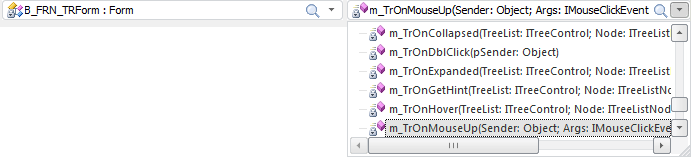
The first list contains names of all classes and namespaces from a unit or form. The second list includes all variables, procedures, functions and custom properties described in the selected class.
To go to the required description, first select the appropriate name of the class (namespace) and then the name of the required procedure (function, variable, etc.). If a unit contains no descriptions of classes (namespaces), the first list shows only the global namespace, that is, Global Scope. Principles of working with drop-down lists are described in the Basic Interface Elements: Combo Boxes subsection.
To quickly go to the required line, select the Edit > Go to Line main menu item, or press CTRL+G. This shows the dialog box for navigating to the specified code line:
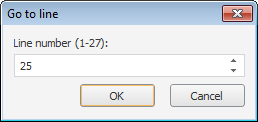
This dialog box displays a range of lines, within which you can navigate. After selecting the line number and clicking the OK button, the cursor is placed to the beginning of the selected line. If you specify a number outside the allowed range, the cursor is moved to the first (last) code line. By default, the dialog box shows the number of the current line.
To make the search for the required line easier, you can enable the code line numbering:
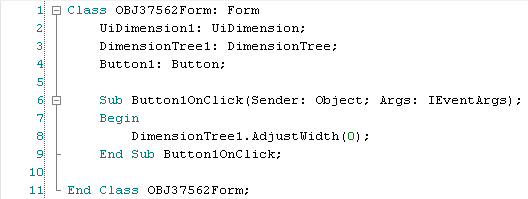
Select the Show Line Numbers checkbox in the development environment parameters.
You can view the information on classes/procedures/functions used in code. To go to code element description:
Hold down the CTRL button and click code element.
Position cursor over code element area and press F12.
Place cursor over code element area and select the Go to Definition context menu item.
If system classes/procedures/functions are used, this enables the user to go to the appropriate element and its description in the class inspector. When the cursor hovers over custom code elements, this enables the user to go to the place where the called classes/procedures/functions are implemented.
To call help by element, in which area cursor is placed, press the F1 key. If cursor is placed in variable area, help will be called for the type of variable.
See also: