
 Cursor mode
A working area is a container, in which workspace objects are placed. A working area is convenient for:
Visual arranging of repository objects in the same workspace.
Providing access to functions and properties of repository objects.
Displaying links and dependencies between objects by means of shapes and lines.
There are the following modes of working with objects in the working area:
To move in the working area, execute one of the operations:
Select the hand mode on the toolbar and hold down the mouse button.
Hold down the SPACE key and the mouse button.
Use keyboard arrow keys.
Scroll the mouse wheel to move the working area vertically. Scroll the mouse wheel while holding down the SHIFT key to move the working area horizontally.
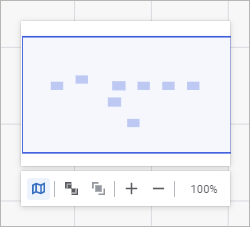
Use the minimap. To show minimap, click the  Enable Minimap button on the working area display settings panel:
To zoom the working area:
Scroll the mouse wheel while holding down the CTRL key.
Use the working area display settings panel:

The following operations are available on the panel:
 Fit to All Objects. Change working area zoom to fit all objects.
 Fit to Object. Change working area zoom by the selected object.
NOTE. If no working area object is selected, the Fit to Object button is disabled.
 Zoom In. Increase working area zoom by 25%.
 Zoom Out. Decrease working area zoom by 25%.
The working area can be zoomed within the range [1%, 400%]. To set 100% zoom, click the button displaying the current zoom.
See also:
 Hand mode is selected, use the drop-down list to select the
  Cursor mode on the