
 To open the dialog box/tab
Setting up dimension visibility is available in regular reports, express reports, dashboards.
Showing or hiding dimensions creates the data source structure, which determines active visualizer appearance. Visualizer data source structure setup can be used to set dimensions available for the user and set names of attributes displayed in the visualizer.
To set up dimension visibility:
In regular reports use the Set Up Dimension Visibility dialog box. Settings are applied to the Dimensions area on the control panel.
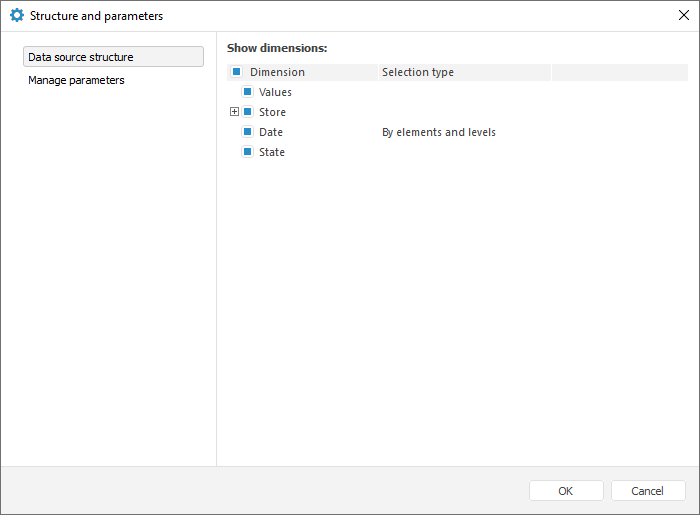
In express reports and dashboards use the Data Source Structure tab in the Structure and Parameters dialog box. Settings are applied to the Selection group of tabs on the side panel.
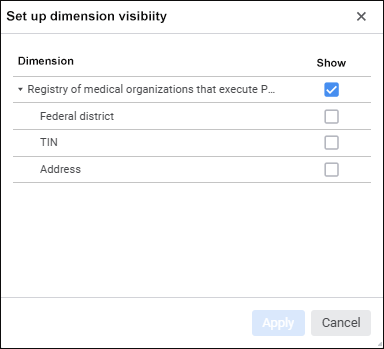
If one data source is used:
If several data sources are used:
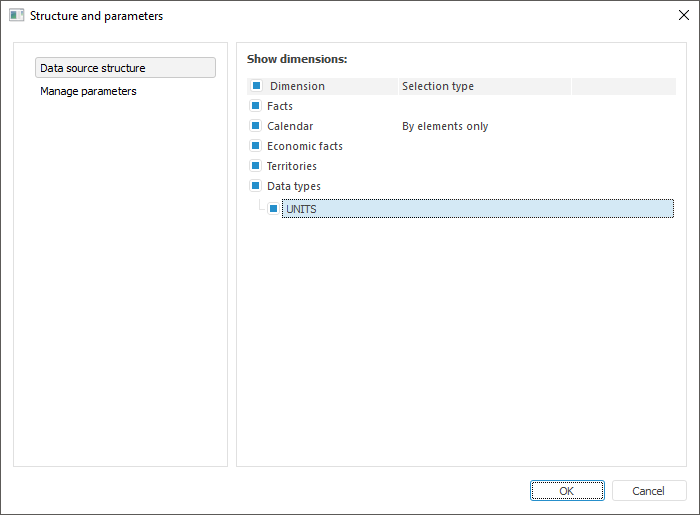
The dimensions, for which alternative hierarchies are set up and alternative hierarchy names are displayed as a tree, which is collapsed by default. The expanded tree displays dictionaries/dictionary attributes used as alternative hierarchies, and alternative hierarchies themselves.
Show or hide data source names
See also:
Working with Dimensions | Working with Dimension Elements
 Set up Dimension Visibility button in the
  Structure and Parameters button on the Data ribbon tab.