
 To open the group of parameters
Quick and advanced setup is available for general page settings.
NOTE. Parameters for quick and advanced setup are different.
To set up general page settings in the advanced mode, use the Page group of parameters on the side panel:
To open the group of parameters
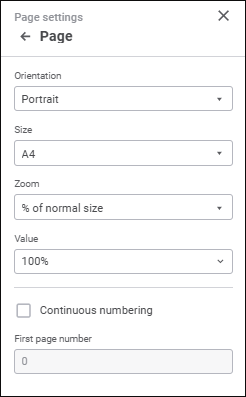
Set the parameters:
Orientation. Select page orientation option in the drop-down list:
Portrait.
Landscape.
Size. Select page size in the drop-down list. The drop-down list contains predefined paper size options, for example, A4, A5, and so on.
Zoom. Select page zoom option in the drop-down list:
% of Normal Size. Select the zoom value as % of normal size in the Value drop-down list.
Place on Sheets. Specify the number of sheets to limit by print page width and/or height in the Page(s) Wide By and Tall boxes: If the user sets a value in one box only and leaves the other blank, the number of printed sheets is limited only in specified direction.
Numbering. Select the Continuous Numbering checkbox for continuous page numbering. Custom page numbering is used for sheets with deselected checkbox. Page numbers with the selected checkbox are recalculated deselecting the checkbox of the page.
In the First Page Number box specify the number, with which sheet pages numbering starts. Parameter value is considered for each report sheet even if continuous numbering is used. For the continuous numbering of several sheets, specify the value in the First Page Number box for the first report sheet with the selected Continuous Numbering checkbox. Specify the 0 value in the First Page Number box for the rest of sheets with the selected Continuous Numbering checkbox.
NOTE. This numbering parameter affects only the headers and footers with the &[Page] tag. Continuous numbering cannot be applied to headers and footers with the &[Pages], &[Sheet.Page] and &[Sheet.Pages] tags.
After executing the operations general page settings are set up for printing.
See also:
Setting Up Pixel-Perfect Report
 Print button on the Home toolbar tab.
 Page Settings button at the top right corner.