Select the  Special Paste checkbox in the cell's context menu.
Press CTRL+ALT+V. It is available in the web application via the HTTPS protocol.
One can edit data pasted from the clipboard:
Select the Special Paste checkbox in the cell's context menu.
Press CTRL+ALT+V. It is available in the web application via the HTTPS protocol.
The Paste Special dialog box opens during paste from the clipboard:
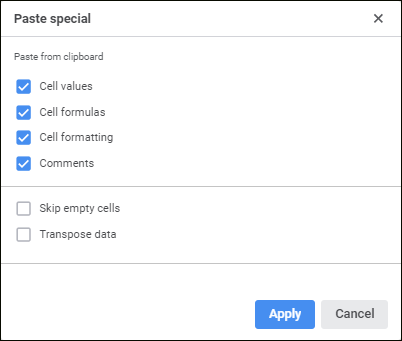
Set the parameters:
Paste from Clipboard. Determine special paste parameters:
Cell Values. The checkbox is selected by default and cell values are pasted. When the checkbox is deselected, cell values are not pasted.
Cell Formulas. The checkbox is selected by default and formulas from the cells are pasted. When the checkbox is deselected, cell formulas are not pasted.
Cell Formatting. The checkbox is selected by default and cell formatting is pasted. When the checkbox is deselected, the format specified for cells, to which data was pasted, will be used.
Comments. The checkbox is selected by default and cell comments are pasted. When the checkbox is deselected, cell comments are not pasted.
Skip Empty Cells. If the pasted data contains empty values, the data is not pasted when the checkbox is selected. That means that old data remains in the cells, to which empty values should have been pasted.
Transpose Data. When the checkbox is selected, inserted data is transposed, that is, rows are shown in columns and vice versa.
To go back to data paste from the clipboard without correction, deselect the Paste Special checkbox in the cell's context menu or press CTRL+ALT+V.
See also: