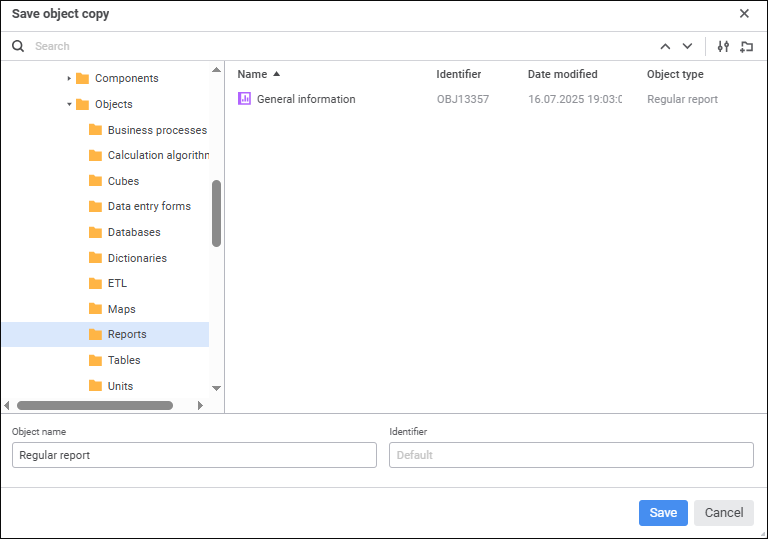
To create a report copy opened for edit, select the Save As item in the drop-down menu of the Save button in the main menu. The Save Object Copy dialog box opens:
To save a report copy:
Select where to save the report in the object tree.
Create a new folder. To create a new folder, click the  Create Folder button, after which the Folder object is displayed. Enter folder name.
Find the existing report to select where to save the copy or to copy its name. To quickly select the existing report, enter its name/identifier/key in the search box depending on the selected object search options and press the ENTER key. To go through search results one by one, use the  Find Previous button, the
  Find Next button or press the ENTER key.
To set up search options, click the  Search Options button and select the following in the drop-down menu:
Object search option:
Find by Names. Default option.
Find by Identifiers.
Find by Keys.
Match Case.
Match Whole Word.
Object Name. Enter report copy name. The current report name is selected by default.
NOTE. When the box is empty, the default report copy name is set.
Identifier. Enter unique attribute identifier of the report copy. The identifier may consist of only Latin letters, numbers and underline character and should not start with a number.
NOTE. When the box is empty, the report copy identifier is set automatically.
When creating a report copy, a new report is created in the repository, which opens for edit at once. If the object with the identifier specified in the Save Object Copy dialog box already exists, a warning is displayed on an attempt to create a report copy. Confirm replacing of the existing object with the report copy.
See also: