
 Open the Border group of parameters
To set up shape borders, use the Border group of parameters on the side panel:
Open the Border group of parameters
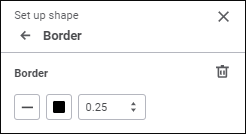
Set the parameters:
Style. Set border style. Solid lines are used by default.
Color. Select border color in the drop-down palette.
One can select standard and custom colors. The palette contains only standard colors by default. To create a custom color, use the advanced color palette that is available after clicking the  Add Color button. The maximum possible number of custom colors in the palette is 23. To delete custom color from the palette, select the Delete item in the selected color's context menu.
To change color transparency, use the slider or enter value as a percentage.
To reset border color, click the  No Color button.
Width. Specify border width. If width is equal to zero, border is not displayed.
To reset the specified format settings, click the  Delete button.
See also:
 Parameters button on the toolbar.