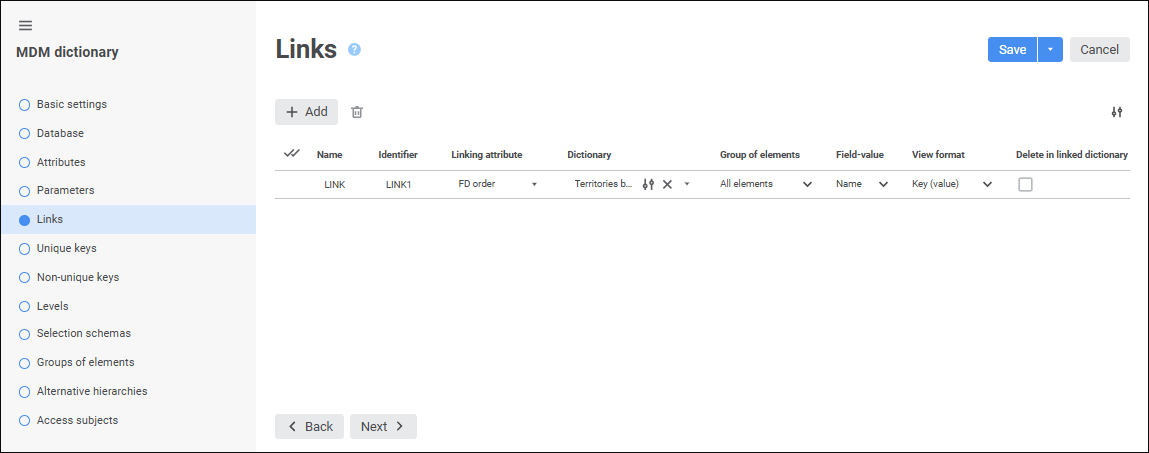
To link attributes, set link properties in corresponding columns on the Links page in the MDM dictionary/composite MDM dictionary wizard.
Determine link parameters:
To save the link properties, click the Save button.
To create a binding, click the  Binding Parameters button in the Dictionary column next to the added link.
NOTE. Creating a binding is available only for MDM dictionaries.
The Binding Parameters dialog box opens:
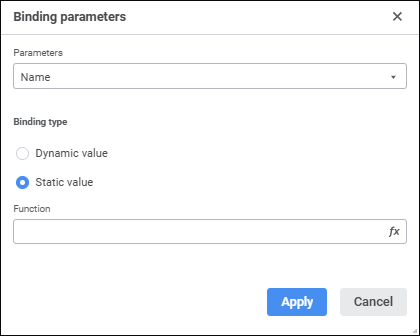
In the Parameters drop-down list select the parameter, by which a link is set between attributes of the current MDM dictionary and parameters of the dictionary to be linked.
Determine a binding type by selecting the corresponding radio button:
Dynamic Value. This type binds a parameter to an attribute of an edited dictionary. This type enables the user to change the value of the linked dictionary parameter when the attribute value is changed:
Dictionary Attributes. Select the dictionary attribute, which values will be sent as a parameter value. The drop-down list contains all attributes of the current dictionary.
Value Selection Algorithm. In the drop-down list select value selection algorithm in case of attribute multiple selection:
All. Array of all attribute values is sent to the parameter.
First. The first attribute value is sent to the parameter.
Last. The last attribute value is sent to the parameter.
NOTE. The Value Selection Algorithm drop-down list is available if the linked attribute can have multiple values.
Static Value. This type enables the user to set a static value. The following situations are possible:
If in the linked dictionary the parameter is linked to another dictionary, the field displays the list of elements of this dictionary.
If the parameter is not linked to another dictionary, a value corresponding to the parameter type can be set. To set the value, click the  Set Formula button. The expression editor opens.
Click the Apply button to save the binding parameter settings.
Formulas can be set up in the expression editor. The expression editor differs depending on the configured tool or object.
The expression editor window for setting static value of binding looks as follows:
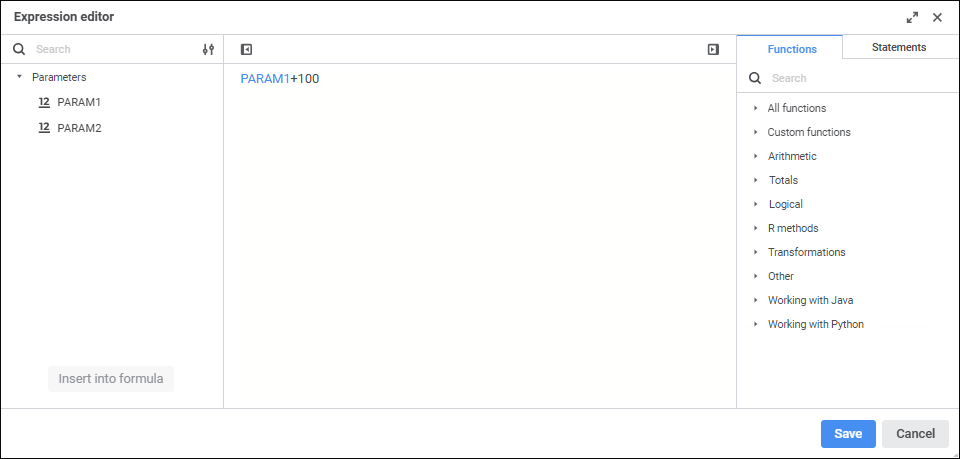
Create a formula, by which binding will be calculated.
Operands, arithmetic operations, functions, numbers, comparison characters and round brackets can be used in a formula. There are some features of use:
All element types, except for numbers, can be inserted both using the keyboard or special panels.
Numbers are inserted only using the keyboard.
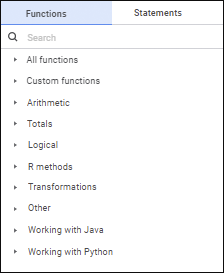
 Insert functions and statements
See also:

 Show Object button and select display option in the drop-down menu:
 Clear button.
 Clear button located in the Dictionary column next to the
 Display Settings button:
 Hide Operands Panel button. To show the panel, click the
  Show Operands Panel button.