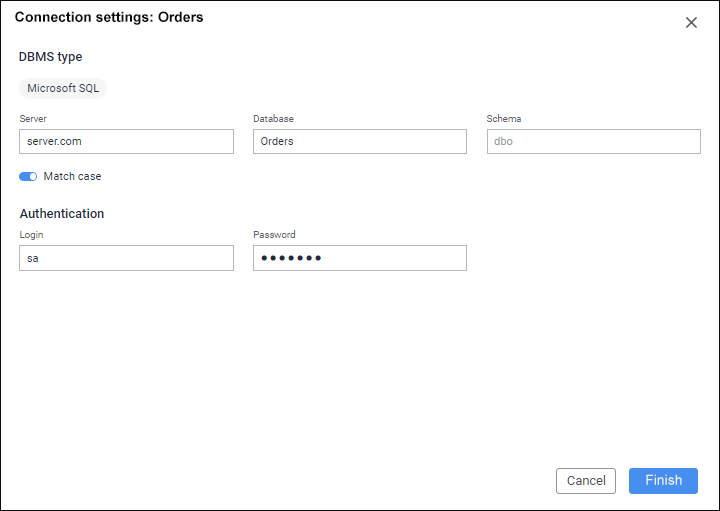
Add Source button on the control panel. The dialog box for adding a source opens.
To add sources, click the Add Source button on the control panel. The dialog box for adding a source opens.
Dialog box settings depend on the selected tab:
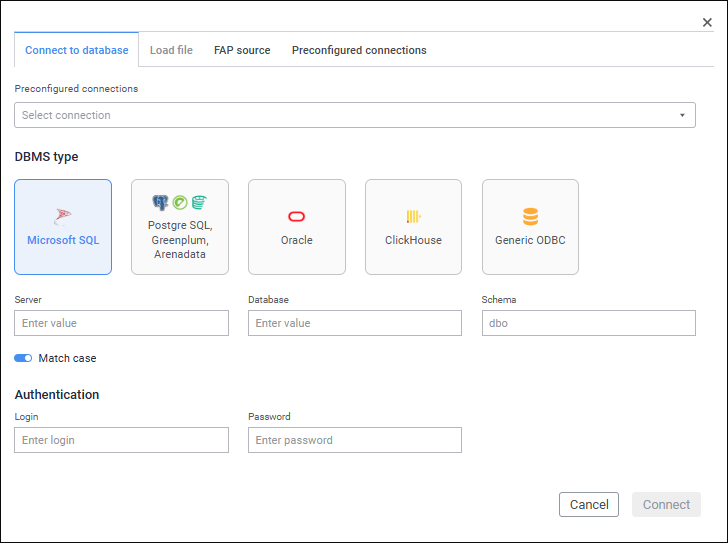
To connect to database with previously determined settings, select connection template in the Preconfigured Connections drop-down list. All connection settings will be automatically filled from the template. To edit connection settings, go to the Preconfigured Connections tab in the dialog box for adding source.
NOTE. The drop-down list displays only the preconfigured connections, for which the user has permissions.
To reset the preconfigured connection, click the  button in the list of connection templates.
To connect to database, select DBMS client type:
Microsoft SQL.
PostgreSQL.
Greenplum.
Arenadata.
Oracle.
ClickHouse.
Generic ODBC.
After selecting DBMS type determine database connection settings:
IMPORTANT. When a server is set that matches with the current application BI server, and a database is set that matches with the current database for PostgreSQL DBMS or the current ClickHouse DBMS for the ClickHouse ODBC DBMS Generic ODBC DBMS, database connection is unavailable.
To connect to database with specified parameters, click the Connect button.
The Load File tab is available if ClickHouse is installed and set up.
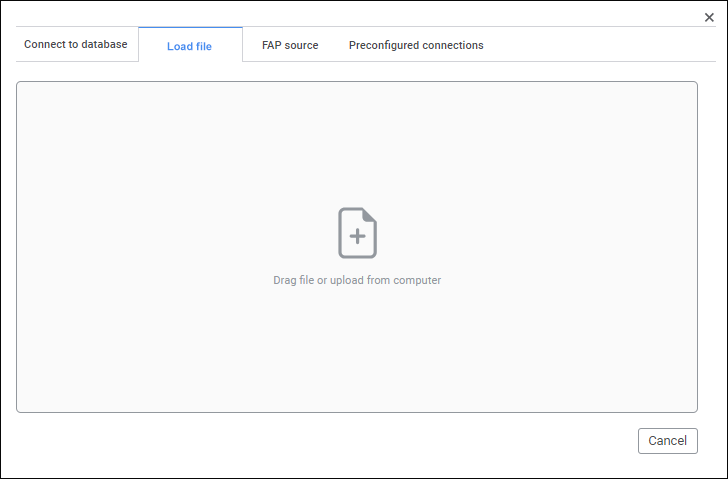
To load a file from computer:
Install and set up ClickHouse.
To load large files in Linux OS, set the parameter value in the file /etc/apache2-fp10.x/apache2.conf:
LimitRequestBody 0
Execute one of the operations:
Click the Load Files button and select the required file in the dialog box that opens.
Drag the required file to the dialog box.
To select several files, hold down the CTRL or SHIFT key.
NOTE. One can load only XLSX and CSV files.
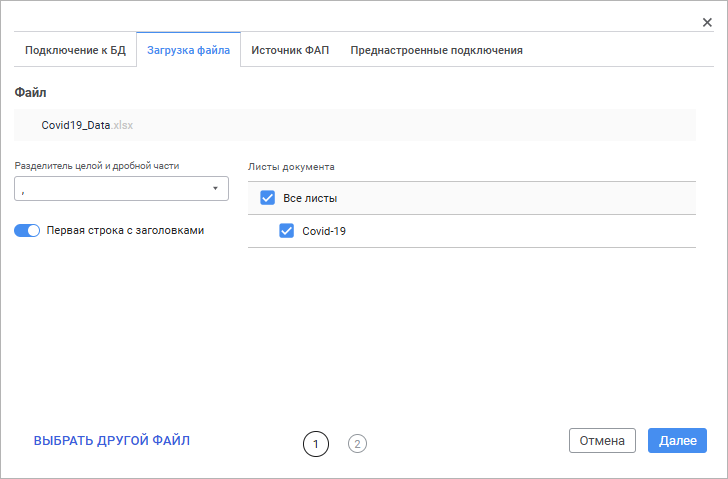
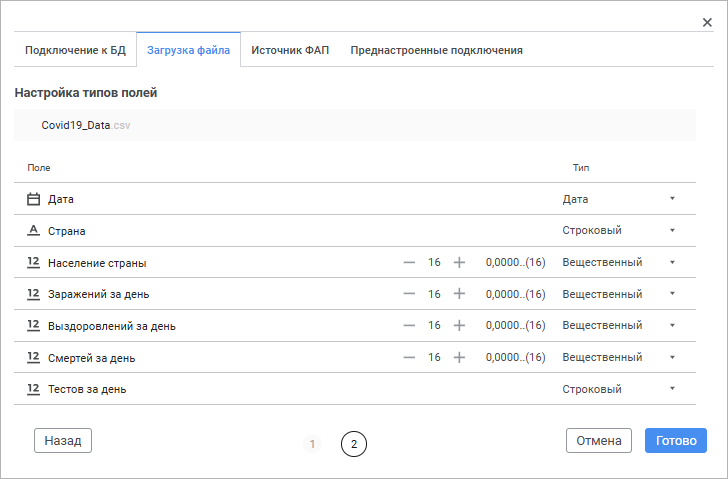
As a result, the tab displays the loading wizard, which appearance depends on the file format:
Data is combined in the order the files were loaded to the wizard.
Empty file sheets are skipped.
Files should contain equal columns with identical names (case insensitive). Columns in combined files should follow in the same order.
Values in corresponding columns should have the same data type.
Files with equal names can be combined only if they are equal in size. Files with equal names and size will be considered as duplicates.
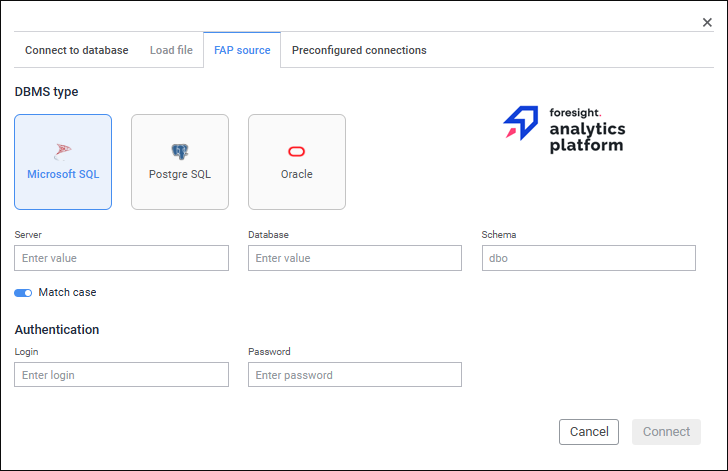
When connecting to repository of Foresight Analytics Platform, the system supports work with hierarchical dimensions of cubes and dictionaries.
To connect to platform repository, select the DBMS client type. Available DBMS types:
Microsoft SQL.
PostgreSQL.
Oracle.
After selecting DBMS type determine database connection settings:
When connecting to repository of Foresight Analytics Platform with specified parameters, click the Connect button.
After connecting to the repository select required repository objects.
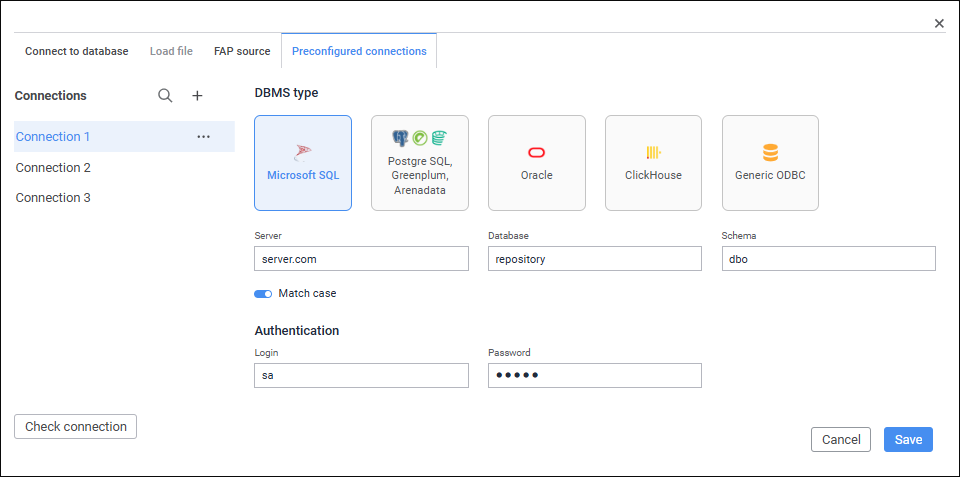
NOTE. The tab is available only for information security administrator and users included in the ADMINISTRATORS built-in group.
The tab displays the list of saved connections.
Available connection operations:
To save the preconfigured connection with specified parameters, click the Save button.
NOTE. Connection correctness is not checked on clicking the Save button.
After the source is added, it is displayed in the list on the control panel:
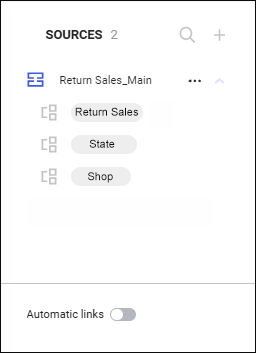
Available operations with data sources:
 Collapse/expand list of source tables
After adding sources add objects to the working area.
See also:
Building Data Model | Creating SQL Queries | Setting Up Data Work Modes | Adding Objects and Links Between Them

 Delete button.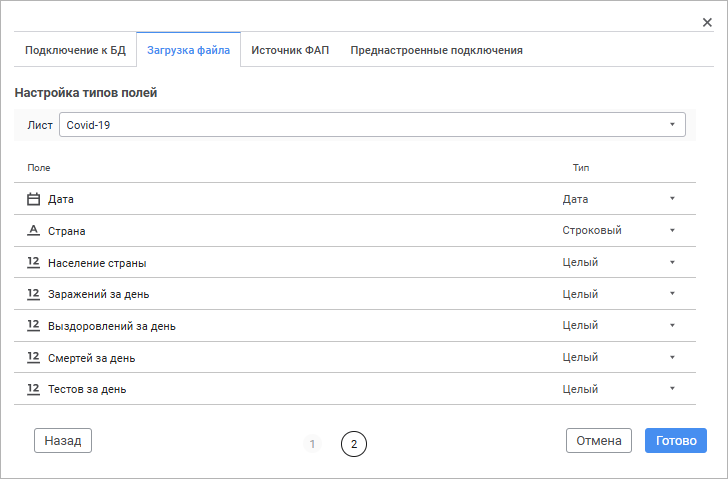
 buttons. The number of decimal places is displayed as in the source by default.
 Restore Original Data Type button if it is required to set the original data type for the field.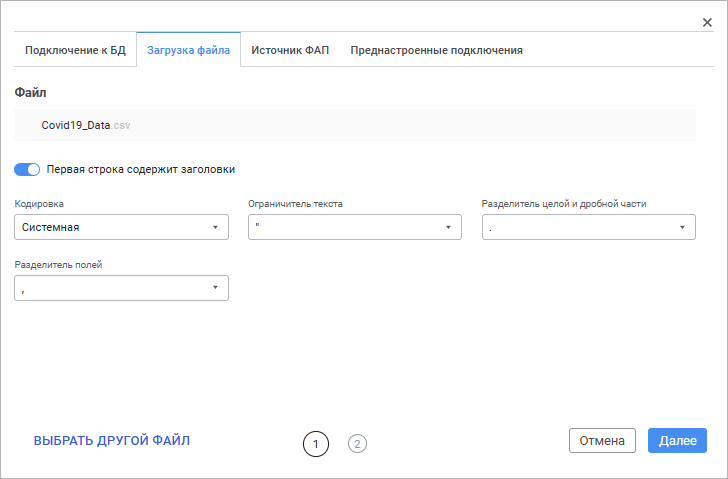
 Find button and start typing template name in the box.
 Rename item in the drop-down menu of the
  Actions button of the connection.
 Duplicate item in the drop-down menu of the
  Expand button.
 source icon.
 Collapse button.
 Edit Connection item in the drop-down menu of the