To open expression editor window
To set up a formula for calculating calculated fact values, use expression editor window.
To open expression editor window
Relations can be used to get values by shifting relative to the current calculation point.
The expression editor window used for setting relation formula looks as follows:
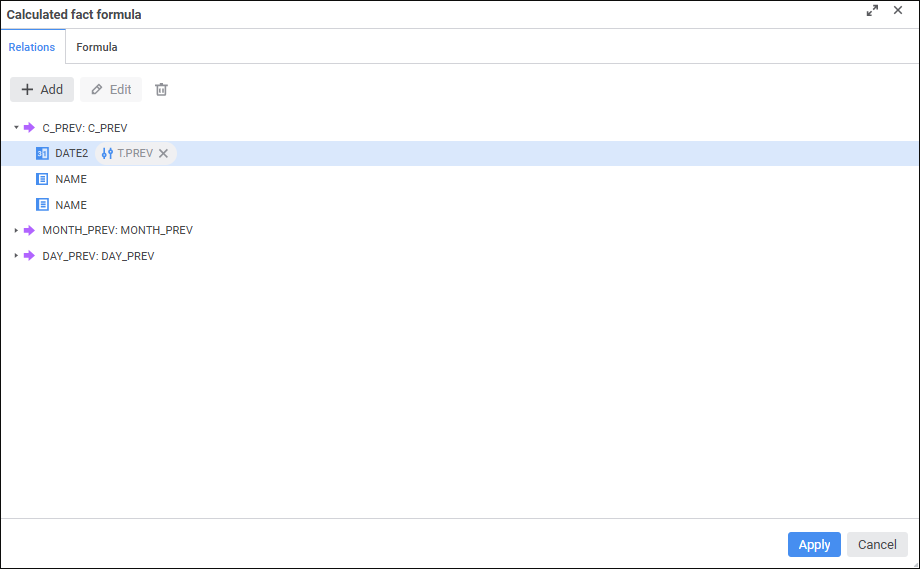
The added relations are available for setting up calculated facts.
A calculated fact is a function of values of other facts, calculated facts, or relations.
The expression editor window used for setting calculated fact formula looks as follows:
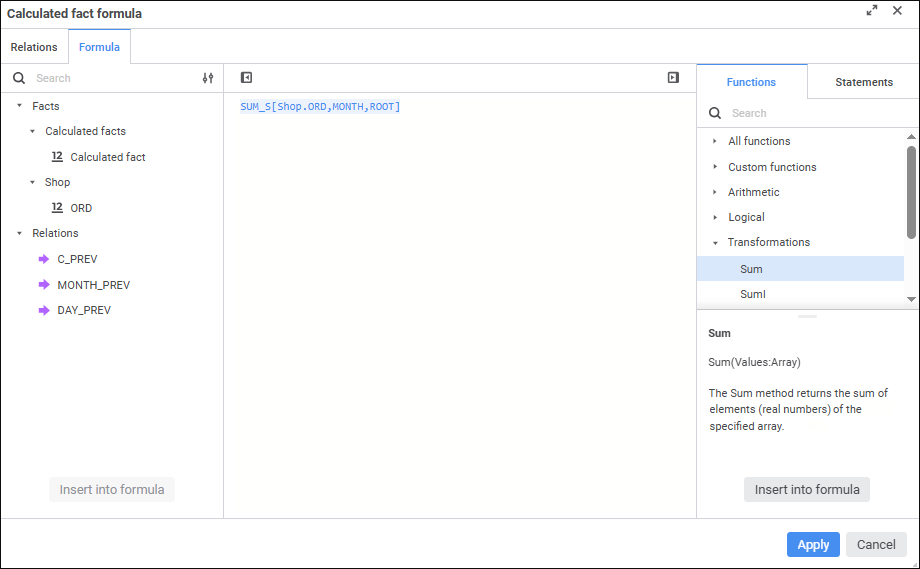
Create a formula, by which the calculated fact will be calculated.
One can use arithmetic operations, functions, and characters in a formula.
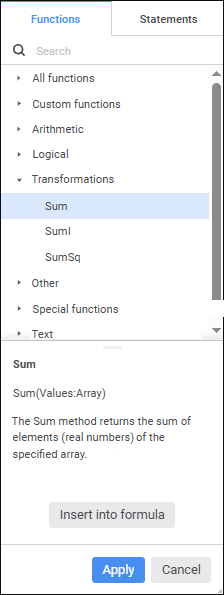
Insert functions and statements
To apply the specified formula and close the expression editor window, click the Apply/Save button. The saved formula will be displayed in the formula bar in the Create Calculated Fact or Calculated Fact Settings dialog box.
Formula correctness is checked automatically during its setup. Error text is displayed to the errors panel where the place of error is specified. To put the cursor to the place of error click the errors panel.
See also:
 Insert into Formula button in the
  Add button. After executing the operation, a relation is added with default values. Below the added relation there are all data model dimensions displayed.
 Edit button. The Relation Properties dialog box opens: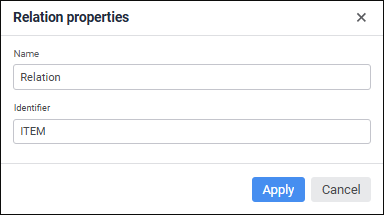
 Delete button.
 Relation Formula item if relation formula was set up for the selected dimension.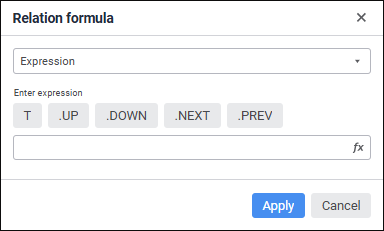
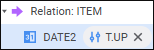
 Clear button.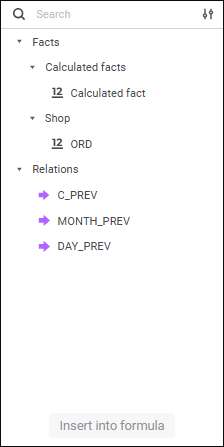
 Hide Statements Panel button, to show the statement panel, click the
  Show Statements Panel button.