
 Create a composite MDM dictionary
The dictionary is used to create a structured data element view with the ability of its transformation. Creating a dictionary does not require a data source. Data can be entered manually or loaded from the data source to the dictionary by means of the built-in ETL tools. Dictionary elements may change in time, that is, may have several versions. A composite MDM dictionary that includes both its own elements and elements of other MDM dictionaries: Creating a composite MDM dictionary requires a database to store dictionary data. A composite MDM dictionary can be created in any place of repository. A composite MDM dictionary uses a single table to store data. A table is created automatically on creating a dictionary and is the dictionary's child object. Table fields correspond to dictionary attributes.
The composite MDM dictionary wizard is different in the web application and in the desktop application.
Create a composite MDM dictionary
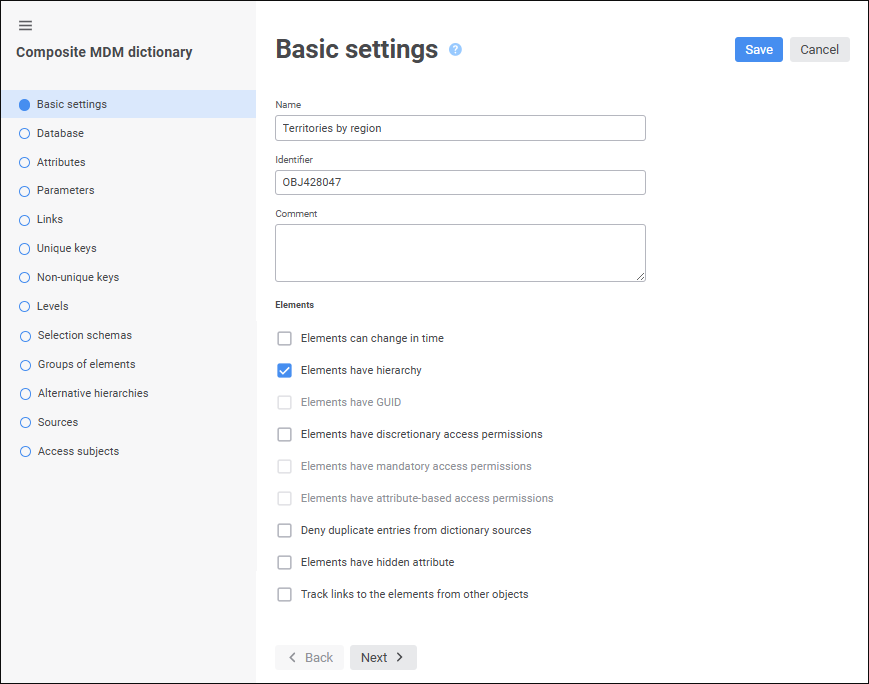
The wizard contains the pages:
Basic Settings. The page is used to set dictionary name, identifier, comment and other dictionary basic settings.
Database. The page is used to select a database to store dictionary data.
Attributes. The page is used to create a list of dictionary attributes.
Parameters. The page is used to create a list of dictionary parameters.
Links. The page is used to set up links between attributes.
Unique Keys. The page is used to set up basic identifiers for composite MDM dictionary records.
Non-Unique Keys. The page is used to set up additional identifiers for composite MDM dictionary records.
Levels. The page is used to set up data aggregation levels.
Access Subjects. The page is used to create a list of access subjects.
Selection Schemas. Selection schemas are set for automatic selection of dictionary elements by specified rules. Going to the page is available after saving dictionary settings.
Groups of Elements. Groups of elements are determined to limit the number of available dictionary elements. Going to the page is available after saving dictionary settings.
Alternative Hierarchies. The page is used to set links to map source and alternative dictionary elements. Going to the page is available after saving dictionary settings.
Sources. The page is used to create a list of dictionaries used as data sources for a composite MDM dictionary.
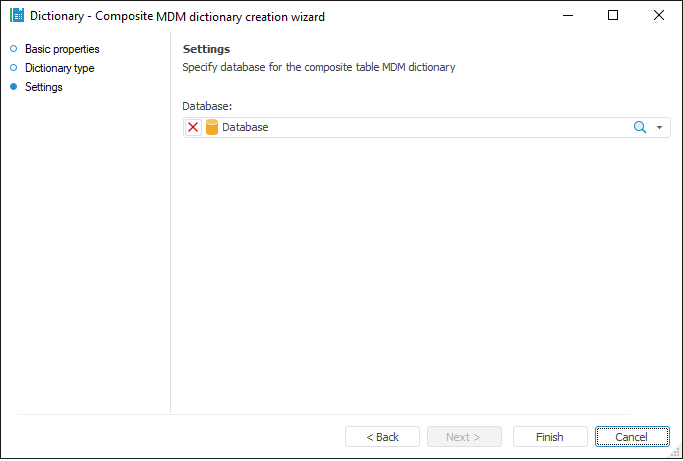
The wizard contains the pages:
Basic Properties. The page is used to set name, identifier and comment.
Settings. The page is used to select a database to store dictionary data.
To save settings in the dictionary wizard:
In the web application:
Click the Save button.
Select the Save and Close item in the drop-down menu of the Save button. After the command is executed, the specified settings are saved, the wizard closes, and the dictionary opens in the edit mode.
NOTE. The Save and Close item is available only on editing the settings.
In the desktop application click the Finish button.
Setting up composite MDM dictionary structure is different in the web application and in the desktop application:
In the web application the setup is executed on creating a new composite MDM dictionary in the wizard and can be changed on editing the existing composite MDM dictionary.
In the desktop application the setup is executed only on editing the existing composite MDM dictionary on the Description page:
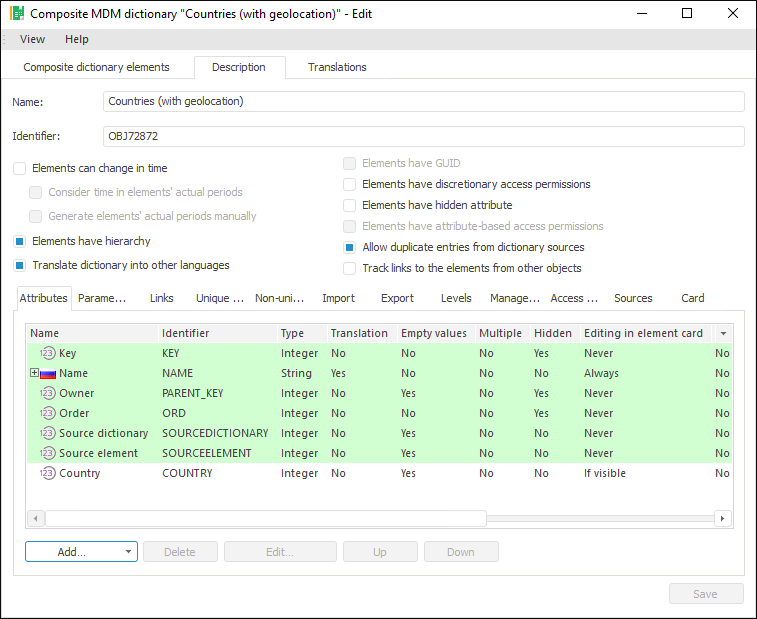
To set up dictionary structure, follow the steps:
Determine basic dictionary settings.
Select the dictionary database.
Add parameters if required.
Create links if required.
Add unique keys if required.
Add non-unique keys if required.
Create import/export schemas if required. It is available only in the desktop application.
Create levels if required.
Set up selection schema to automate element selection by specified rules. Going to the page is available after saving dictionary settings.
Determine element groups to limit the list of available dictionary elements. Going to the page is available after saving dictionary settings.
Set up alternative hierarchies. Going to the page is available after saving dictionary settings.
Manage nested elements parameters if required. It is available only in the desktop application.
Manage access subjects if required.
Select data sources for composite MDM dictionary.
Replace predefined dialog box view if required. It is available only in the desktop application.
Translate dictionary into other languages if required. It is available only in the desktop application. For details about setting up multilingual options of repository contents and system in general, see the Setting Up Multilingual Options section.
For details about working with composite MDM dictionaries see the Working with Dictionary section.
See also:
Creating Dictionaries | MDM Dictionary
 Create button in the main menu and select the object type on the