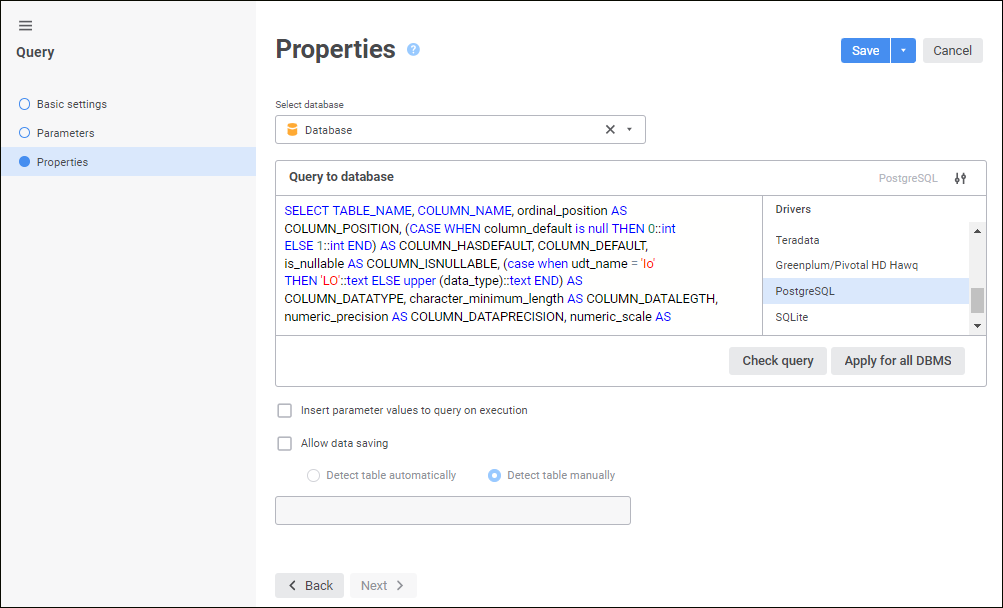
The Properties page is used to specify the database, in which a query and a query text will be created, and additional settings will be determined:
Determine the following parameters on the page:
Select Database. In the drop-down list select a database, to which query will be placed.
To quickly select an object, enter object's name/identifier/key in the search box depending on display settings. Search is executed automatically while the searched text is entered into the search string. The list will display the objects, which names/identifiers/keys contain the entered text.
To set up displaying of repository objects, click the  Show Object button and select display option in the drop-down menu:
Name. Objects are displayed with their names. Default option.
Identifier. Objects are displayed with their identifiers.
Key. Objects are displayed with their keys.
Several options can be selected. Identifier and key will be specified in brackets.
To reset selection for selected objects, click the  Clear button.
Query to Database. Create a query to database in the SQL language according to the syntax that is set for the selected DBMS.
The selected DBMS driver and the list of available drivers are displayed next to the Query to Database box. By default, the driver list displays the selected driver used during repository connection setup. If query is specified for one or several drivers, the selected driver(s) will be marked in the driver list.
To show or hide the driver list, use the Hide Driver List/Show Driver List button.
Click the Check Query button to check if the created query is correct.
To set the specified query to database for all DBMS, click the Apply for All DBMS button. The confirmation dialog box opens. If query is already specified for at least one driver that is different from the current one, all existing queries will be replaced with the current one if the answer is positive.
Various value can be sent to the query by means of parameters or global variables. To send a parameter in the query text, specify is identifier with the : prefix. To send a global variable, specify its identifier enclosed with the %% characters. For example:
Select * From T_Data Where Value < :MAX_LIMIT
Select * From T_Data Where Value < %%GLOBAL_MAX_LIMIT%%
Insert Parameter Values to Query on Execution. Select the checkbox to insert all parameter values to query on its execution. Values are inserted instead of parameter names of the corresponding SQL literals specified during creating a query text. The checkbox is deselected by default, and only the parameter values that are arrays are inserted into the query and the other values are sent via parameters. Query execution time depends on the parameter data types in use and it can be reduced if the checkbox is selected.
Allow Data Saving. If the checkbox is selected, the following group components can be edited:
Detect Table Automatically. When the radio button is selected, after clicking the Save button, the table to save data is automatically determined on the last page of the wizard. If the table is failed to be determined, the appropriate message is displayed:
Clicking the Yes button saves the query.
Clicking the No button cancels all the changes, the query creation wizard closes.
Clicking the Cancel button closes the message.
Determine Table Manually. Set the table to save data in the edit box.
To finish the wizard, click the Save button, after which the query is saved. The following actions are executed when saving a query:
Fields of the objects, which the query refers to, are refreshed.
Query text is checked for correctness. An appropriate message is displayed if there are any errors in the query text.
See also: